103/5,000
Preview your edit
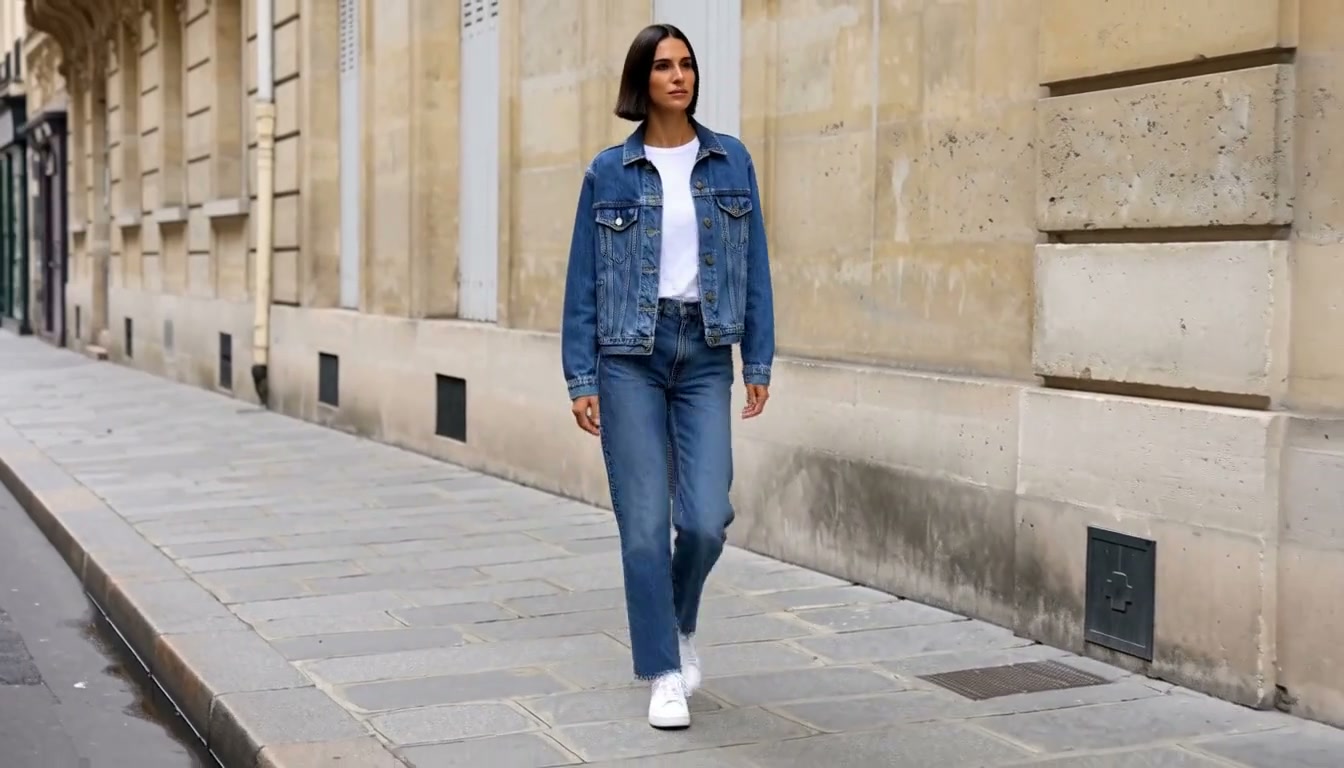
Example editEditedOriginal example: a woman walking in the city in a blue denim outfitOriginal

Preview the edit, download it when it looks right, or keep refining it as part of a larger project.

Edit in Editing Studio

AI Video Editor

Upload a video and describe what you want to change. Replace backgrounds, remove unwanted objects, or explore a new look with AI.

See what you can change

Edit existing video with AI by describing one clear change. Each example below pairs an original clip with an edited result and a suggested prompt for that kind of change.

Original
Edited
Remove an object

Remove unwanted objects from video

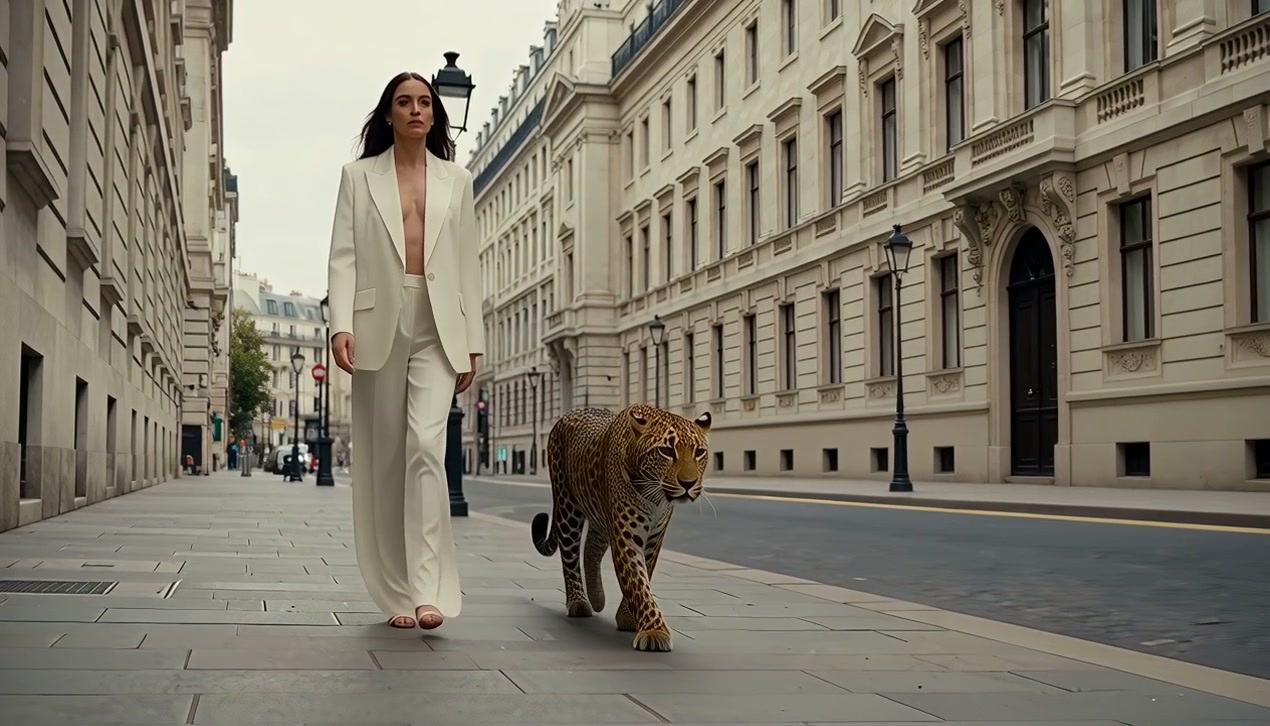
“Remove the parked cars along the right side of the street. Keep the woman and leopard as the focus of the shot.”

Name the object and where it appears. The edit fills in the space it leaves, and you review the result against the original before you download it.
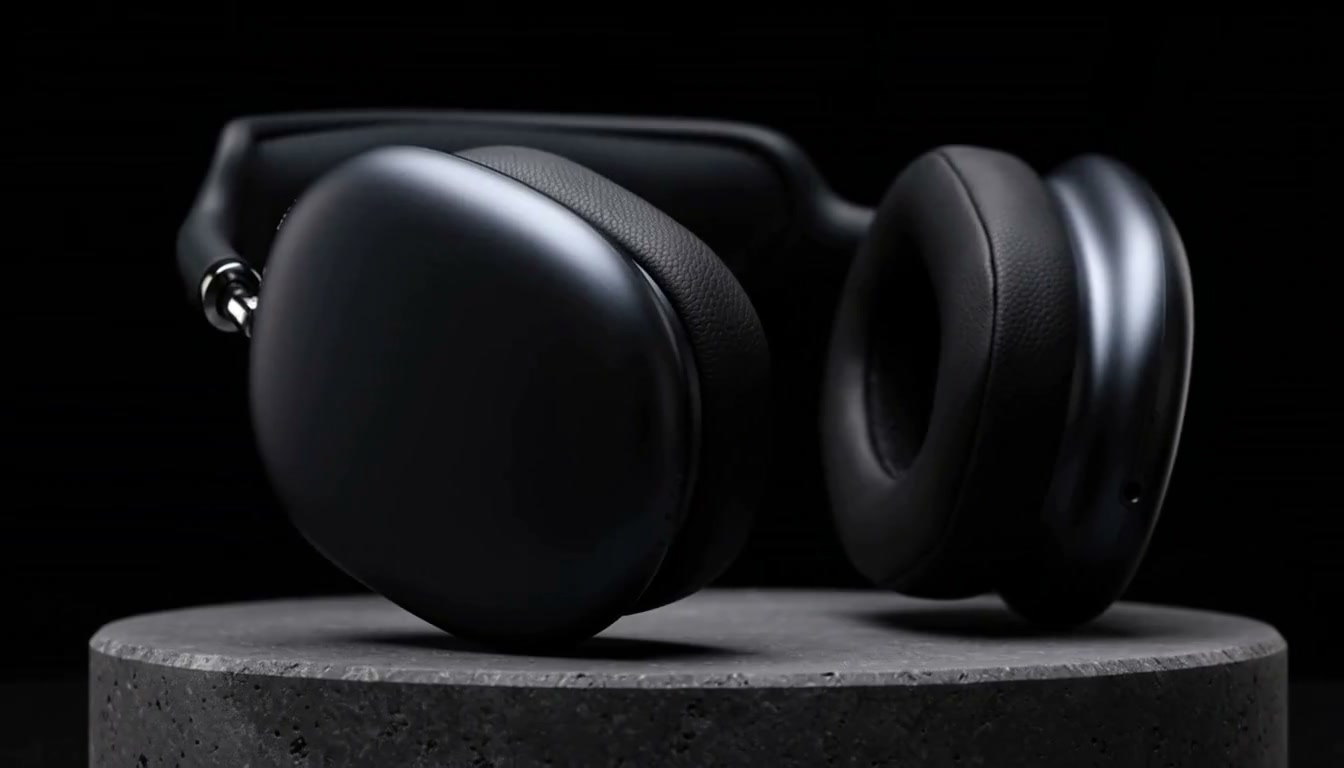
Black headphones against a dark studio background
Original
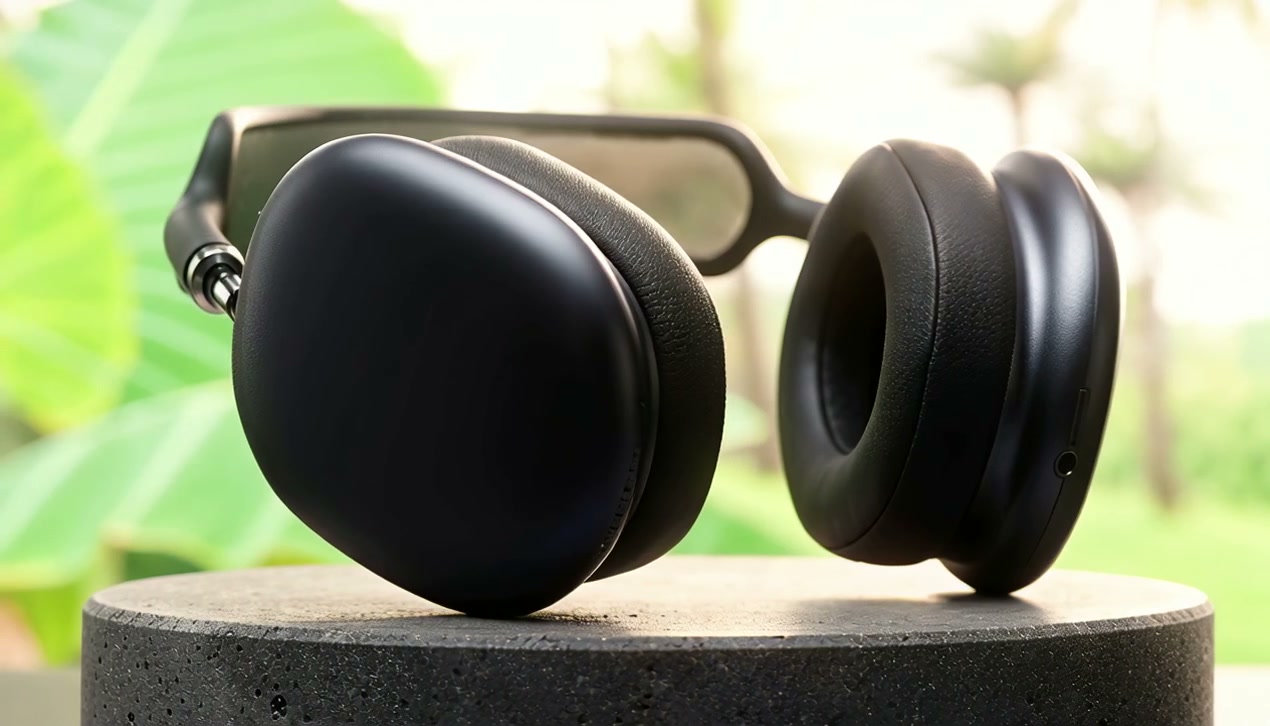
The headphones in a sunlit tropical garden setting
Edited

Change your video background

“Replace the dark background with a sunlit tropical garden. Keep the headphones as the focus of the shot.”

Describe the new setting in a few words and say what should stay in front of it, so the subject remains the focus of the shot.

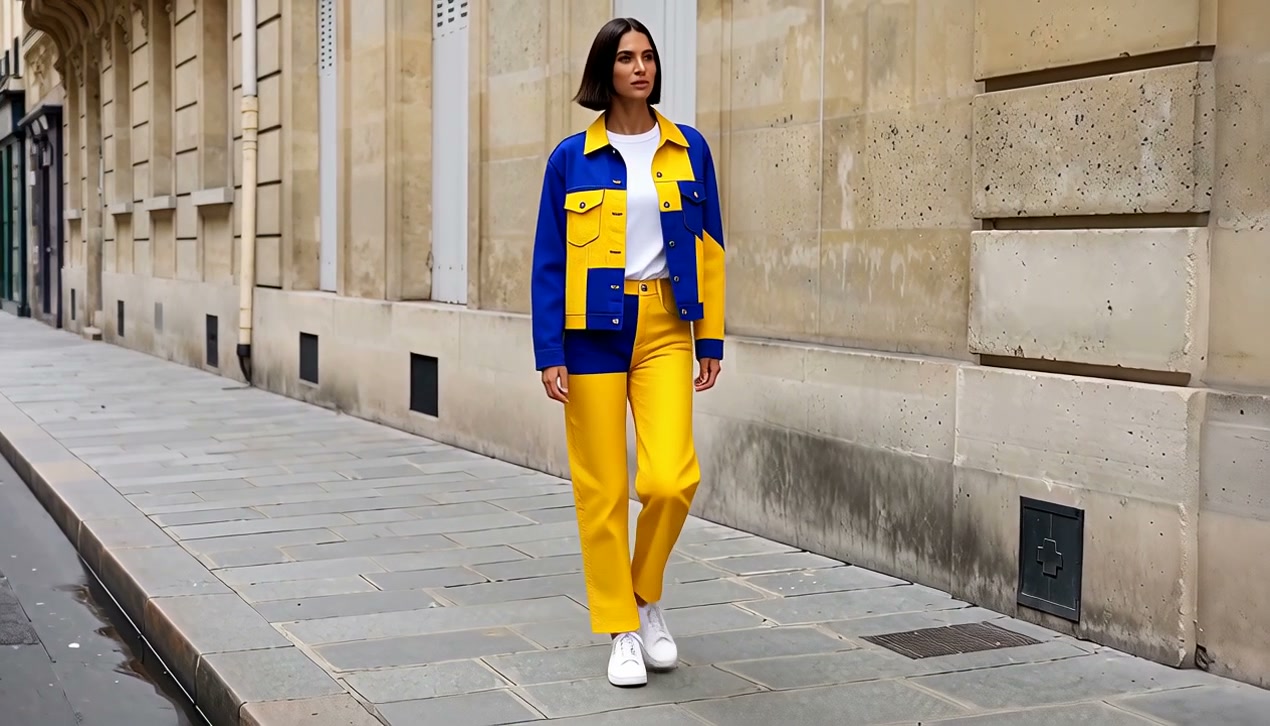
Original street scene with a blue denim outfit
Original
Restyled with a blue-and-yellow graphic outfit
Edited

Explore a new look

“Give the outfit a bold blue-and-yellow graphic look. Keep the city street setting and the walking shot.”

Try a different outfit, color, or overall style on footage you already have, then compare it with the original before you keep it.

How to edit a video with AI

Edit existing video online in one short form. Upload your clip, describe the change, and review the result in your browser.

  1. Upload your video

    Start from a clip you already have: something you filmed, or a video you generated earlier.

  2. Describe the change

    Write one clear instruction, such as a new background, an object to remove, or a different look.

  3. Preview and download

    Compare the edit with your original. Download it when it looks right, or adjust the prompt and try again.

Get better edits with clear prompts

An AI video editor with prompt-based edits takes direction through natural-language prompts. Say what to change, describe the result you want, and name what should stay the same.

  1. Swap a background

    “Replace the busy street behind her with a quiet boardwalk in soft morning light. Keep her walk, her outfit, and the framing the same.”

    Change
    Replace the busy street behind her
    Result
    with a quiet boardwalk in soft morning light.
    Keep
    Keep her walk, her outfit, and the framing the same.
  2. Clean up a product shot

    “Remove the price sticker from the front of the box so the packaging reads clean. Keep the lighting, reflections, and hand movement.”

    Change
    Remove the price sticker from the front of the box
    Result
    so the packaging reads clean.
    Keep
    Keep the lighting, reflections, and hand movement.
  3. Try a different look

    “Restyle the scene as a warm, grainy film look with softer contrast. Keep faces, timing, and the original composition.”

    Change
    Restyle the scene
    Result
    as a warm, grainy film look with softer contrast.
    Keep
    Keep faces, timing, and the original composition.

Make more from the footage you already have

An AI video editing tool for the clips already in your library: try a new version of a shot without filming it again.

Black headphones in a sunlit tropical garden setting

Product footage

Remove a distraction from a product clip or place it in a new setting, without planning another shoot.

A woman in a blue-and-yellow graphic outfit on a city street

Campaign variants

Explore a different outfit, color, or mood from one take, so you can compare directions side by side.

A woman and a leopard walking along the street after parked cars are removed

Social creative

Give a clip you have already posted a new background or look, so it feels fresh for the next post.

Continue in Editing Studio

Your edit is complete on its own. When a project needs more, Editing Studio is where you combine clips, add captions and music, and arrange everything on a timeline.

Edit in Editing Studio

AI Video Editor FAQ

What prompt-based visual editing does, and how it fits with the rest of SuperVids.

What does the AI Video Editor do?

SuperVids is an AI-powered video editing tool for making visual changes to footage you already have. Describe a new background, an object to remove, or a different look, and preview the edited version.

Can I edit real footage and AI-generated video?

Yes. The tool is built to edit existing video with AI, whether you filmed the clip yourself or created it earlier with an AI video generator.

How do prompts work?

Write one clear instruction: what to change, what the result should look like, and what should stay the same. Short, specific prompts are easier to review, and you can refine the wording if the first result is not what you had in mind.

What kinds of changes can I make?

The main tasks are replacing a background, removing an unwanted object, and changing appearance or style, such as clothing, color, or the overall look. Results vary with the footage, so always compare the edit with your original.

How is this different from the AI Video Generator?

The AI Video Generator creates new footage from a prompt or image. The AI Video Editor starts from a video that already exists and changes what you see in it.

Do I need Editing Studio?

No. You can upload, describe, preview, and download here. Open Editing Studio only if you want project-level work afterwards, such as combining clips, adding captions or music, or arranging a timeline.

Are there file size, length, or output limits?

Upload one MP4 between 2 and 10 seconds long and up to 16 MB. The edited video is rendered at 720p or 1080p, and the cost is shown before you start.

Is it free, and do I need an account?

Sign in to edit a video. Editing costs 22 credits per second at 720p and more at 1080p, so the 65 free welcome credits for new accounts cover a short test edit at 720p. See the pricing page for credit packs and plans.

More tools for your next step