Create video
Upload Image
0/2,048

Start with a photo and a motion prompt

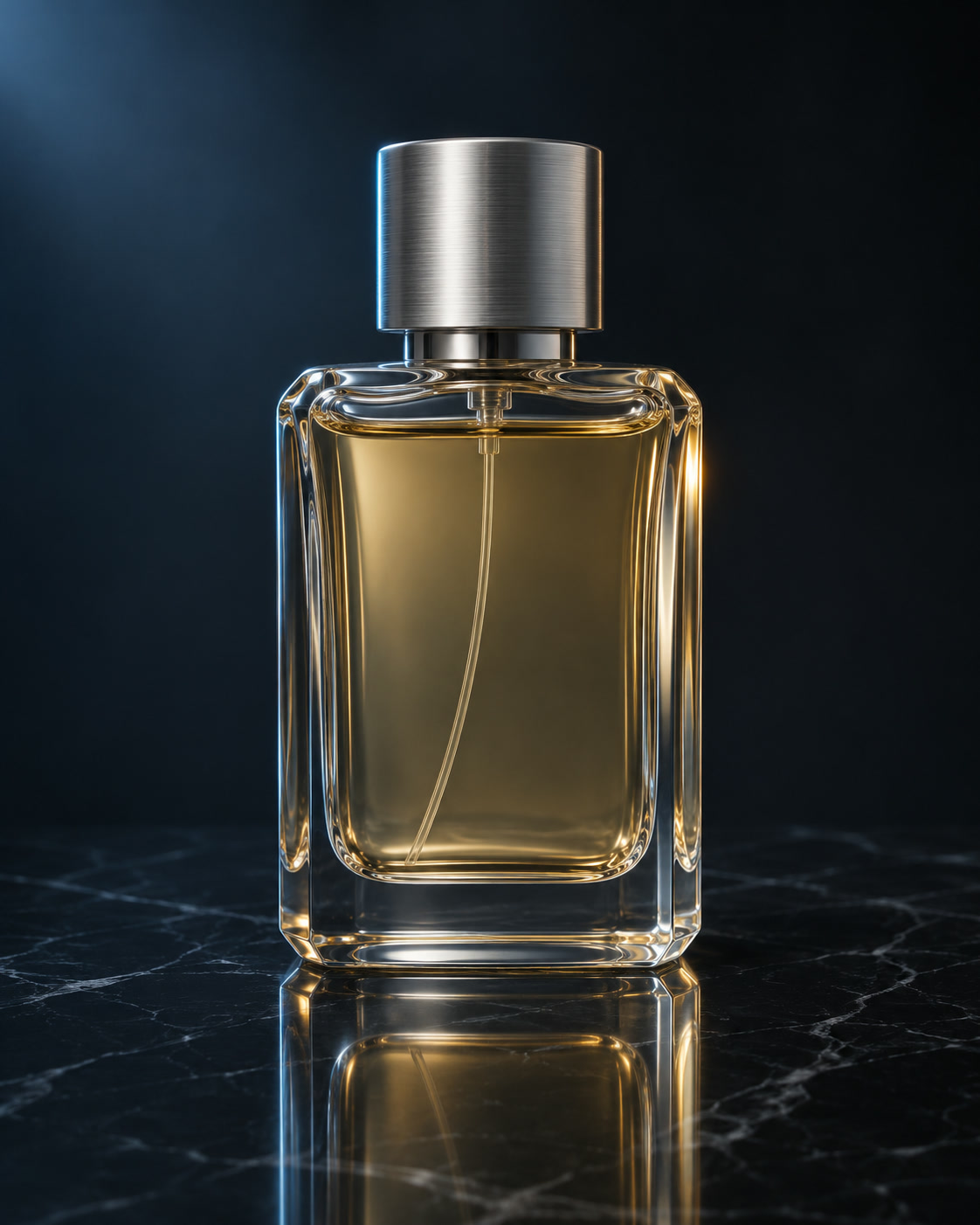
Still frame of a glass perfume bottle on dark marble
VISUAL REFERENCE · PROMPT IDEAThe camera makes a small, slow arc around the perfume bottle. The bottle stays fixed on the table. Preserve the glass shape and cap, with consistent soft studio light.

Seedance 2.5 AI Video Generator

Use a first frame to establish the scene, then tell Seedance 2.5 how the moment unfolds. Plan a single shot with a clear action and a camera move that supports it.

Prompt Ideas for Seedance 2.5

Use these visual references to plan your own shot. Select a prompt to edit it in the workbench. The reference images illustrate creative directions and are not verified outputs from this model.

Still frame of a glass perfume bottle on dark marble

A measured camera orbit

Move around a static product without changing its identity.

View prompt

The camera makes a small, slow arc around the perfume bottle. The bottle stays fixed on the table. Preserve the glass shape and cap, with consistent soft studio light.

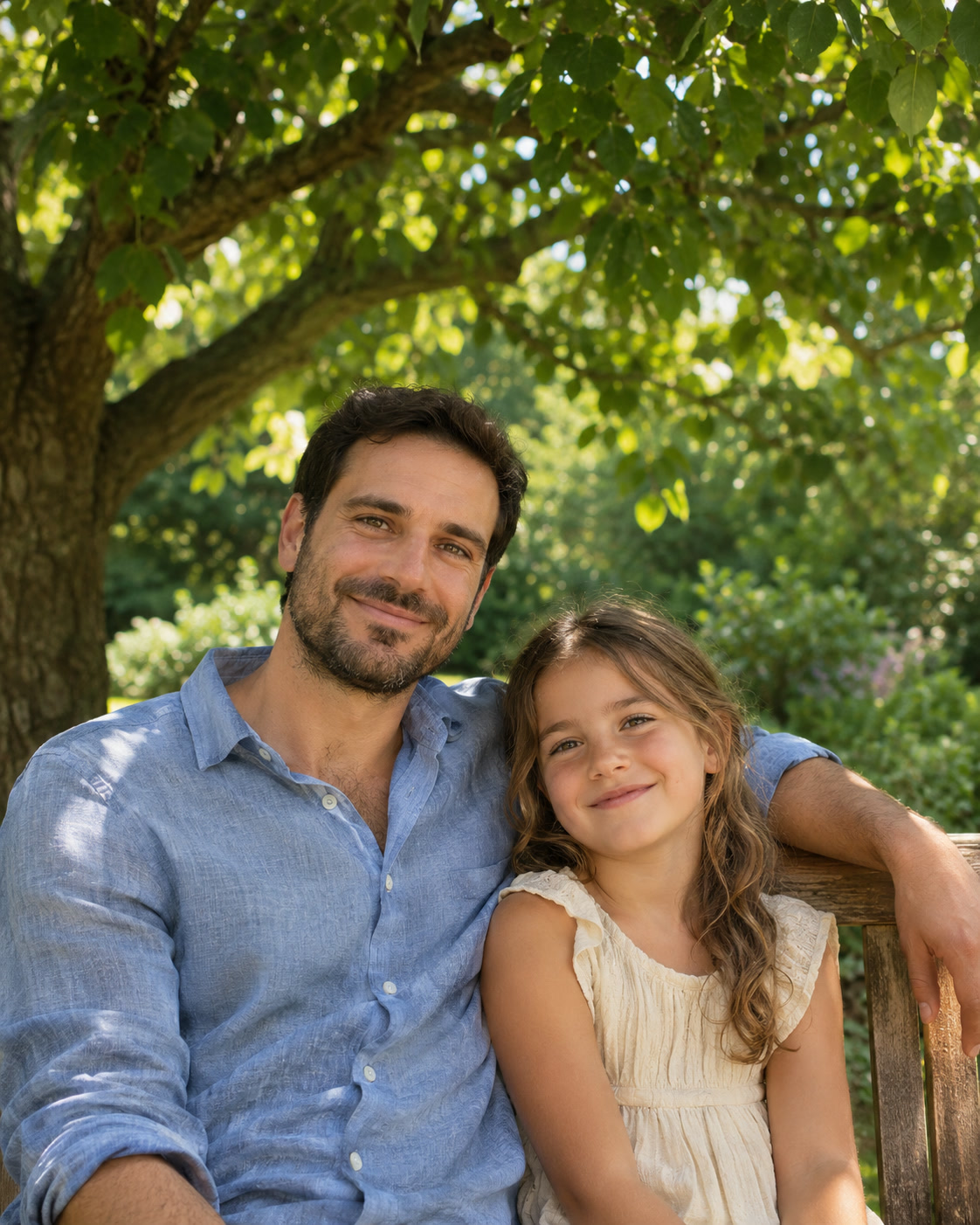
A father and child posing beneath a tree

An unposed moment

Let a portrait develop into a brief interaction.

View prompt

The people look at each other, then share a small smile. The camera holds a medium shot. Keep their faces and clothing consistent with the starting image.

A still frame of a cat in pink sunglasses in a pastel landscape

One step, then a pause

Use a readable start and finish for a character action.

View prompt

The cat takes one careful step forward, tilts its head, then pauses. The camera tracks gently at eye level. Keep the sunglasses and the original art style.

How to Create with Seedance 2.5

Seedance 2.5 is already selected. Start with your idea, then review the settings before generating.

  1. Upload a starting image

    Choose a clear photo with space around the subject. Upload a supported image up to 5 MB.

  2. Direct the movement

    Describe the subject’s action and camera movement. Keep the shot focused and identify details to preserve.

  3. Generate and review

    Select Generate. Find the result in My Creations, inspect the details and download the completed file.

Seedance 2.5 Settings and Creative Direction

Add a first frame and, if useful, a last frame. Each JPG, PNG, or WebP can be up to 5 MB. The default is 5 seconds at 720p with audio off. Set Duration to 4–30 seconds or Auto, and Resolution to 480p, 720p, or 1080p. The aspect ratio follows your first frame. Turn audio on if needed. Output is MP4.

01

Describe a short sequence

Give the action a beginning and an end: the subject takes a step, turns and stops. Keep the action short enough for the duration you choose.

02

Use the image for appearance

Let the uploaded frame establish colors, clothes and environment. Use most of the prompt to explain movement rather than redescribing everything already visible.

03

Review continuity across frames

Check limbs, accessories and background objects as the shot progresses. Refine one action at a time if details change unexpectedly.

View plans and credits ↗

Seedance 2.5 vs Seedance 2.5 Flash

Flash is the faster, lower-cost variant of Seedance 2.5. Credits are for a 5-second clip at 720p with audio.

ModelResolutionDurationReference imagesCredits, 5 s at 720p
Seedance 2.5480p, 720p, 1080p4–30 sUp to 30569
Seedance 2.5 Flash480p, 720p4–30 sUp to 10371

Seedance 2.5 Questions

How do I use Seedance 2.5 on SuperVids?

This page opens Image to Video with Seedance 2.5 selected. Upload your starting image and describe the movement. Select Generate to create. Completed results appear in My Creations.

What settings are available for Seedance 2.5?

Add a first frame and, if useful, a last frame. Each JPG, PNG, or WebP can be up to 5 MB. The default is 5 seconds at 720p with audio off. Set Duration to 4–30 seconds or Auto, and Resolution to 480p, 720p, or 1080p. The aspect ratio follows your first frame. Turn audio on if needed. Output is MP4.

Can I add a last frame or reference video here?

Add a second still image to set the last frame. This form accepts still images for the first and last frames. You can describe sound in the prompt and enable Audio in Video settings.

Does Seedance 2.5 preserve every detail of my photo?

The image guides the starting frame, but generated motion can change small details. Review faces, hands, lettering and product edges throughout the result.

Where can I use Seedance 2.5?

On this page, and in Text to Video, Image to Video and Reference to Video on SuperVids. Sign in to get free welcome credits; the generator shows the credit cost before each video.

Should I use Seedance 2.5 or Seedance 2.5 Flash?

Use Seedance 2.5 Flash to draft and test ideas at a lower credit cost, up to 720p. Use Seedance 2.5 when you need 1080p or more than 10 reference images.

When are credits charged for Seedance 2.5 generations?

Credits are reserved while the request is processed and charged on success. Failed requests release their reserved credits.

Can I switch models without retyping my prompt?

Yes. Choose another model in the selector to keep working with your image and motion prompt. Check the available settings for the selected model before you generate.