Create image
0/5,000

Start with a visual brief

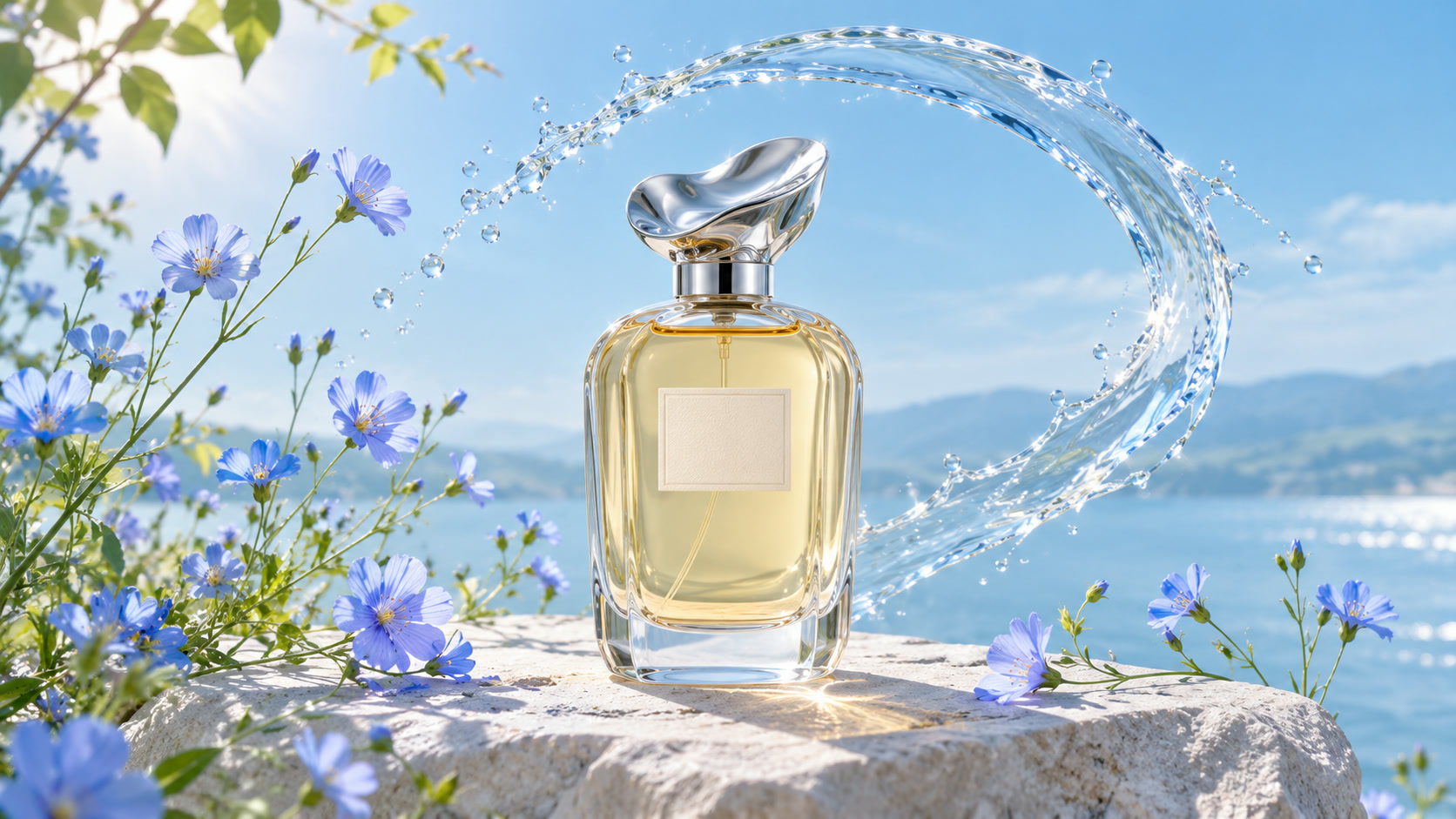
Perfume bottle among blue flowers and splashing water
VISUAL REFERENCE · PROMPT IDEAA studio concept photograph of a glass perfume bottle surrounded by delicate blue flowers. Crisp glass edges, soft petals, cool natural light, a clean background with room for a headline.
Seedream 5 AI Image Generator

Develop a visual concept with Seedream 5. This page uses the Flash variant for text-to-image generation, with a focused prompt and a choice of common canvas shapes.

Prompt Ideas for Seedream 5

Use these visual references to plan your own image. Select a prompt to edit it in the workbench. The reference images illustrate creative directions and are not verified outputs from this model.

Perfume bottle among blue flowers and splashing water

A material-focused product concept

Give glass and flowers distinct visual roles.

View prompt

A studio concept photograph of a glass perfume bottle surrounded by delicate blue flowers. Crisp glass edges, soft petals, cool natural light, a clean background with room for a headline.

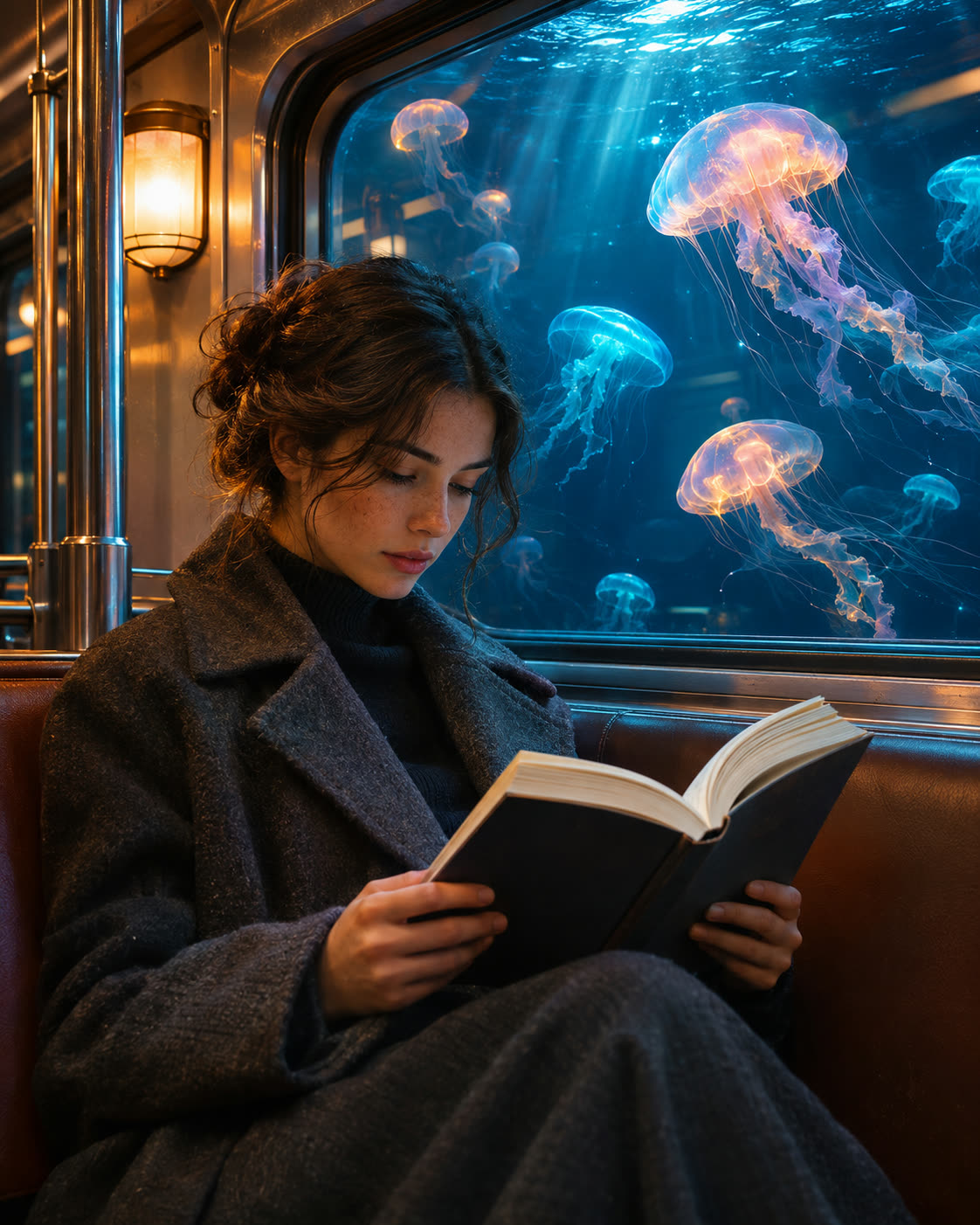
Subway passenger reading beside a window full of glowing jellyfish

An atmospheric environment

Build depth through light and reflections.

View prompt

An atmospheric subway interior with a seated passenger and softly glowing jellyfish outside the window. Layered reflections, detailed fabric seats, teal ambient light and warm highlights.

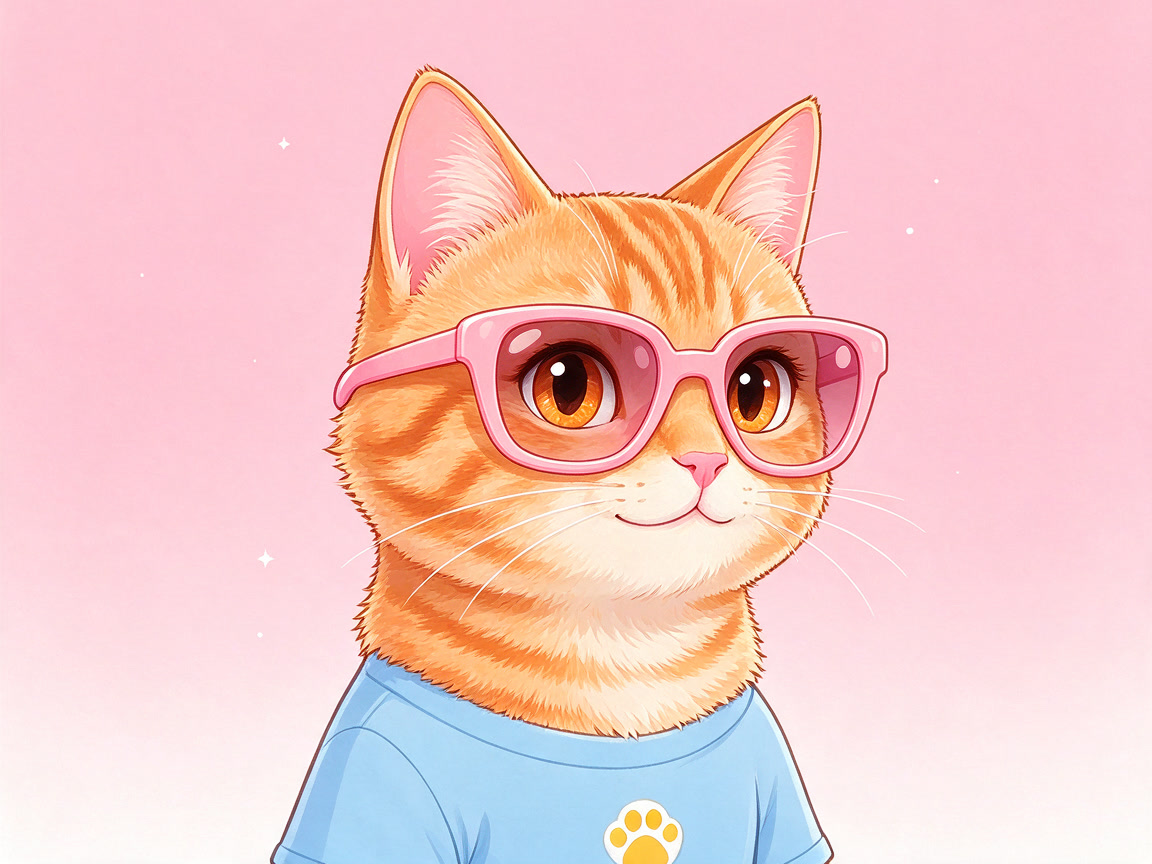
An illustrated orange cat wearing oversized pink sunglasses

A colorful character study

Use a limited palette and a readable silhouette.

View prompt

An illustrated orange cat wearing pink sunglasses, soft rounded shapes, a limited peach and turquoise palette, detailed fur, a simple pastel background, polished character concept art.

How to Create with Seedream 5

Seedream 5 is already selected. Start with your idea, then review the settings before generating.

  1. Write your visual brief

    Describe the subject, composition, materials and lighting. Put essential wording in quotation marks.

  2. Choose your frame

    Choose an aspect ratio for the intended composition. Refine the prompt around the details that matter.

  3. Generate and review

    Select Generate. Find the result in My Creations, inspect the details and download the completed file.

Seedream 5 Settings and Creative Direction

Seedream 5 Flash generates one image per request. The default is 1K PNG. You can select 1K, 1.5K, or 2K, choose PNG or JPG, and pick one of eight aspect ratios. Prompts can contain 4 to 5,000 characters.

01

Compose the image in layers

Describe the foreground subject, supporting objects and background separately. Then specify the light that ties the scene together.

02

Name the materials

Glass, brushed metal, linen and paper suggest different textures. Include the materials that matter to the design brief and check their appearance in the result.

03

Adapt the canvas to the use

Choose portrait for a vertical composition or landscape for a wider scene. Leave space for any copy or graphics you intend to add later.

View plans and credits ↗

Seedream 5 Questions

How do I use Seedream 5 on SuperVids?

This page opens Text to Image with Seedream 5 selected. Write your image prompt and choose an aspect ratio. Select Generate to create. Completed results appear in My Creations.

What settings are available for Seedream 5?

Seedream 5 Flash generates one image per request. The default is 1K PNG. You can select 1K, 1.5K, or 2K, choose PNG or JPG, and pick one of eight aspect ratios. Prompts can contain 4 to 5,000 characters.

Which Seedream 5 variant does this page use?

This page uses Seedream 5 Flash. Image settings let you change the resolution and format from the 1K PNG default.

Can I get separate layers from this page?

No. This workflow returns one flattened image. Layer decomposition is a different capability and is not included here.

When are credits charged for Seedream 5 generations?

Credits are reserved while the request is processed and charged on success. Failed requests release their reserved credits.

Can I switch models without retyping my prompt?

Yes. Choose another model in the selector to keep working with your prompt. Check the available settings for the selected model before you generate.