Create video
Upload Image
0/2,048

Give your first frame a little motion

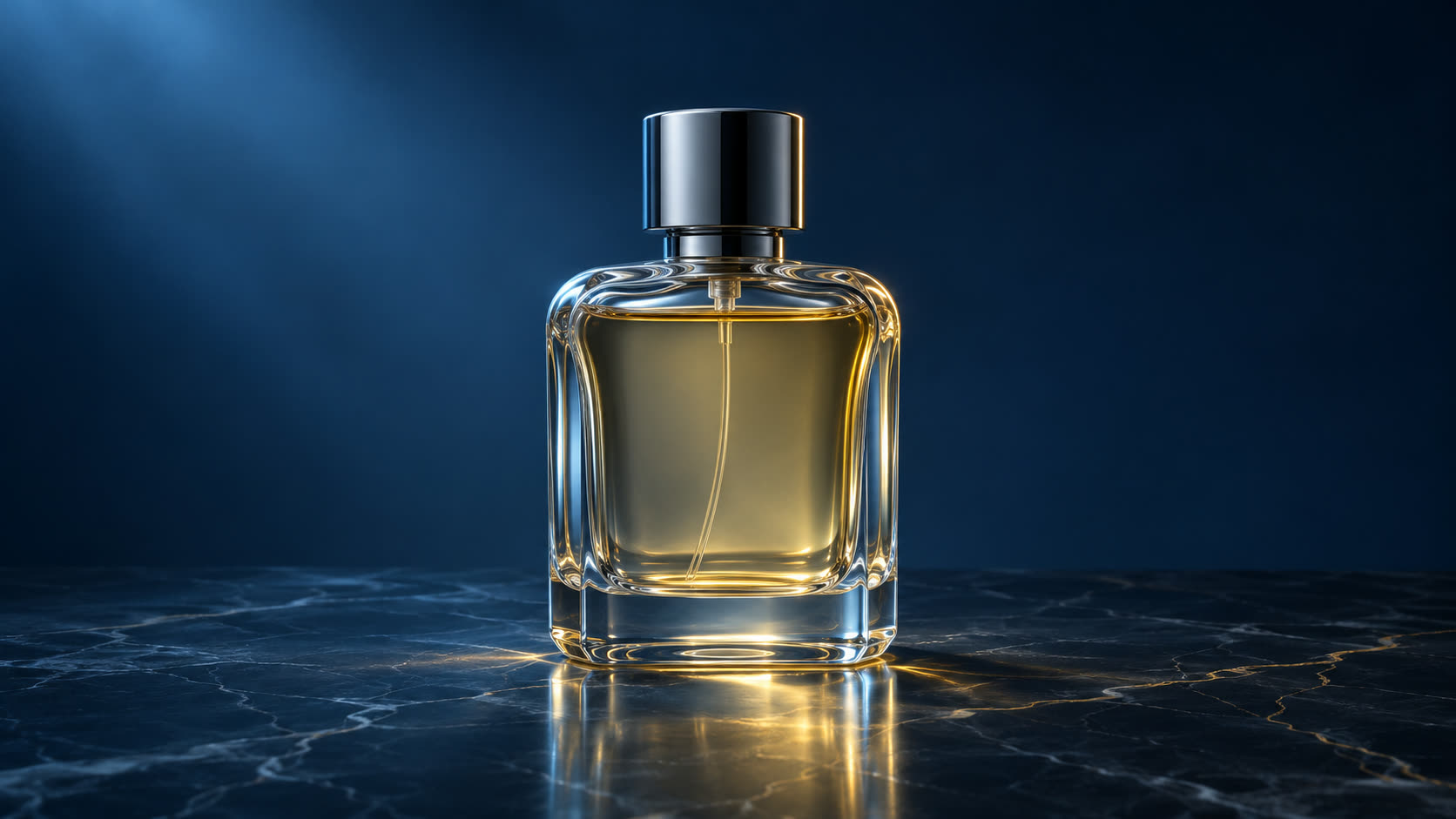
ILLUSTRATIVE FOOTAGE · PROMPT IDEAKeep the perfume bottle from the starting image on dark marble. Slowly orbit the camera as a soft rim light moves from cool blue to warm gold. Preserve the bottle silhouette and label placement. One continuous shot.

PixVerse V6 AI Video Generator

Bring a photo to life with PixVerse V6. Direct the motion, choose clips up to 15 seconds at 1080p, and add optional audio. Text and reference workflows are available in the same creative workspace.

A LITTLE INSPIRATION

Small prompts.
New possibilities.

Explore a product reveal, an atmospheric scene or a new world for your character. Make the prompt your own in PixVerse V6.

Illustrative footage, not verified PixVerse V6 outputs. Prompts and settings below are suggested starting points.

Scene study
02 / Text to Video

Build the atmosphere

Describe the sound as well as the picture.

5s720pAudio on
Read the prompt

An empty cobblestone street after dark, warm light reflected in rain puddles. The camera slowly moves forward at eye level. Gentle rain and distant footsteps, no music. A single cinematic shot.

Reference-led scene
03 / Reference to Video

Take your character somewhere new

Add a character image and a setting image, in that order.

5s720pAudio off
Read the prompt

Use @image1 for the character and @image2 for the setting. The character walks slowly toward the camera through a soft pastel landscape. Keep its appearance close to the reference. A gentle tracking shot, warm light, one continuous scene.

CHOOSE YOUR STARTING POINT

Three ways in.
One creative workspace.

PixVerse V6 turns text, starting frames and visual references into different kinds of creative control. Choose the input that fits your shot.

01
Image to Video

Give your image its next moment

Start with a product photo, portrait or illustration. Describe what moves. Add an optional last frame to guide where the shot ends.

Explore photo animation
02
Text to Video

Start with a scene in your head

Describe your subject, the setting and one clear camera move. Generate a new scene without uploading an image.

Explore text to video
03
Reference to Video

Familiar details. A different world.

Bring up to seven reference images into a new scene. Use @image names in your prompt to explain what each image contributes.

Explore reference to video
THE DETAILS, BEFORE YOU GENERATE

Your shot.
Your settings.

These are the PixVerse V6 controls available on SuperVids. Settings follow your input mode, and the credit cost updates with your choices.

Duration
1–15 seconds
Resolution
360p · 540p · 720p · 1080p
Audio
Optional native audio Off by default
Image to Video
First frame + optional last frame Aspect ratio follows the input image
Reference to Video
Up to 7 reference images Use @ to name an image in your prompt
Text & reference ratios
16:99:161:14:33:42:33:221:9

Start with 5s · 720p · audio off. Review fine details and motion before choosing a higher-cost render.

FROM IDEA TO FIRST TAKE

How to use PixVerse V6
on SuperVids

V6 is already selected. A focused brief gives your next scene a clearer direction.

  1. 01

    Bring your starting point

    Write a scene, upload a first frame or add reference images. Choose one main action and describe how the camera moves.

  2. 02

    Set the frame and the budget

    Choose duration, resolution and audio. Select a ratio where available. Check the credits shown before you generate.

  3. 03

    Make it. Then make it yours.

    Follow your generation in the video workbench. Review the result, download it, or refine one part of your prompt for another take.

A useful prompt has a clear order. Subject → action → camera → light → sound. For image animation, focus on what should move and what should stay still.

KNOW WHAT YOUR NEXT TAKE COSTS

A little exploration.
A clear credit cost.

Sign in for the current welcome allowance. Duration, resolution and audio determine the credits for each clip. The same balance works across SuperVids tools.

Explore an idea

37credits / clip

5 seconds · 360p · Audio off

The everyday starting point

65credits / clip

5 seconds · 720p · Audio off

More detail. Add sound.

167credits / clip

5 seconds · 1080p · Audio on

These examples use the current SuperVids credit calculation. Free credits are limited; check your balance and the form’s quote before submitting.

View plans & credits
Perfume product film visual referenceYOUR NEXT CUT STARTS HERE
KEEP CREATING

The shot is
just the beginning.

Download the take you love. Bring it into Editing Studio to shape a longer piece, or develop the next scene in Story Studio.

Explore Editing Studio
GOOD QUESTIONS

A little more
about PixVerse V6.

Capabilities, credits and the details that help you get started.

What is PixVerse V6?

PixVerse V6 is an AI video model from PixVerse. On SuperVids, you can use it to create short videos from text, animate a starting image, or guide a new scene with reference images. SuperVids provides the creative workspace around the model.

Can I try PixVerse V6 for free on SuperVids?

Sign in to receive the current free welcome allowance. Generation uses SuperVids credits, and the form shows the cost before you submit. Duration, resolution and audio affect that cost. Free credits are limited and do not cover unlimited generation or every output setting.

What lengths and resolutions can I choose?

On SuperVids, PixVerse V6 supports 1–15 seconds and 360p, 540p, 720p, 1080p. The default is a 5-second, 720p video with audio off. Choose a shorter, lower-resolution clip when exploring a new idea.

How is Image to Video different from Reference to Video?

Image to Video uses your image as the starting frame, with an optional last frame. Reference to Video uses up to seven images to guide subjects and scene details in a new composition. Name the uploaded images with @ in your prompt and explain their roles. References guide the result; they do not guarantee an exact likeness.

Can PixVerse V6 generate sound?

Yes. Enable audio in the settings to request sound with your video. Describe the desired ambience, sound effects or dialogue in your prompt. Audio is off by default and increases the credit cost. Review sound and timing in the generated result.

Can I make vertical videos?

Yes. Text to Video and Reference to Video include 9:16 for vertical clips, along with landscape, square and other ratios. Image to Video follows the input image, so start with a portrait image when you want a vertical result.

How do I get a more controlled result?

Start with one clear action and one camera movement. For image animation, describe motion rather than rewriting the entire picture. For references, explain what to keep from each image. Check faces, hands, lettering and product details in the result, then change one instruction at a time. This workflow generates individual clips, not automatically assembled multi-shot films.

Where do I find my video after generating?

After submitting, continue in the matching video workbench to follow your creation. You can review and download completed videos from My Creations or Assets. Download the clip before uploading it to an editing workflow when you want to keep working.
Your idea. Your next take.

Make your first scene with PixVerse V6.

Explore the AI Video Generator