Lip Sync AI
Give your video a new spoken track with Lip Sync AI. Upload a clear video of a speaker and your audio, and the AI matches the mouth movements. Preview the result before you download.
Hear the words. See them match.
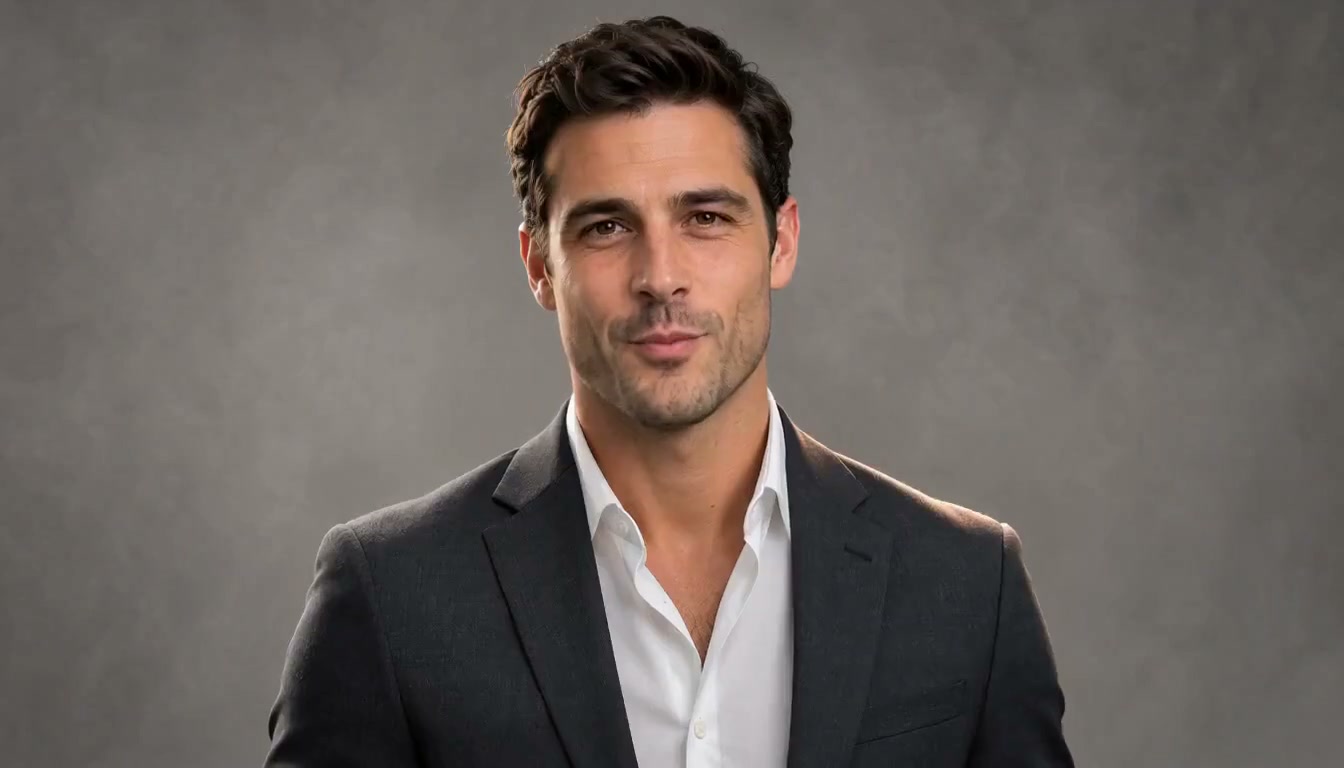
When you review a lip sync video, compare what you hear with what you see: each word, each pause, and how the mouth moves between them. This example pairs source footage with a speech track to show what to look for.
Same fictional presenter · Newly generated mouth movements
 Review detail
Words
Each sound should land on a matching mouth shape, especially on clear consonants like b, m, and p.
Pauses
When the audio goes quiet, the mouth should settle instead of moving on its own.
Mouth movement
Watch the start and end of each phrase, where movement should feel natural rather than abrupt.
 Example footage
Give existing footage a new spoken track
Sometimes the footage is right and only the words need to change. Use our AI lip sync video generator to pair the footage you already filmed with prepared speech, then review how the new words fit the performance.
- 01
Update a line
Swap a sentence that changed, a name that was wrong, or a revised script, without filming the scene again.
- 02
Reuse the on-camera performance
Keep the framing, setting, and delivery you already captured, and give the same footage a different spoken track.
- 03
Review every version
Preview each result before you download it, and try a different audio take if a line does not sit right.
How to lip sync a video online
Lip Sync AI is a lip sync generator for a video you already have and the speech you want it to carry. Three steps take you from upload to a result you can review.
- 01
Add your video
Upload a clip of one person speaking, with their face toward the camera and their mouth in view.
- 02
Add clear speech
Upload the prepared audio you want them to say, such as a re-recorded line, a voiceover, or a dubbed track.
- 03
Sync, review, and download
Select Sync Lips and preview the result. Download it, or open it in Editing Studio if you want to keep editing. That step is optional.
Example frameStart with footage that works well
The clearer the face and the voice, the more the AI has to work with. These habits help before you upload.
A visible, unobstructed mouth
Choose a shot where the speaker faces the camera and nothing passes in front of the mouth, such as a hand, hair, or a prop.
Good, even lighting
Front-facing light keeps the lips and teeth easy to read. Heavy shadows or strong backlight across the face make them harder to follow.
Clean, single-speaker audio
Use one voice, recorded clearly. Music, background noise, or a second speaker make the words harder to match.
Similar audio and video lengths
Keep the audio about as long as the video, so the new speech has footage to match from start to finish.
One video, a different message
The same recording can carry an updated script, a new offer, or a voice track in another language, as long as the new audio is ready.
- 01
Training update
When a policy, process, or product name changes, record the corrected narration and sync it to the lesson you already filmed, rather than shooting the whole module again.
- 02
Product message
Refresh an offer, a feature name, or a call to action in a product video by pairing the existing footage with a new line of audio.

- 03
Match already-dubbed audio
Already have a dubbed voice track? Sync it to the original video so the speaker’s mouth follows the new words. To translate the speech first, start with AI Video Translator.
Take your next edit into Editing Studio
A synced video is ready to download as it is. If you want to keep going, open it in Editing Studio, the full SuperVids editor.
- Trim the start and end
- Add captions
- Put music under the speech
Lip Sync AI FAQs
What lip synchronization does, which audio and footage to use, and where to go next.
What does Lip Sync AI do?
It matches the mouth movements in a video to a new audio track. Upload a video of one person speaking and the speech you want them to say, and AI lip synchronization shapes the mouth to follow the words. Preview the result before you download it.
How is this different from fixing an audio delay?
Fixing a delay shifts the existing soundtrack earlier or later so it lines up with the picture again. Lip sync is for new speech: the audio changes, and the mouth movements in the video are matched to the words in that new track.
Can I upload my own audio to lip sync a video?
Yes. Use prepared speech, such as a line you re-recorded, a voiceover, or a dubbed track. The clearer the recording, the better: one voice, without music or background noise, gives the mouth movements clean words to follow.
Does Lip Sync AI translate my video?
No. It matches the video to the audio you provide and does not change the language itself. If you want the speaker in another language, prepare translated audio first, then upload it here.
What if I do not have the audio yet?
Write the script and create speech with Text to Speech, then upload that audio alongside your video.
What kind of video works best?
A clip of a single speaker facing the camera, with the mouth clearly visible and evenly lit. Pair it with clean audio of about the same length.
Can I lip sync online for free?
Lip sync uses credits: 13 credits for each second of video, shown in the form before you start. Sign in to get free welcome credits, and see the pricing page for plans and credit packs.
Can I edit the video after syncing?
Yes. Download the result as it is, or open it in Editing Studio to trim it, add captions, or put music under the speech. That step is optional.