Create video
Upload Image
0/2,048

Start with a photo and a motion prompt

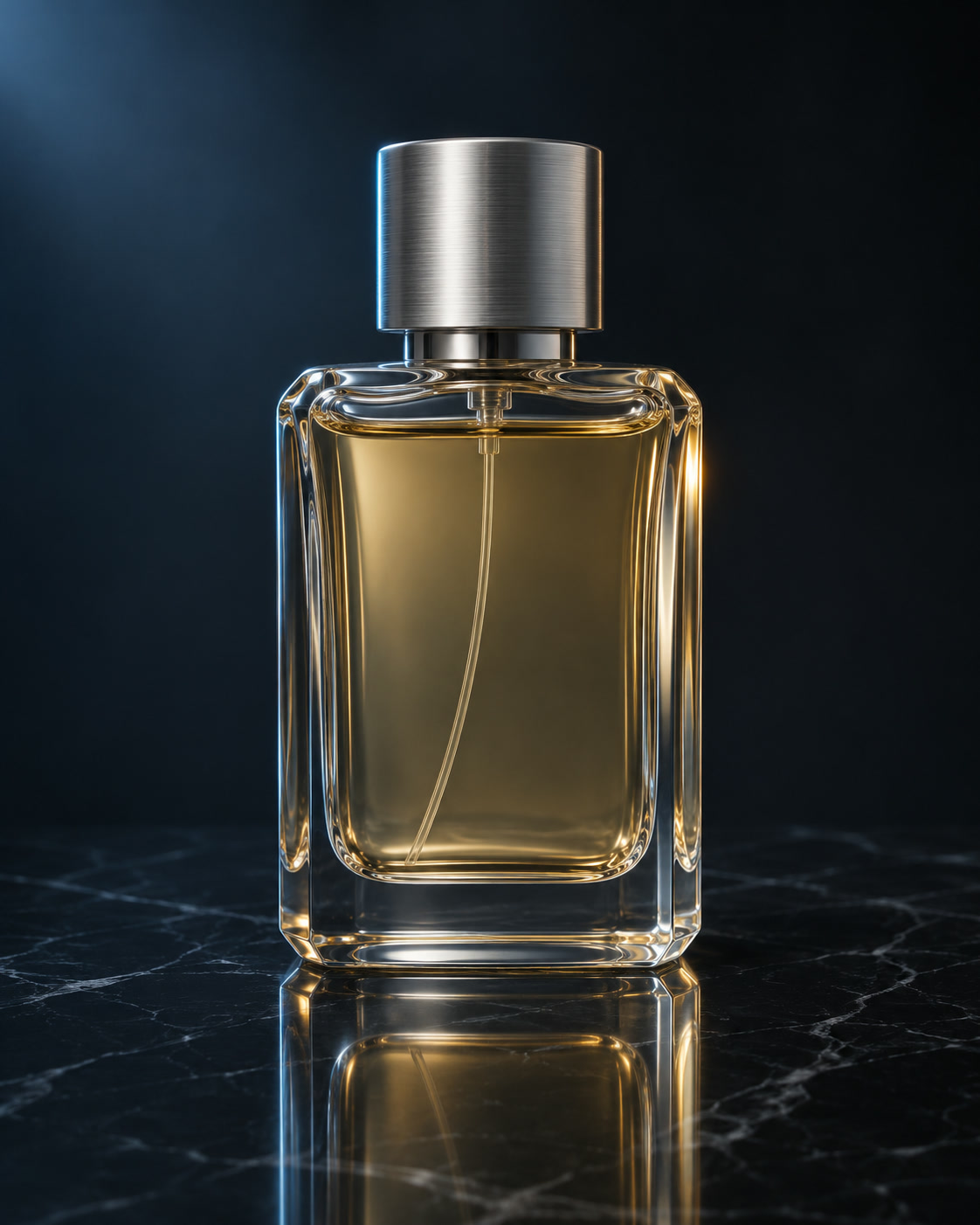
Still frame of a glass perfume bottle on dark marble
VISUAL REFERENCE · PROMPT IDEAA slow camera push toward the perfume bottle. Soft reflections move across the glass. Quiet studio room tone, no music or speech. Preserve the product silhouette.
Veo 3.1 AI Video Generator

Start with the look of a scene, then describe its movement and sound. Veo 3.1 Fast uses your first image to open the shot, with an optional last frame to guide how it ends.

Prompt Ideas for Veo 3.1

Use these visual references to plan your own shot. Select a prompt to edit it in the workbench. The reference images illustrate creative directions and are not verified outputs from this model.

Still frame of a glass perfume bottle on dark marble

A product with atmosphere

Combine a slow reveal with understated room sound.

View prompt

A slow camera push toward the perfume bottle. Soft reflections move across the glass. Quiet studio room tone, no music or speech. Preserve the product silhouette.

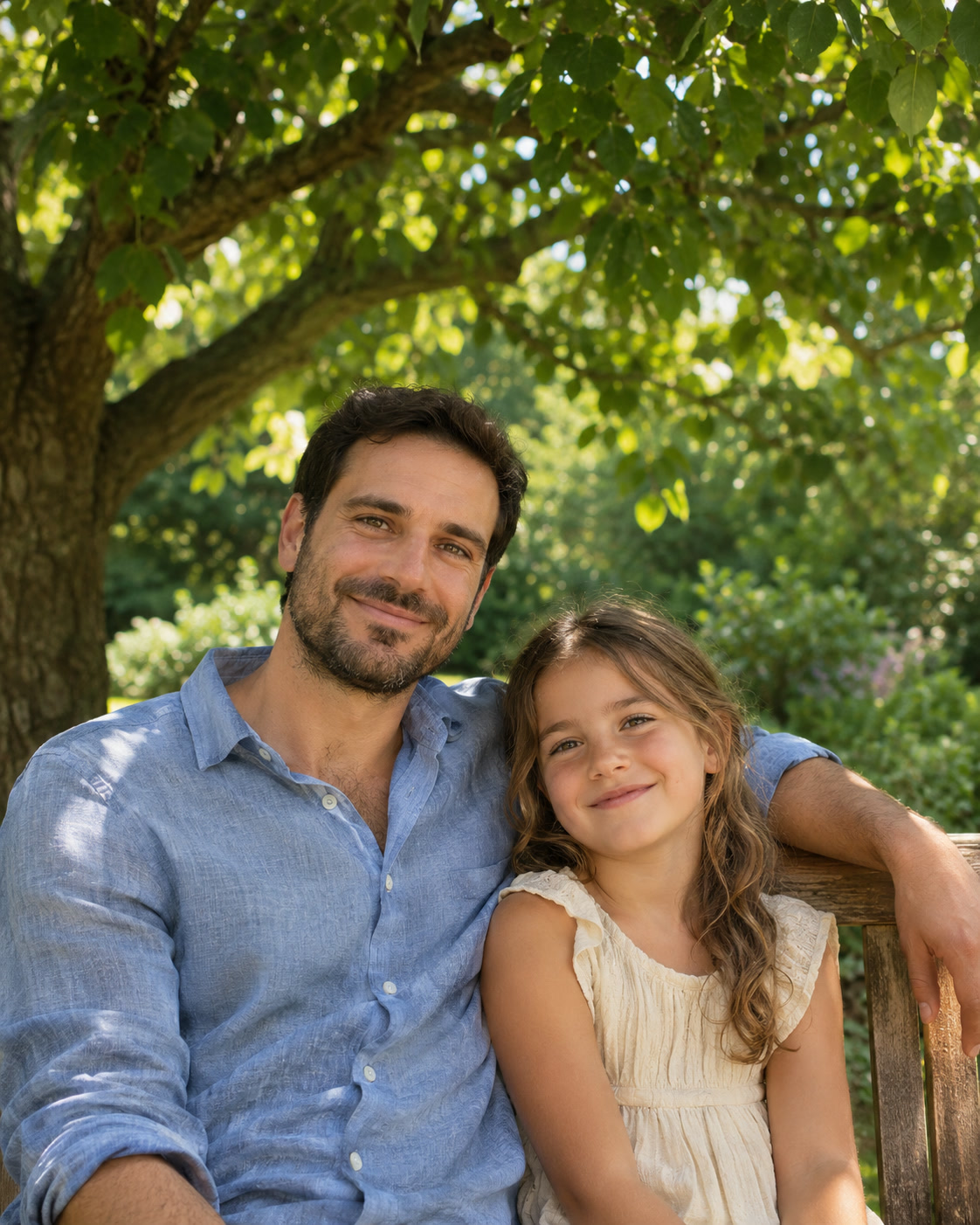
A father and child posing beneath a tree

A natural shared moment

Keep the action and sound grounded in the photo.

View prompt

The people in the photo share a warm smile. A light breeze moves their hair. Gentle outdoor ambience and distant birds, no dialogue. The camera stays steady.

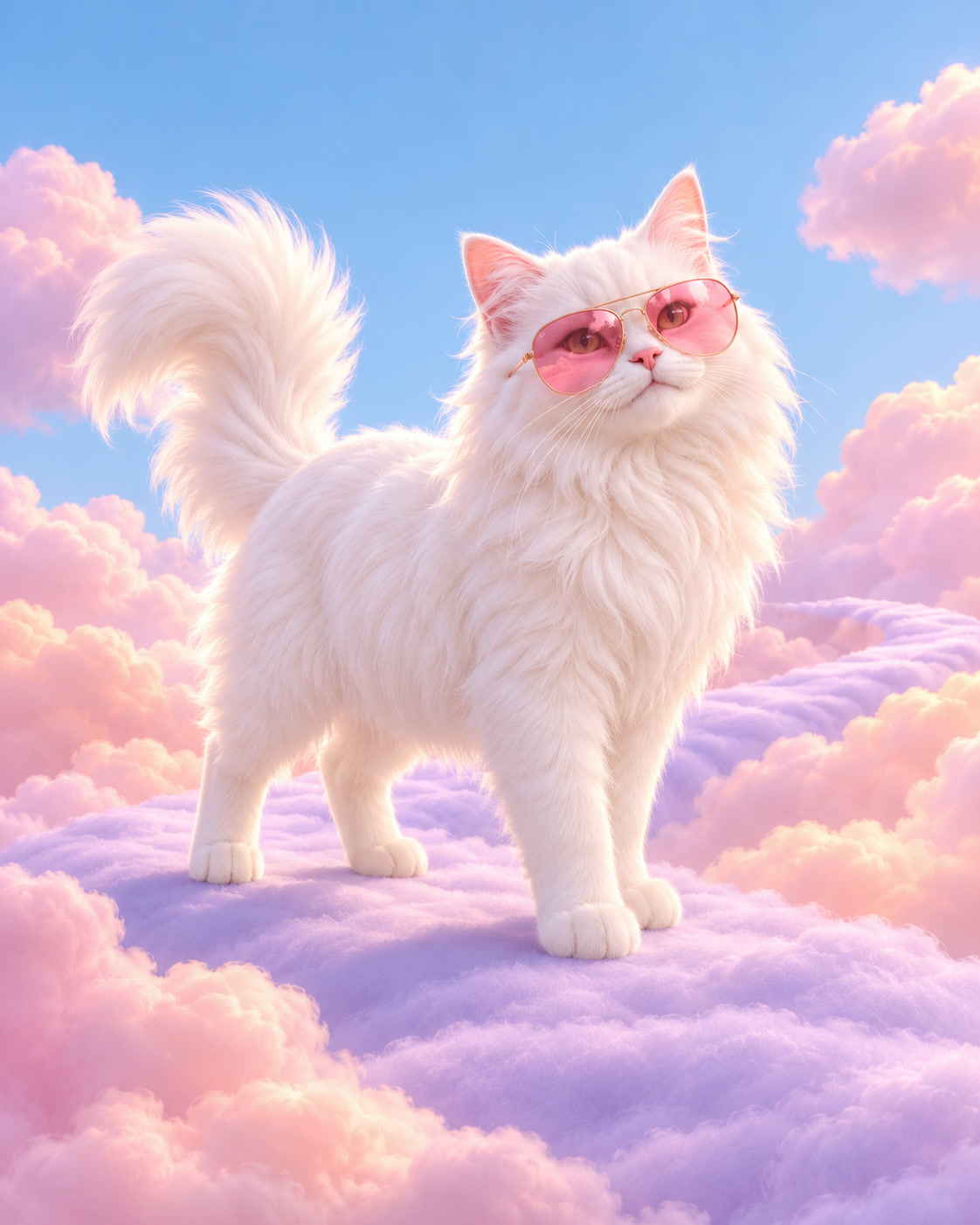
A still frame of a cat in pink sunglasses in a pastel landscape

A playful character entrance

Give one movement a small, matching sound cue.

View prompt

The illustrated cat takes two small steps toward the camera and stops. Soft footsteps match the movement. Keep its sunglasses and bright illustrated style, with no spoken dialogue.

How to Create with Veo 3.1

Veo 3.1 is already selected. Start with your idea, then review the settings before generating.

  1. Upload a starting image

    Choose a clear photo with space around the subject. Upload a supported image up to 5 MB.

  2. Direct the movement

    Describe the subject’s action and camera movement. Keep the shot focused and identify details to preserve.

  3. Generate and review

    Select Generate. Find the result in My Creations, inspect the details and download the completed file.

Veo 3.1 Settings and Creative Direction

Veo 3.1 Fast defaults to 8 seconds and 720p with generated audio. Video settings offer 4, 6, or 8 seconds and 720p, 1080p, or 4K. Upload a first frame and an optional last frame as JPG or PNG, up to 5 MB each. Choose 16:9, 9:16, or Auto for framing.

01

Give the scene a sound direction

Mention ambient sound and any intended spoken line separately from visual instructions. Review the generated audio together with the picture before using the clip.

02

Compose for the automatic crop

Keep faces, products and essential lettering away from the edges. A wide or tall reference close to the desired output shape gives you a clearer starting composition.

03

Keep dialogue brief

A short shot has limited room for speech and movement. Start with one line that fits your clip length and give each action room to read.

View plans and credits ↗

Veo 3.1 Questions

How do I use Veo 3.1 on SuperVids?

This page opens Image to Video with Veo 3.1 selected. Upload your starting image and describe the movement. Select Generate to create. Completed results appear in My Creations.

What settings are available for Veo 3.1?

Veo 3.1 Fast defaults to 8 seconds and 720p with generated audio. Video settings offer 4, 6, or 8 seconds and 720p, 1080p, or 4K. Upload a first frame and an optional last frame as JPG or PNG, up to 5 MB each. Choose 16:9, 9:16, or Auto for framing.

Which Veo 3.1 tier is selected?

This page uses Veo 3.1 Fast. The default is 8 seconds at 720p. You can choose a shorter duration or select 1080p or 4K in Video settings.

How do I choose the framing for a Veo clip?

Choose 16:9 for landscape or 9:16 for portrait. Select Auto to let Veo choose the framing from your input. Keep important details away from the edges and review the output.

When are credits charged for Veo 3.1 generations?

Credits are reserved while the request is processed and charged on success. Failed requests release their reserved credits.

Can I switch models without retyping my prompt?

Yes. Choose another model in the selector to keep working with your image and motion prompt. Check the available settings for the selected model before you generate.