Create video
Upload Image
0/2,048

Start with a photo and a motion prompt

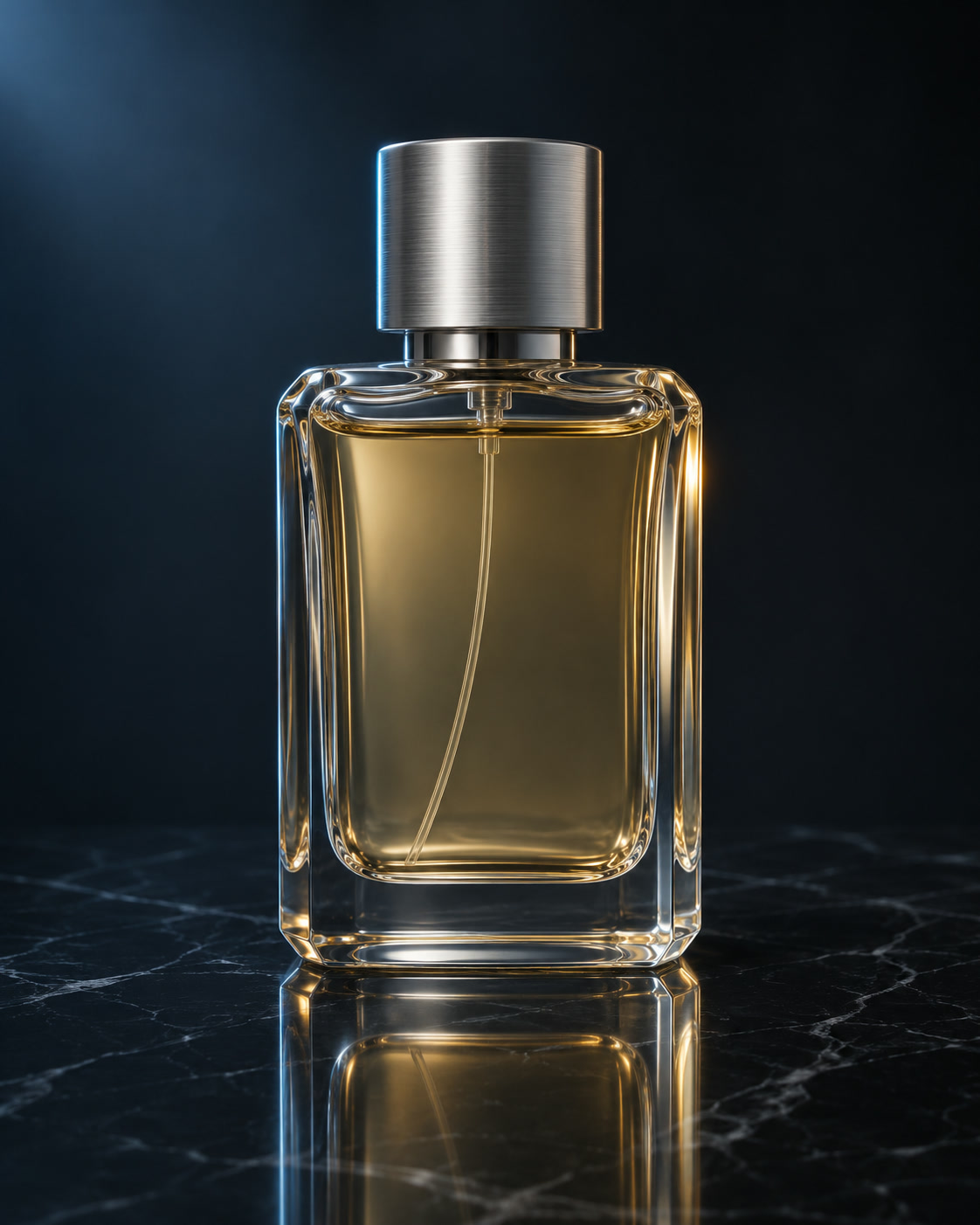
Still frame of a glass perfume bottle on dark marble
VISUAL REFERENCE · PROMPT IDEAThe camera glides slowly toward the perfume bottle as light shifts across the glass. Soft room tone, a faint chime as the light settles. Keep the bottle shape and cap unchanged.
MiniMax H3 AI Video Generator

Start from your own image and describe how the scene should move. MiniMax H3 generates sound with the video, so you can also describe what the moment should sound like.

Prompt Ideas for MiniMax H3

Use these visual references to plan your own shot. Select a prompt to edit it in the workbench. The reference images illustrate creative directions and are not verified outputs from this model.

Still frame of a glass perfume bottle on dark marble

A product with presence

Pair a slow camera move with quiet studio sound.

View prompt

The camera glides slowly toward the perfume bottle as light shifts across the glass. Soft room tone, a faint chime as the light settles. Keep the bottle shape and cap unchanged.

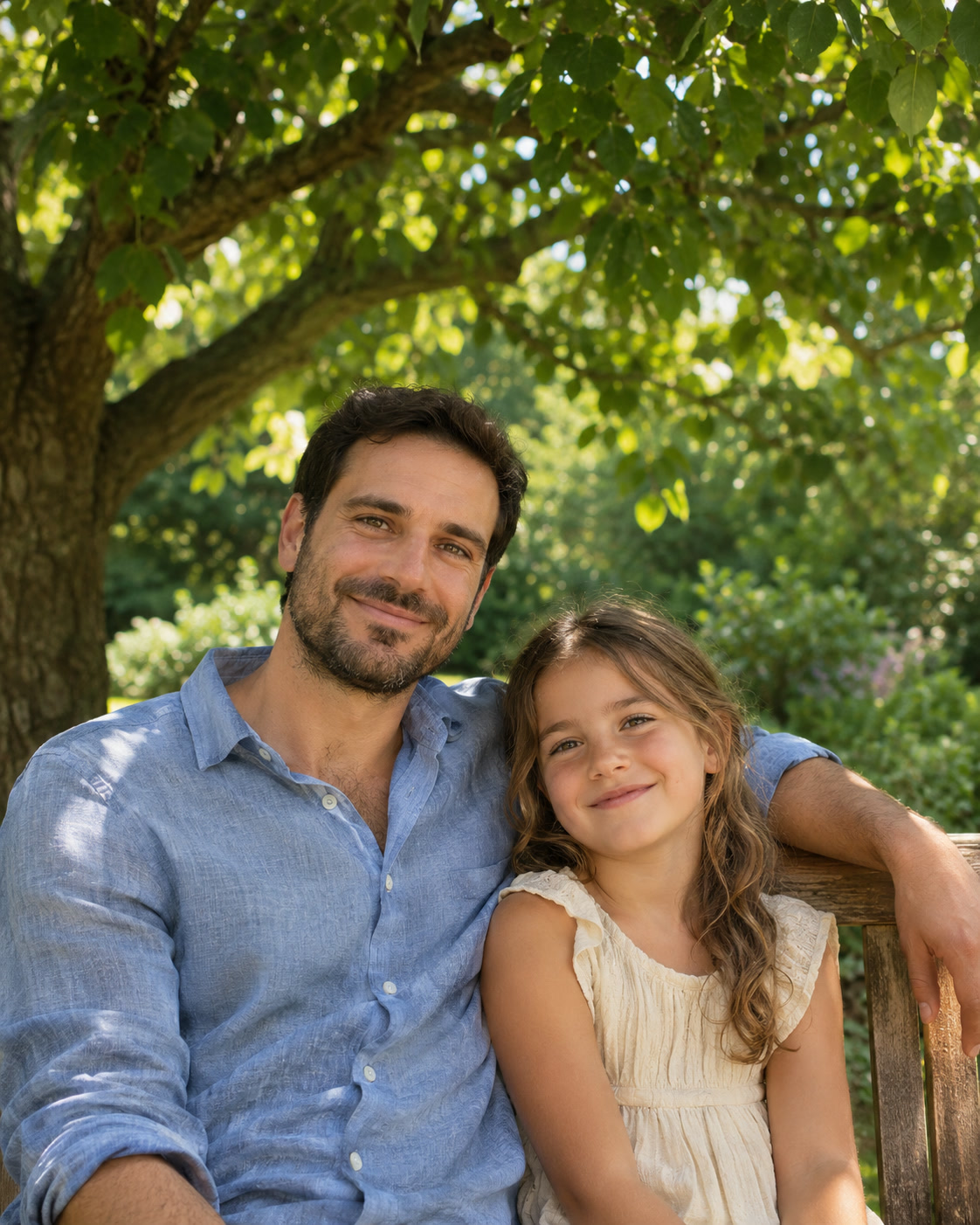
A father and child posing beneath a tree

A small shared moment

Let a portrait come alive with natural movement and ambience.

View prompt

The people turn toward each other and laugh softly. Light outdoor ambience and a gentle breeze. The camera holds a steady medium shot and keeps their faces consistent.

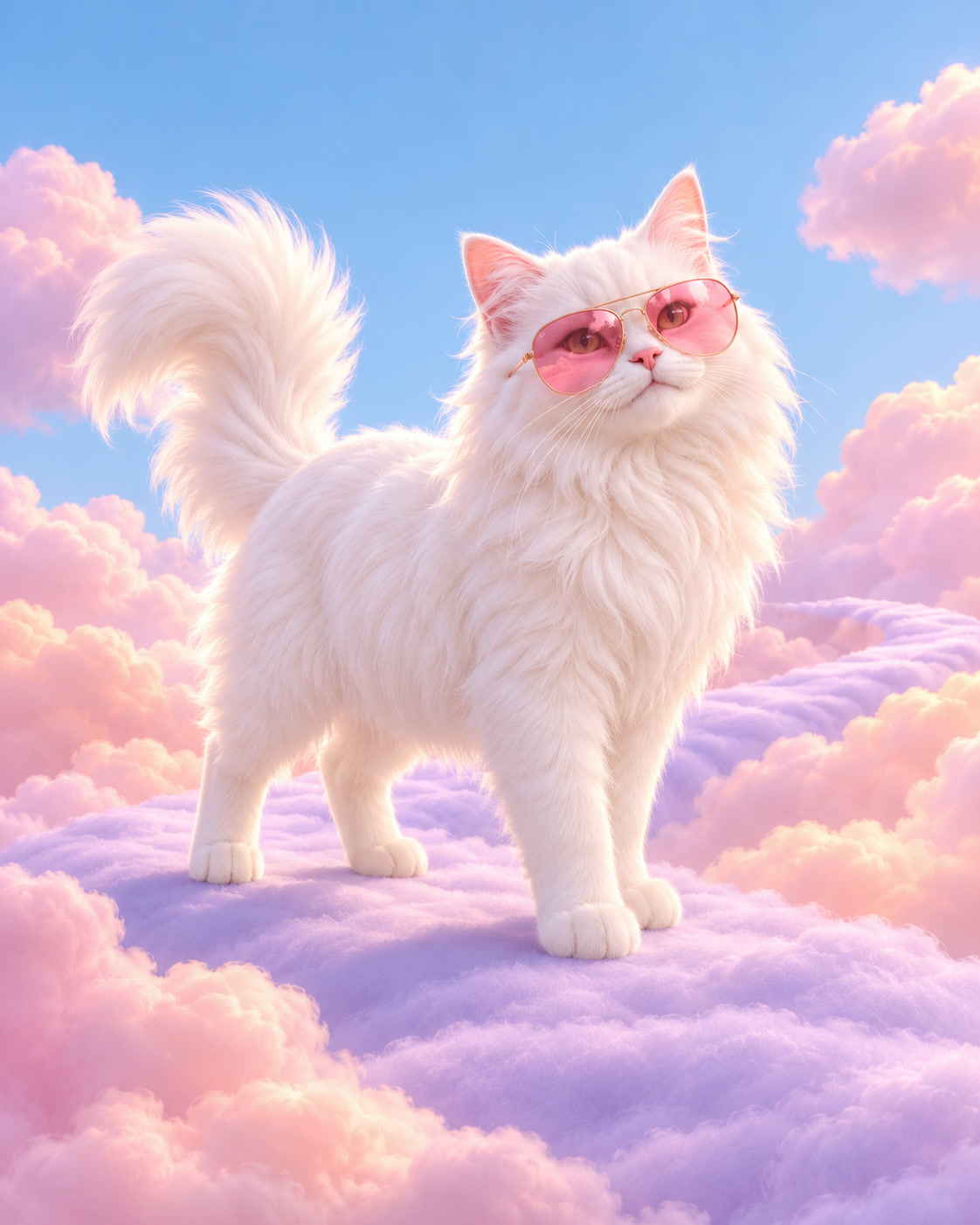
A still frame of a cat in pink sunglasses in a pastel landscape

A character with a beat

Give an illustrated character a readable action and sound cue.

View prompt

The cat lowers its sunglasses, looks at the camera and steps forward. A soft whoosh of clouds in the background. Keep the original art style and colors.

How to Create with MiniMax H3

MiniMax H3 is already selected. Start with your idea, then review the settings before generating.

  1. Upload a starting image

    Choose a clear photo with space around the subject. Upload a supported image up to 5 MB.

  2. Direct the movement

    Describe the subject’s action and camera movement. Keep the shot focused and identify details to preserve.

  3. Generate and review

    Select Generate. Find the result in My Creations, inspect the details and download the completed file.

MiniMax H3 Settings and Creative Direction

Add a first frame and, if useful, a last frame. Each JPG, PNG, or WebP can be up to 5 MB. Set Duration from 4 to 15 seconds and Resolution to 768p or 2K. Audio is always included, and the aspect ratio follows your image. Prompts need at least 3 characters and can use up to 2,048 UTF-8 bytes.

01

Direct the sound as well as the motion

Audio is generated with every clip. Mention ambience, footsteps or a quiet room in the prompt when the sound matters to the shot.

02

Match the action to the duration

A 4-second clip suits one gesture or a short camera move. Save longer durations for an action with a clear beginning, middle and end.

03

Use a last frame to set the ending

Add a second image when you know where the shot should finish. Keep both frames consistent in lighting and framing so the transition stays believable.

View plans and credits ↗

MiniMax H3 Questions

How do I use MiniMax H3 on SuperVids?

This page opens Image to Video with MiniMax H3 selected. Upload your starting image and describe the movement. Select Generate to create. Completed results appear in My Creations.

What settings are available for MiniMax H3?

Add a first frame and, if useful, a last frame. Each JPG, PNG, or WebP can be up to 5 MB. Set Duration from 4 to 15 seconds and Resolution to 768p or 2K. Audio is always included, and the aspect ratio follows your image. Prompts need at least 3 characters and can use up to 2,048 UTF-8 bytes.

Can I turn the audio off?

No. MiniMax H3 includes generated audio with every clip on SuperVids. Choose another model in the selector if you need a silent result.

Does MiniMax H3 preserve every detail of my photo?

The image guides the starting frame, but generated motion can change small details. Review faces, hands, lettering and product edges throughout the result.

When are credits charged for MiniMax H3 generations?

Credits are reserved while the request is processed and charged on success. Failed requests release their reserved credits.

Can I switch models without retyping my prompt?

Yes. Choose another model in the selector to keep working with your image and motion prompt. Check the available settings for the selected model before you generate.