SCENE 01
An evening at the bar
A cowboy sits at a warmly lit bar. Frame the hat and coat against the glow of the room.
The wandering cowboy
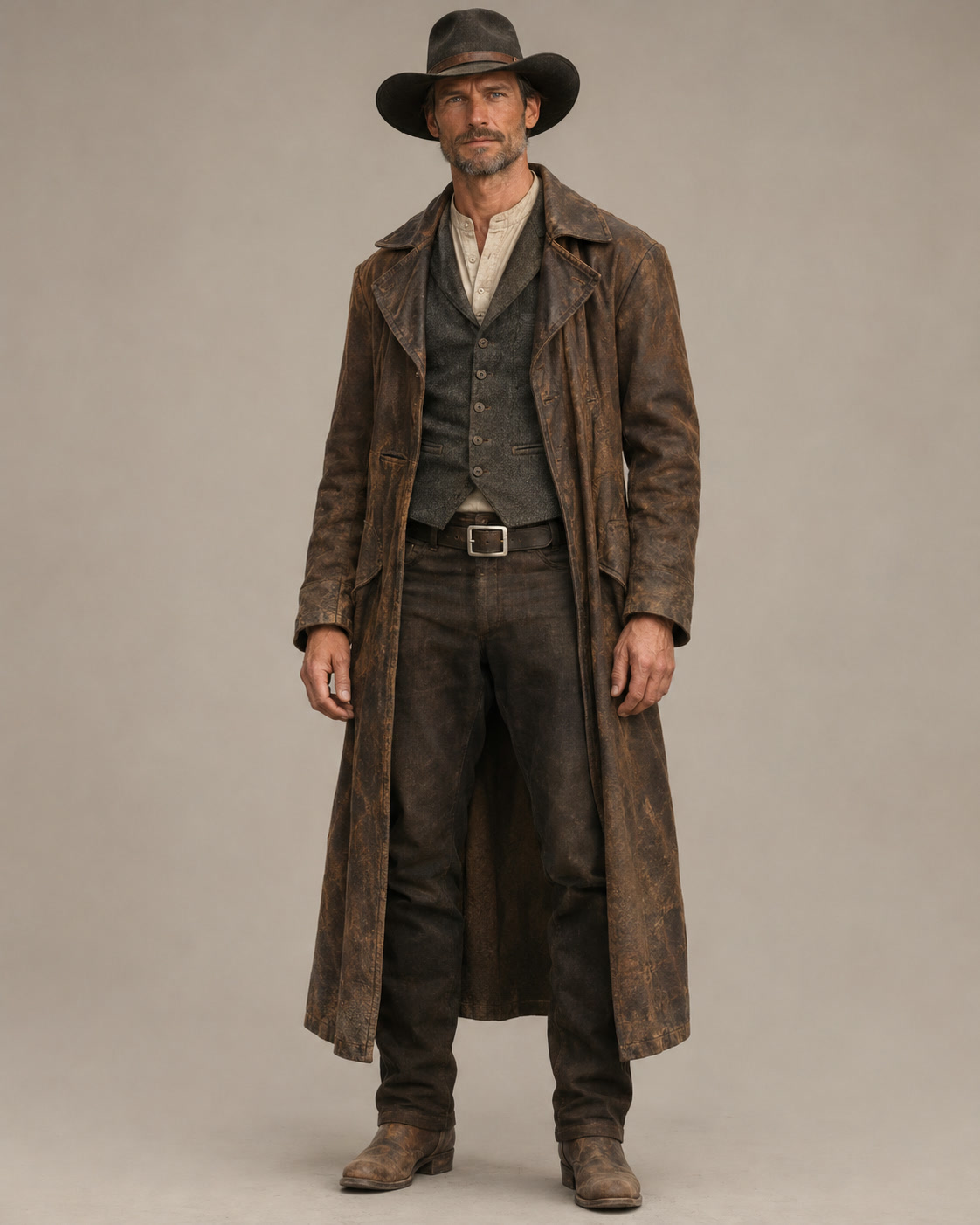 Reference
Look for the dark hat, brown coat and recognisable silhouette across the scene studies.
Use a reference image to guide how your subject looks. Describe a new scene and generate a video from your prompt.
One reference image · A new scene prompt · Your next shot
Use the image to guide the subject’s appearance, then explore a different setting with your prompt. Review the details you want to carry from one shot to the next.
Look for the dark hat, brown coat and recognisable silhouette across the scene studies.
A cowboy sits at a warmly lit bar. Frame the hat and coat against the glow of the room.
A cowboy steps into a dusty western town. Open the composition to show the street and distant mountains.
Both begin with an image. The difference is what you want to do with it: bring the existing shot to life, or use the subject as a guide for a new one.
“Place this product on a sunlit café counter.” The reference guides its appearance; your scene prompt sets the new context.
“Let the steam rise. Push the camera in slowly.” The uploaded photo establishes the starting shot; your prompt adds movement.
| What changes? | Reference to video | Image to video |
|---|---|---|
| Role of the image | A visual guide to the subject | The starting image for the shot |
| Your prompt directs | A new setting, action and composition | Movement within and beyond the starting shot |
| Best starting point | A clear view of the subject | A photo with a composition you want to animate |
Neither mode guarantees identical details. Camera movement can also change the original framing.
Animate your original photo ↗An AI video generator with a reference image gives you two ways to direct the result: show the subject, then describe the scene.
Add one clear image of the person, product or object you want in the video. It sets how the subject looks.
Write the action, the setting and the camera movement. The scene can be somewhere the reference was never taken.
Pick a model and a format, press Generate, and watch the clip next to the form. Change the prompt for another take.
A reference image to video generator needs a clear view of the subject. Choose a readable image, then use a text prompt to describe the new setting, action and camera movement.
Avoid heavy crops, blocked faces and clutter. Hidden details leave more for the model to invent.
Name the distinctive features you want to carry over.
Keep the blue glaze and curved handle.
Describe one moment in a specific place.
The mug sits on a café counter at sunrise. Steam rises.
Choose the framing and mood for your new scene.
Slow push-in. Warm light through the window.
An AI reference to video generator helps you explore a subject across different briefs. Start with one scene, then decide what to make next.
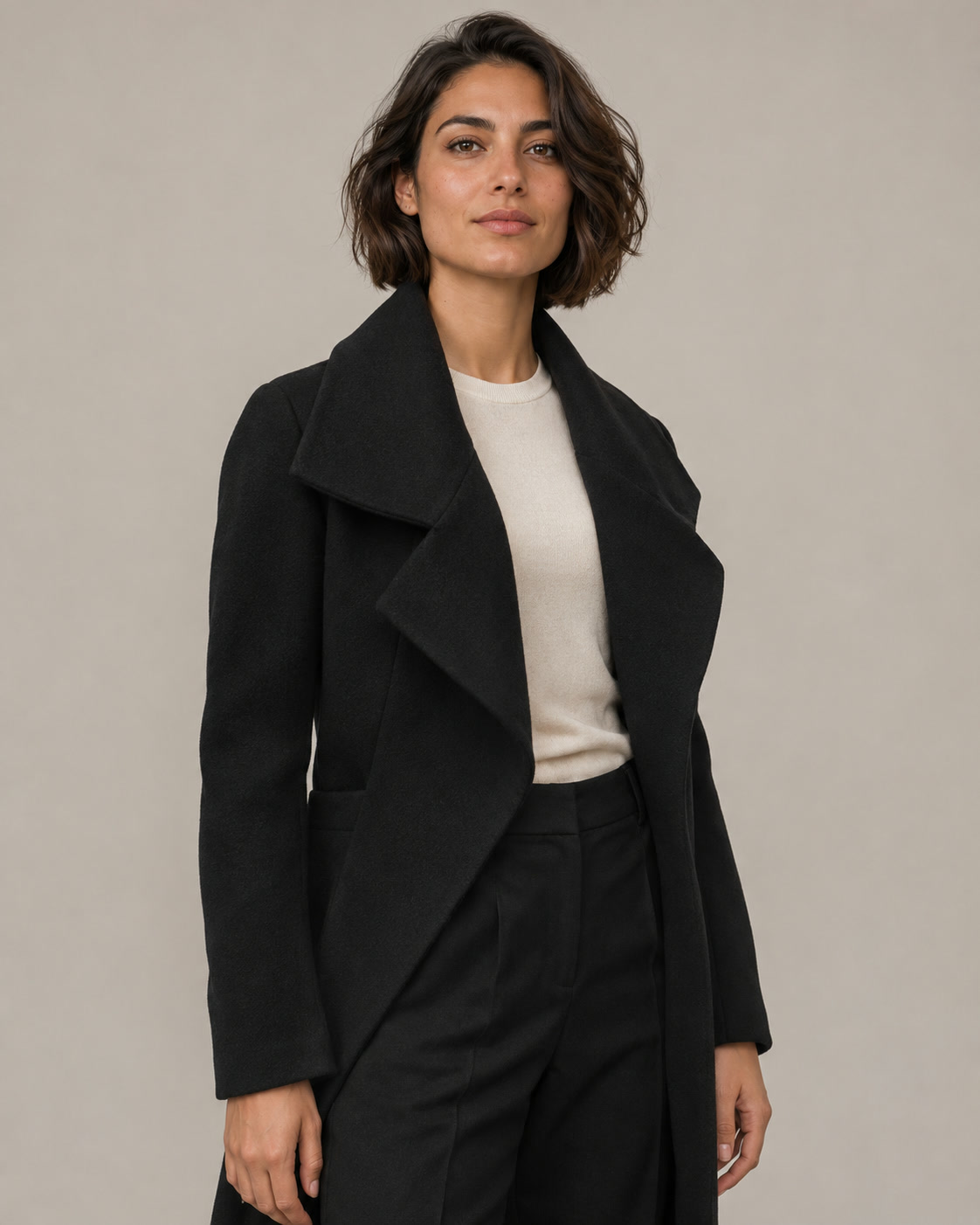
Reuse a character reference for another setting or story beat. Review faces, clothing and small details between takes.
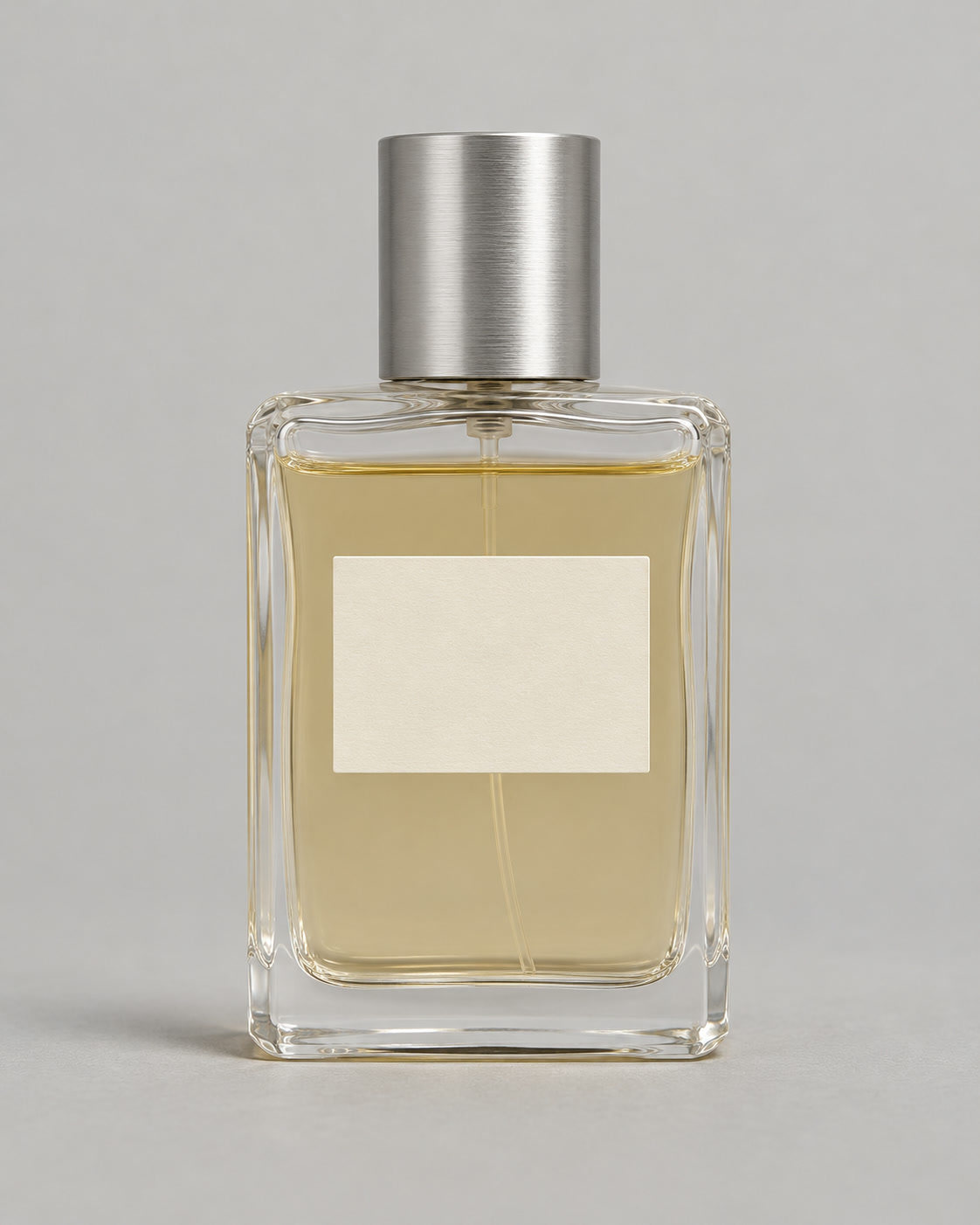
Explore a lifestyle scene or campaign concept around your product. Check the shape, packaging and any visible text.
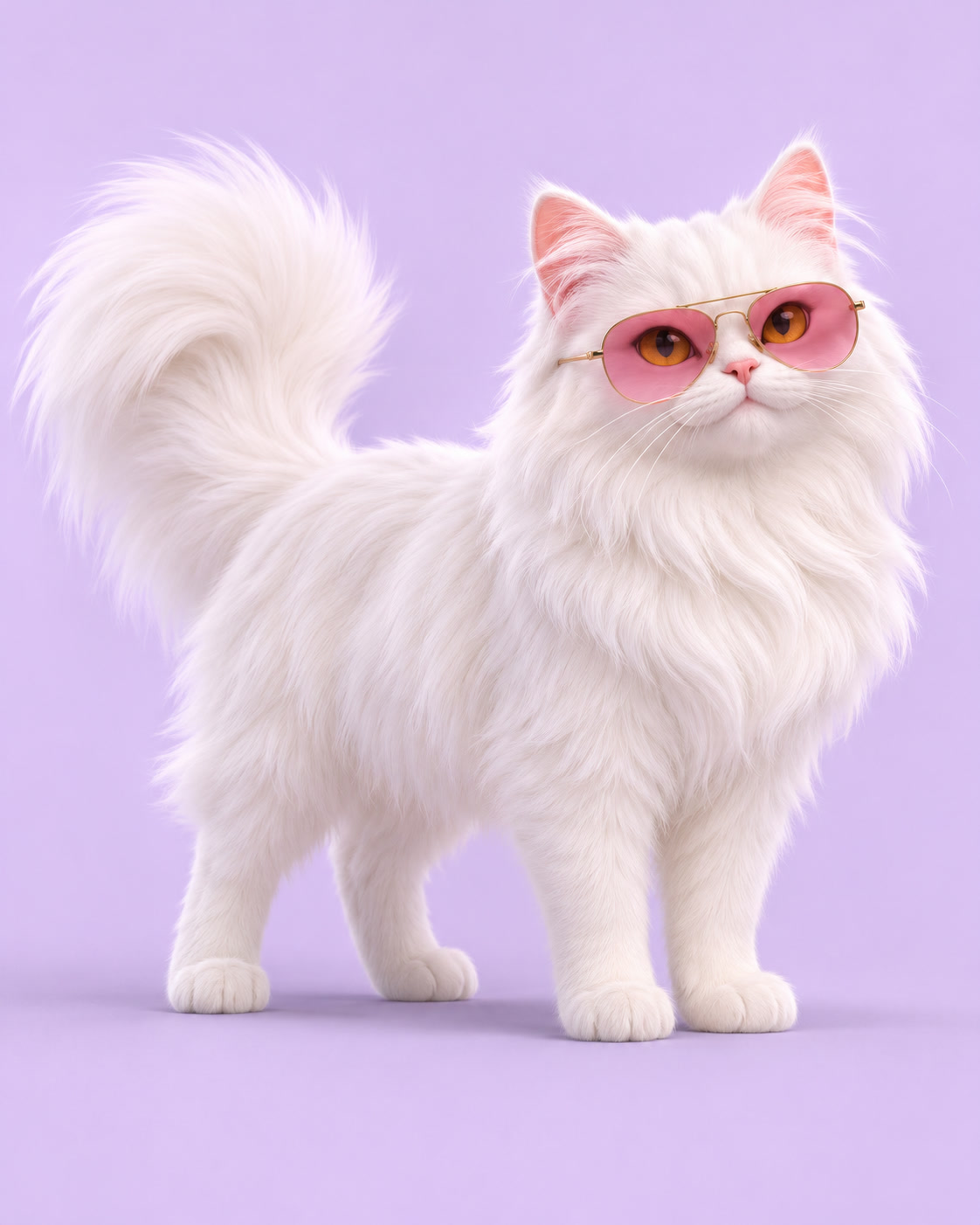
Carry a prop or mascot into a new scene. Generate individual shots, then choose the ones that belong together.
Choose around the subject you want to carry into a new scene. Reference support depends on the model and generation mode.
Compare subject resemblance, scene direction and fine details. Model availability and limits vary.
Explore the model lineup ↗Generate each scene separately, review the subject details, then arrange your selected clips into a story. Your next step is in the same studio.
Use AI Drama Generator to plan how the scenes connect. Continue in the editor to shape the pacing, add a voice and finish your video.
Explore the AI Drama Generator ↗Reference image to video AI uses an uploaded image as a visual guide for a new video. Your prompt describes what happens in the scene, and the reference guides its appearance. Fine details may vary, so review each result.
Reference to video uses the image to guide how the subject looks in a new scene. Image to video uses the uploaded image as the starting shot and adds movement. Camera motion can change the framing; neither mode guarantees unchanged details.
Yes. Describe the action, setting, and camera movement you want in the new scene. The prompt does the directing, while the reference image guides the subject’s appearance. Review the result for changes in faces, clothing or product details.
Yes. Reference image to video AI lets you upload the same reference image for another generation and change the prompt. Review each result for details that may vary, such as small logos or text.
One subject, fully in frame, evenly lit and on a simple background. Avoid images where the subject is cropped, blocked by other objects or lost among similar items.
This page starts with one reference image and a scene prompt. Reuse the image in separate generations to explore different scenes. It does not automatically assemble those clips into a complete multi-scene video.
Only use images you have the right to use, and get permission from anyone who appears in them. Do not create videos that show a real person saying or doing something they did not.