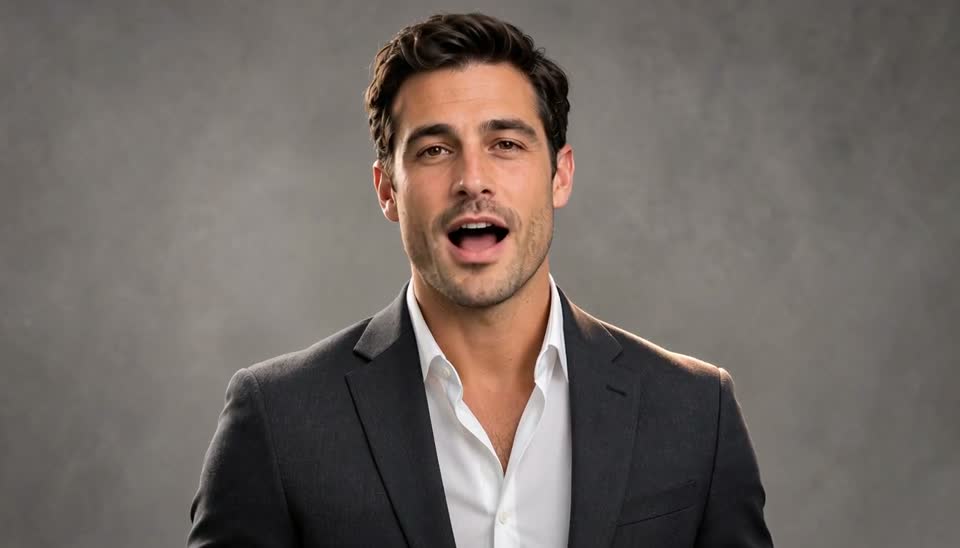
Talking-head insights
When you share an idea straight to camera, cutaways to the places and things you mention keep the picture moving with the point.
Give your video the supporting visuals it needs. Add AI B-roll around the ideas in your footage, review the result, and take any final adjustments into Editing Studio.
B-roll is the supporting footage that plays while someone keeps talking. Here, a presenter describes a rainy evening in an old town, and the cutaways show the things they mention.
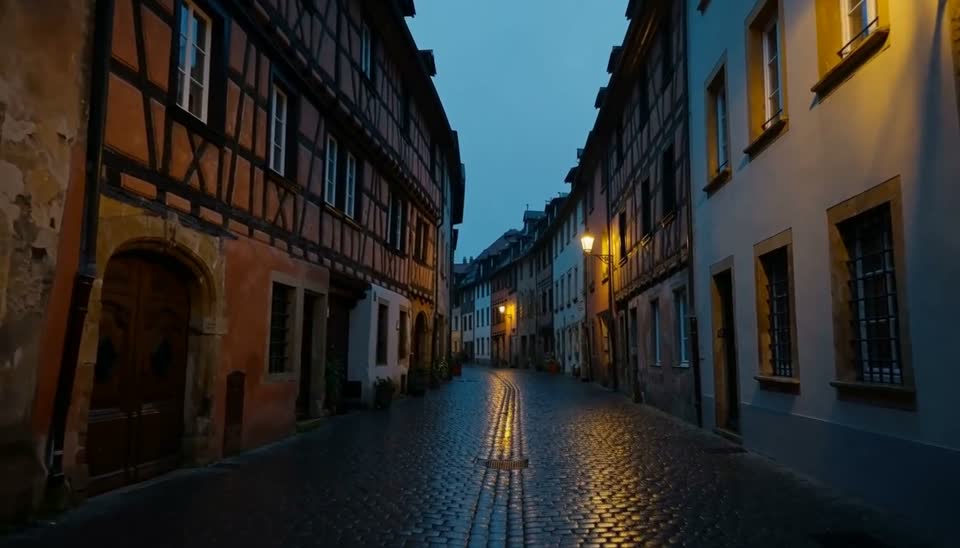
“…old town streets emptied out…”
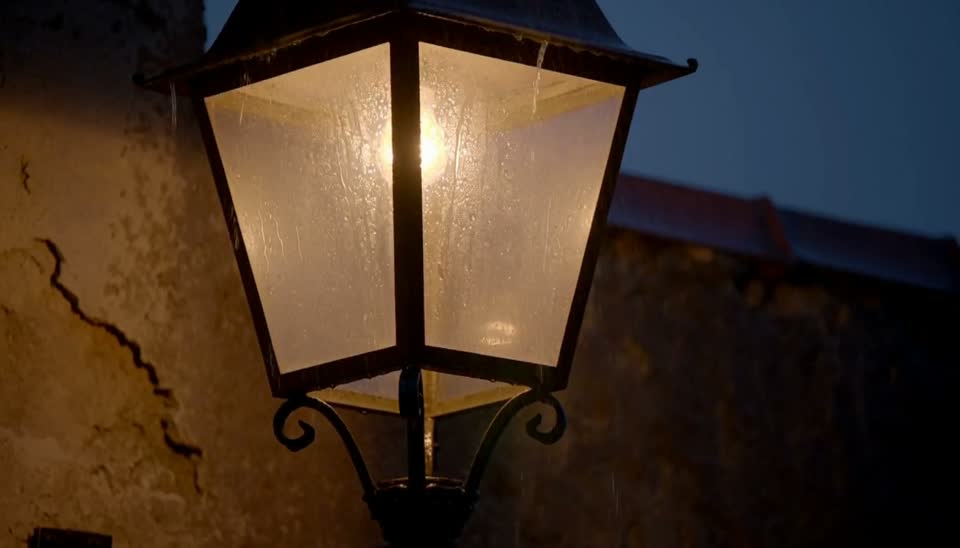
“…lanterns came on…”

“…puddle on the cobblestones…”
Our automatic B-roll generator builds supporting shots around the ideas in your narration. Each shot is tied to a specific line, so what viewers see supports what they hear.
“We arrived just as the rain started, and the old town streets emptied out.”
Supporting shot: Empty old town streets“By dusk, the lanterns came on one by one along the lane.”
Supporting shot: Lanterns at dusk“Every puddle on the cobblestones caught a little of that light.”
Supporting shot: Rain on the cobblestonesEach supporting shot sits next to the line it illustrates, so it is easy to judge whether it belongs. If the result fits your story, it is ready to download.
00:05Empty old town streetsMatches “the streets emptied out”Fits00:11Lanterns at duskMatches “the lanterns came on”Fits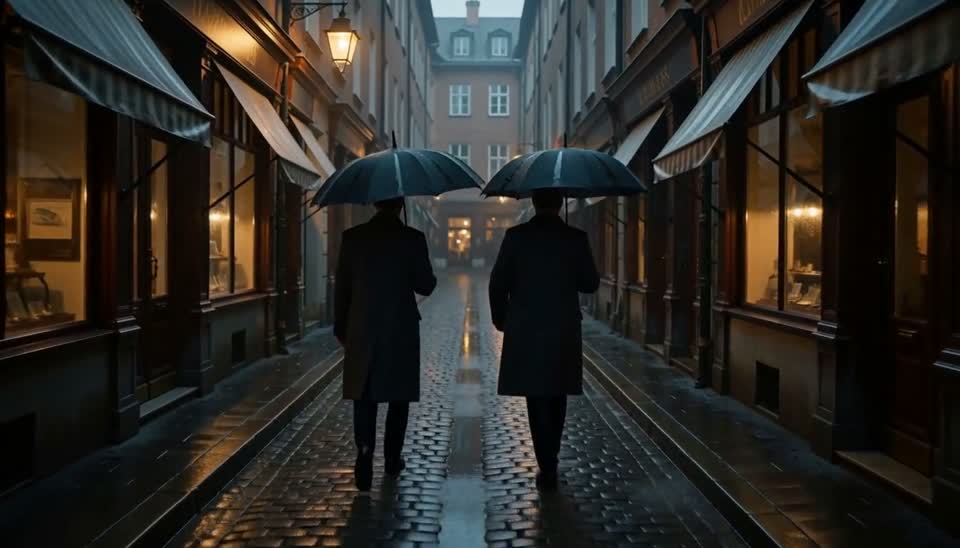 00:21Walking past the shopsMatches “people still out walking”Fits
 00:26Sunlit forestOff-story for a rainy evening in townOff-story
Want to drop a shot, swap one out, or change when it appears? Those detailed changes are optional and happen in Editing Studio.
Start from footage you already have. There is no shot list to plan and no clips to search for before you begin.
Add a talking-head video, tutorial, product demo, or interview. If you like, describe the look you want for the supporting shots.
Watch the result with the B-roll in place, and check that each shot fits the line it sits under.
Download the video when it works for you. For changes to timing or individual shots, open it in Editing Studio. That step is optional.
B-roll for videos that explain, teach, or demonstrate gives viewers a closer look at the places, objects, and actions being described.
When you share an idea straight to camera, cutaways to the places and things you mention keep the picture moving with the point.
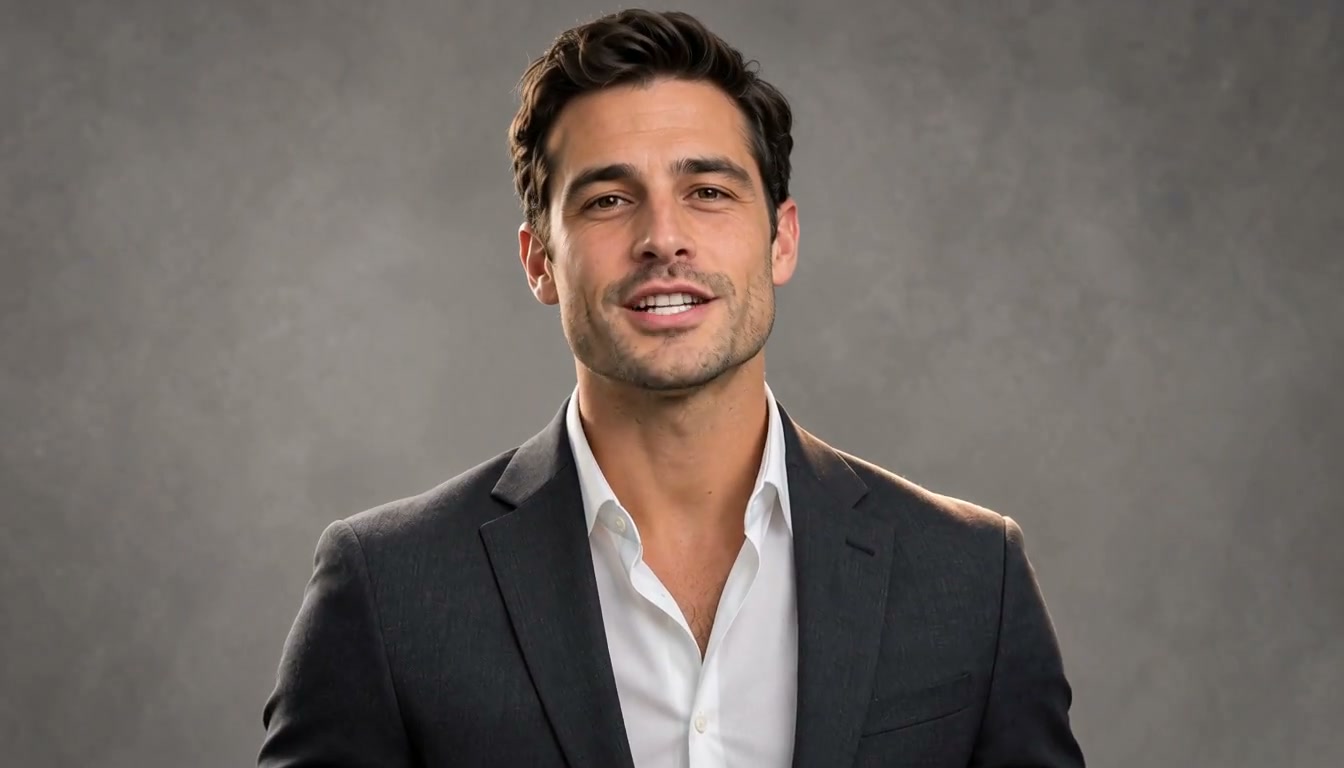
Show the part, step, or idea you are describing while your explanation carries on, so viewers can follow along.

Add supporting shots around the feature you are talking about, such as the product in use or a closer look at a detail.
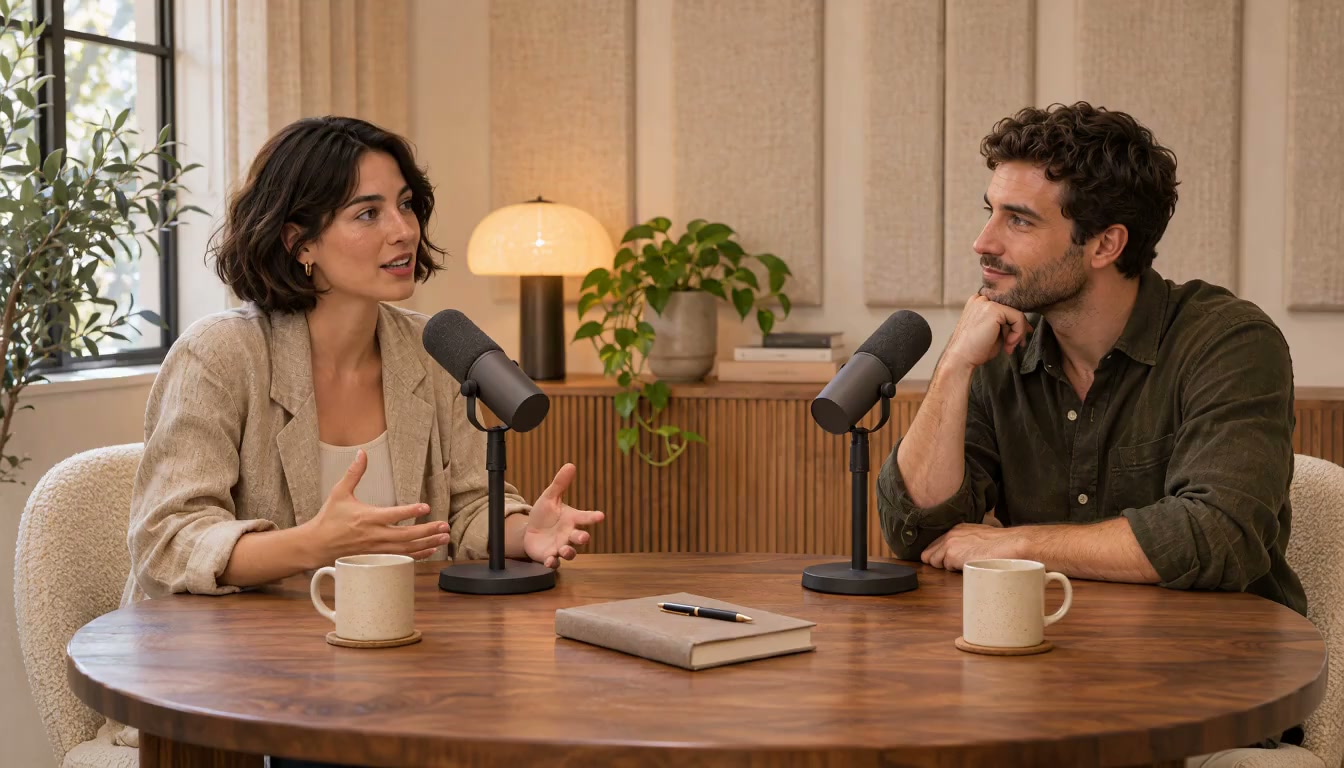
Break up long stretches of people at a table with visuals for the stories and examples they bring up.
Many videos are ready to download once you have reviewed the B-roll. When you want more control, open the project in Editing Studio, the full SuperVids editor. You don’t need it to add B-roll.
What B-roll is, which videos suit it, and how this tool fits with Editing Studio and the rest of SuperVids.
B-roll is supporting footage that plays over or between your main shot, often called the A-roll, while the speaker keeps talking. It shows what is being described, such as a place, an object, or an action, so viewers are not watching the same frame the whole time.
Videos where someone talks through ideas: talking-head videos, tutorials, explainers, product demos, interviews, and podcasts. Clear speech about concrete things, like places, objects, or steps, gives the most to illustrate.
It works from what is said in your video and creates supporting shots for the ideas, places, and things mentioned, placed near the lines they relate to. An optional visual direction, such as a mood or setting, helps steer the look.
Yes. Watch the result before you download it. For finer changes, such as moving a shot, swapping one out, or changing how long it stays on screen, open the video in Editing Studio, the full SuperVids editor.
No. The AI B-Roll Generator adds supporting visuals to the video you upload rather than cutting it down. To turn a long video into short clips, use the AI Video Clipper.
Text to Video creates footage from scratch from a written prompt. The AI B-Roll Generator starts from a video you already have and adds shots that support what is said in it.
No. The shots are AI-generated to illustrate what is said, so they do not document a real place or event. Watch the result before you publish, especially when your video is about real people, news, or a specific location.
Sign in to generate B-roll. Each video costs 319 to 327 credits, depending on its length, which is more than the 65 free welcome credits new accounts get. The exact cost appears before you start; see the pricing page for credit packs and plans.