
Podcasts & interviews
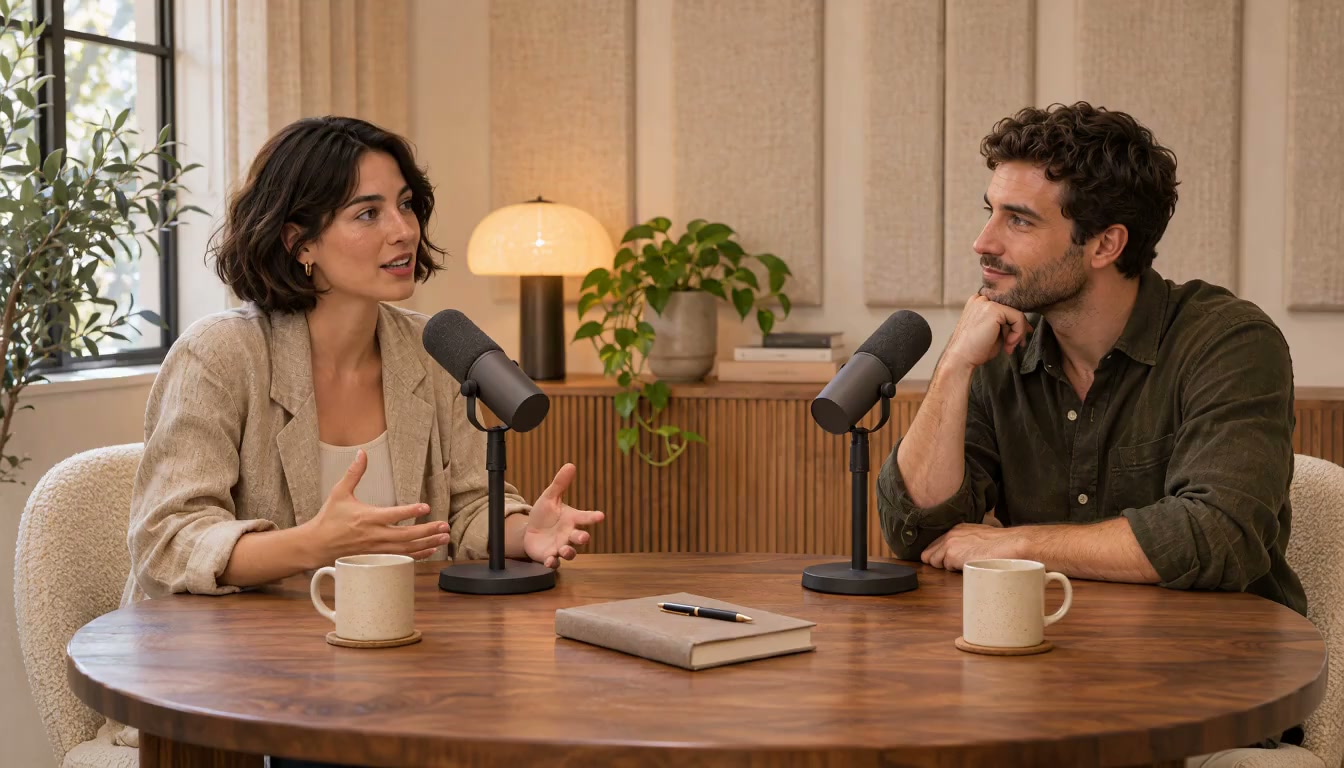
Turn a full episode into podcast clips that each carry one answer or story. Going from podcast to Shorts no longer means scrubbing through the whole recording.
AI Video Clipper is clipping AI for spoken videos. Upload a podcast, interview, webinar, or lesson, and our AI clip maker suggests up to three short clips that stand on their own, for you to review, download, or refine in Editing Studio.
A good AI video clipping tool keeps the link between the full recording and every clip clear. Here, one podcast episode becomes three portrait clips, each on its own topic with its own start and end.
00:46Once you know the promise, you can decide what the audience needs to see.
00:50The second habit is to show the useful detail instead of describing everything. Imagine you are filming a small product. A wide shot tells us what it looks like, but a close shot tells us how it works.
01:03Shows the hinge opening, the fabric moving, or the way light catches the surface. Pair that detail with one plain sentence about why it matters. You do not need five camera moves to make a point. One deliberate movement and one clear action can do the job.
01:18Leave a little space before and after the action so the editor has room to choose a natural beginning and end. The goal is not to collect the most footage. The goal is to collect evidence for the idea you promised. When each shot proves something, a short video can feel surprisingly complete.
Clip ends 01:3401:35Then the edit becomes a conversation with the viewer, rather than a pile of beautiful pictures.
The best short clips feel complete. Instead of slicing a video into equal parts, each clip is shaped around one idea, with the original timecodes shown so you always know where it came from.
Choose the shape before you clip. Each clip is exported in the ratio that suits where it will be posted, with the full source frame kept and caption files ready to upload alongside it.
A wide shot is fitted into a portrait or square canvas with bars above and below, so nobody in the original frame is cut out.
Each clip comes with SRT and VTT files from the transcript. Upload them with your post, or style captions in Editing Studio. They are not burned into the video.
Choose portrait for Shorts, Reels, and TikTok, square for feed posts, or keep the original landscape frame.
Turn a long video into short videos with AI, then review the suggested clips without setting every start and end point by hand.
Add a podcast episode, interview, webinar, lesson, or product demo. Choose a ratio and clip length, or leave both on Auto.
Preview each clip with its original timecodes. Keep the moments that stand on their own and skip any that need more context.
Download the clips you want to post. If one needs more work, open it in Editing Studio. That step is optional.
Long recordings often hold several moments that work on their own. AI clipping finds them in videos where people talk through ideas, giving one recording a longer life across your channels.
Turn a full episode into podcast clips that each carry one answer or story. Going from podcast to Shorts no longer means scrubbing through the whole recording.
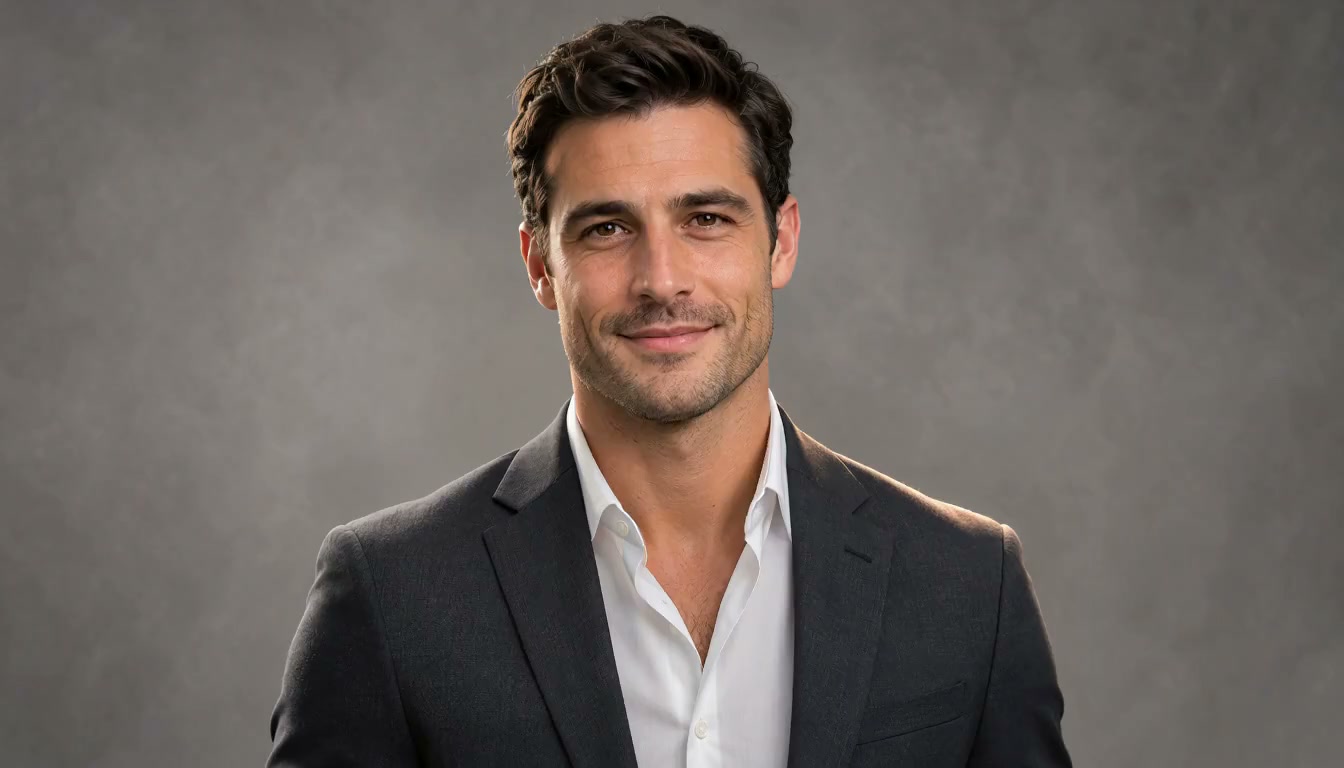
Pull webinar highlights out of a long session, from the clearest explanation to the question most people asked, and share them after the event.
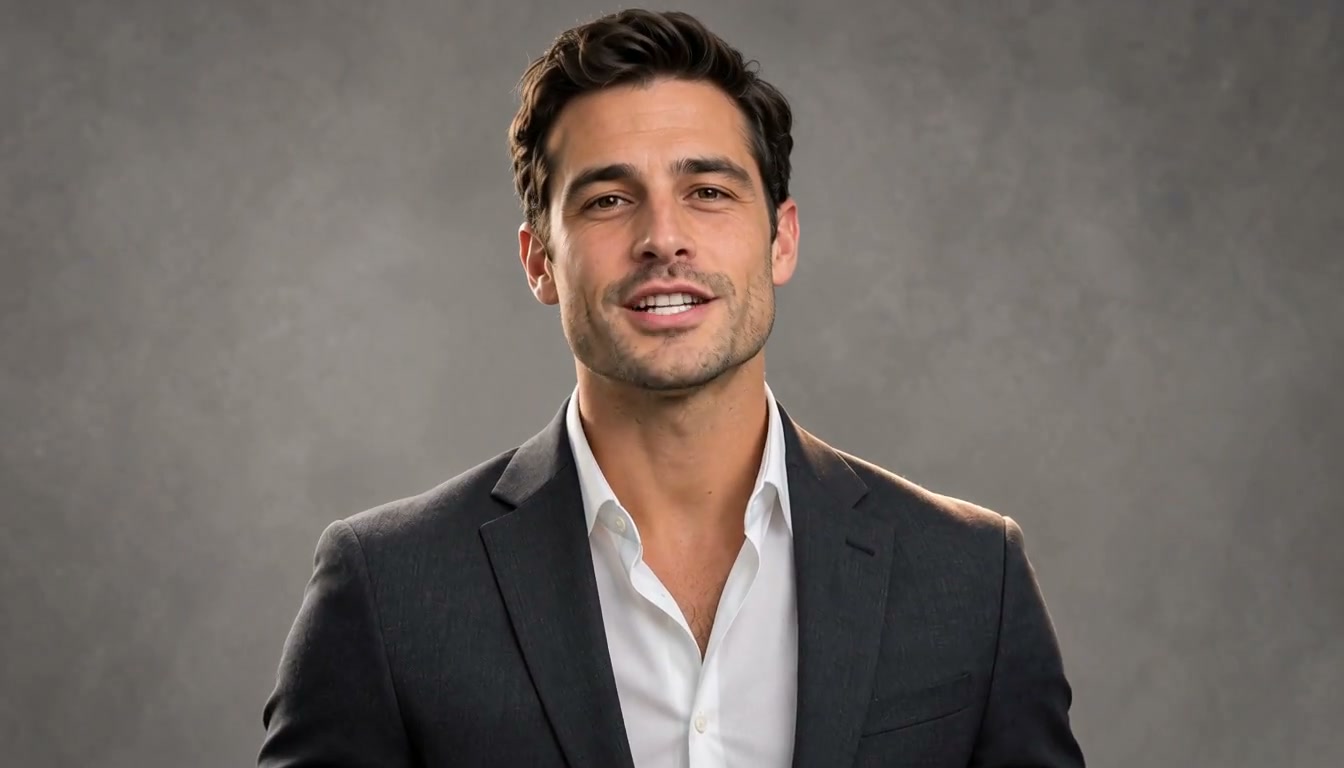
Break a long lesson into short, focused tips that each teach one thing, so learners can jump straight to the step they need.

Split a walkthrough into product demo clips that each show one feature, ready for social posts, product pages, or a follow-up email.
Many clips are ready to post as they are. When one needs more, open it in Editing Studio, the full SuperVids editor, to fine-tune the trim, restyle captions, or add music.
What the clipper does, which videos suit it, and how it fits with Editing Studio and the rest of SuperVids.
An AI Video Clipper is a long to short video converter that finds moments you can share on their own. Instead of scrubbing through the recording, the AI clip maker suggests the moments worth keeping, and you review them before you download.
Videos where people talk through ideas: podcasts, interviews, webinars, lessons, tutorials, and product demos. Clear speech and distinct topics make it easier to find moments that stand on their own.
Manual trimming means watching the whole recording and setting every start and end point yourself. With AI video clipping, likely moments are found for you, so your time goes into choosing which clips to keep.
Clips are chosen around complete thoughts, starting where a point begins and ending once it lands. Preview each clip with its original timecodes before you download it, and skip any that need more context.
Up to three per video. The clipper only keeps moments that stand on their own, so a short or single-topic recording can return fewer.
Yes. Choose 9:16 for Shorts, Reels, and TikTok, 1:1 for feed posts, 16:9, or keep the original shape. The full source frame is fitted into the new shape with bars rather than cropped. Every clip comes with SRT and VTT caption files; captions are not burned into the video.
Yes. Clipping AI reads what is said in a long video and picks the parts worth posting as short clips. This clipper chooses clips from the transcript of the speech, so it suits talking videos rather than gameplay or footage without speech.
An MP4 video with audio, between 1 and 20 minutes long and up to 150 MB. Upload the file itself; pasting a link to a video is not supported. Each clip is 15 to 90 seconds, depending on the length you choose.
Yes. Download a clip as it is, or open it in Editing Studio, the full editor in SuperVids, to adjust the trim, restyle captions, or add music.
No. It works only with the video you upload and cuts it into shorter clips, an AI clip generator from video you already have. To create new footage from a prompt or an image, use the AI Video Generator.
Available access and export options depend on the current plans. Check the pricing page before you start.