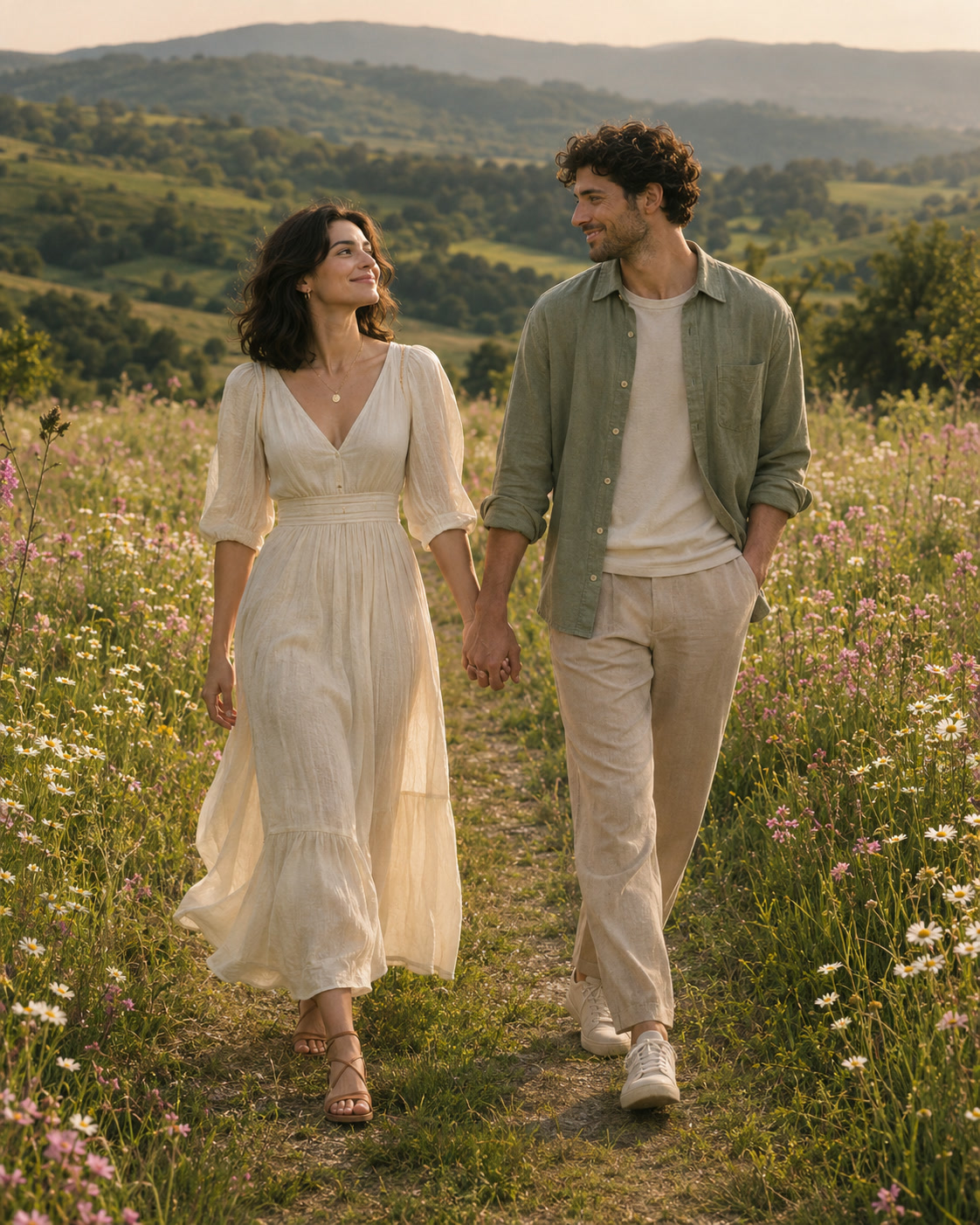
MOTION PROMPTThe couple walks hand in hand through a field of flowers. Gentle movement and a softly drifting camera.
Photo to Video AI Free
Upload one still image, describe how it should move, and turn it into a short video.
See a Still Photo Turn into a Video
An AI video generator from image input starts with your photo’s subject and composition. Your motion prompt describes what happens next. Explore the difference a little movement can make.
Video previewStill preview ↗
Portrait
A portrait with personality
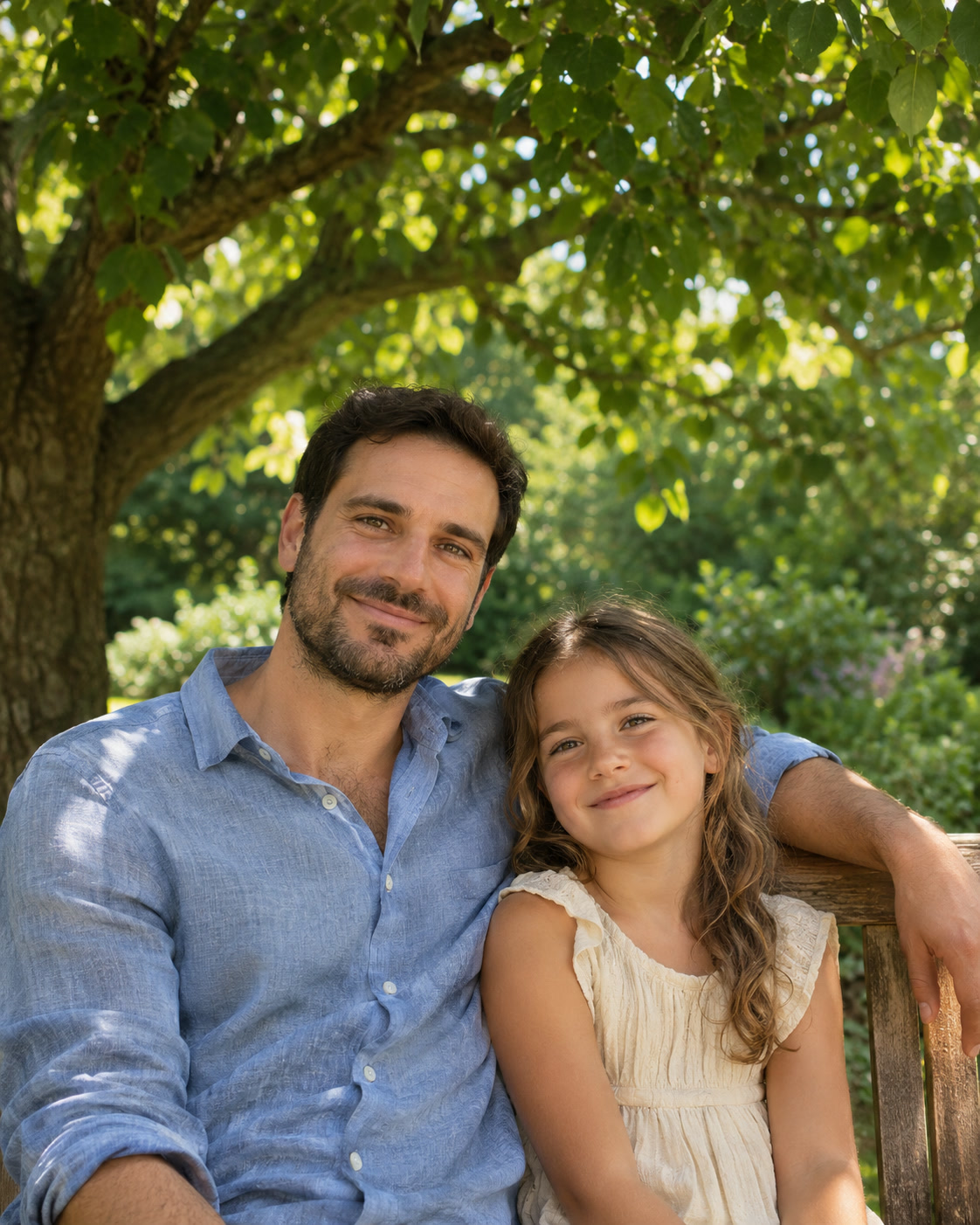
Small expressions and gestures give a personal photo a sense of life.
View motion prompt +
A father and child smile beneath a tree. Add subtle head movement, keeping the camera gentle.
Video previewStill preview ↗
Product shot
A change of light
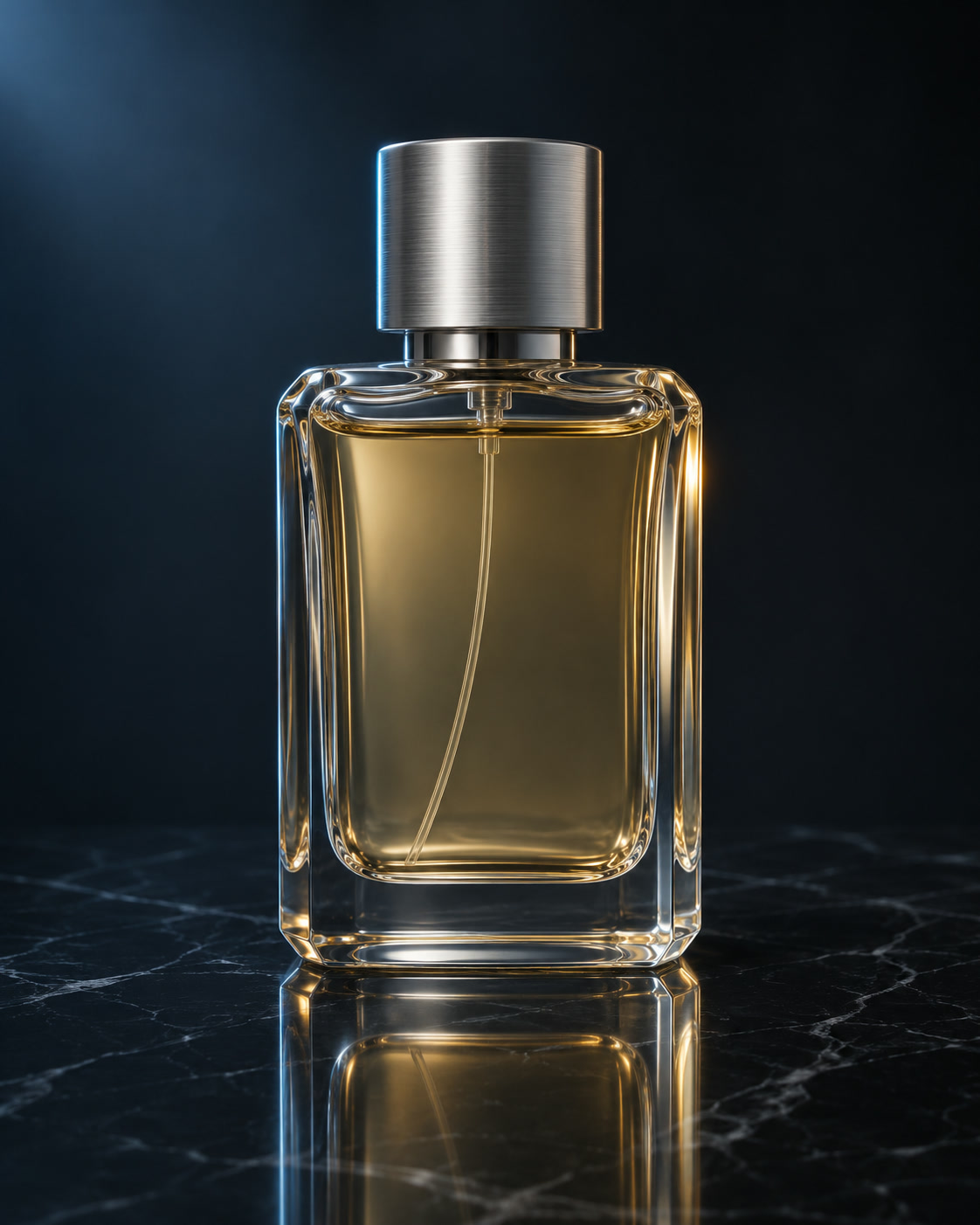
Light and reflections give a product shot a more cinematic feel.
View motion prompt +
A glass perfume bottle on dark marble. Cool blue light turns warm gold. Keep the bottle silhouette clear.
Video previewStill preview ↗
Creative illustration
A little imagination
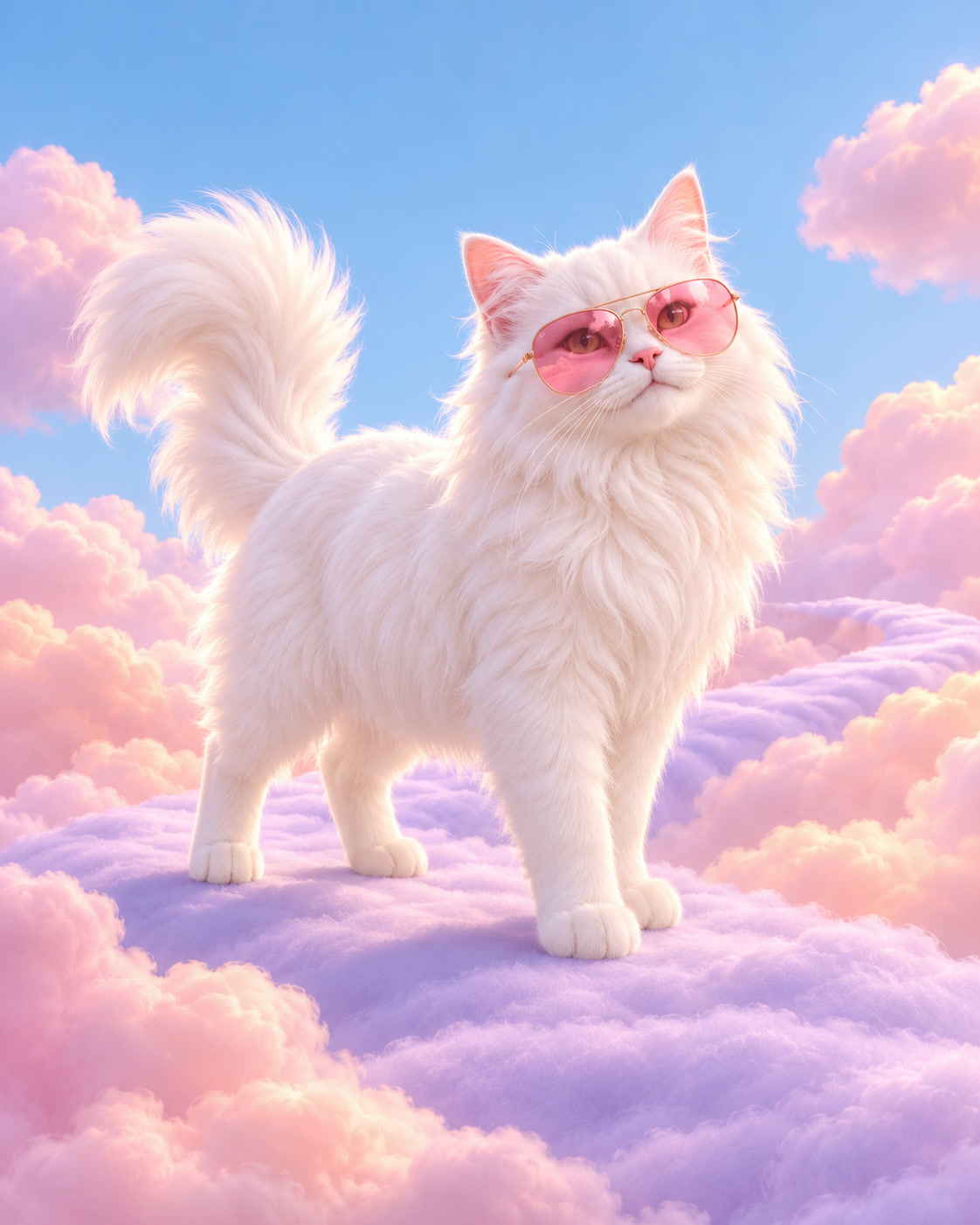
An illustrated subject takes the lead in a playful moving scene.
View motion prompt +
A fluffy cat in pink sunglasses walks through a pastel cloudscape. Soft light and playful movement.
How to Turn a Photo into a Video
Start with the image you already have. This AI photo to video generator keeps the brief focused: one photo, one motion prompt, one short clip.
01
Upload one photo
Drop a JPG, PNG or WEBP into the box at the top of the page. A sharp image with the subject in focus gives the cleanest motion.
02
Write the motion
Describe one main movement, the camera move and what should stay still. One or two short sentences are enough.
03
Generate and review
Choose the length and format, then generate your clip. Review the movement and details. Adjust one part of the prompt for another take.
Image to Video AI with a Motion Prompt
Image to video AI turns your photo and a short text prompt into a moving clip, online in your browser. Separate what the subject does from how the camera moves, and name the details you want to preserve.
EXAMPLE DIRECTION
Light glides across the bottle. A slow push-in. Preserve the bottle silhouette.
01
Subject motion
Choose one clear action inside the photo.
Light moves across the glass bottle.
02
Camera movement
Describe how the viewer moves through the shot.
A gentle push-in toward the bottle.
03
Details to preserve
Point out the details that matter, then review them in the result.
Keep the bottle silhouette and label placement.
Start small. Change one direction at a time, and check faces, edges and text after each generation.
Leaves sway in the wind. The camera holds still. The house stays sharp.
The bottle turns slowly on the table. Soft light moves across the glass.
Clouds drift across the sky. Slow pan left. The mountains stay still.
Keep it to one or two sentences
Lead with the action, then the camera, then what stays still: “Light glides across the bottle as the camera slowly pushes in. The label stays steady.” The prompt needs at least three characters and can run to 2,048 bytes.
Describe the change, not the photo
The model already sees the subject, colors and setting in your image. Spend the words on what moves and how, and avoid stacking moves that pull against each other, such as a zoom, a pan and an orbit in one clip.
When the clip ignores the prompt
Cut it back to one action and use plain camera terms like push-in, pan or orbit. Crop the photo so the subject fills more of the frame, or try another model from the generator and compare.
Picture to Video AI for Products, Portraits and Art
Animate a photo with AI for a product reveal, a personal post or your next creative project. Match the movement to the picture.
PRODUCT SHOTS
Products with a little more presence
Turn a product still into a short social or storefront clip. Start with a clean background and try a light shift or gentle camera move.
PORTRAITS & SOCIAL
Portraits with a human moment
A glance, a smile or hair in the breeze can carry the shot. Choose a clear face and keep the first motion prompt simple.
ART & ILLUSTRATION
Art that comes to life
Give an illustration one expressive action. Keep the outline easy to read and avoid asking every detail to move at once.
TRAVEL & B-ROLL
A new view of a familiar place
Add clouds, reflections or a slow pan to a travel photo. Leave space around the subject for a useful piece of B-roll.
A stronger photo makes a better starting point.
One clear subject. Even lighting. Room around the edges. Use a photo you own or have permission to animate.
Choose a Model for Your Image-to-Video Clip
Explore the video model lineup in one place. Match your choice to the motion, framing and level of detail your photo needs.
Yes, to try it. New accounts get 65 free welcome credits after signing in with Google. A default 5-second 720p PixVerse V6 clip costs 65 credits, so the welcome credits cover one default clip. Other models, lengths and resolutions are priced differently, and the exact cost appears before you generate. It is not unlimited free generation.
How can I turn a photo into a video with AI?
+
Upload one still image and describe the movement you want. The AI photo to video generator uses the image to establish the starting shot. Your prompt guides the motion, which can change the framing as the clip develops.
What should I write in a photo-to-video prompt?
+
Describe one main movement and what should stay steady. For example, ask for a slow push-in on the bottle while the background stays still. Naming the camera move separately from the subject movement gives more predictable results.
Do I need a prompt to turn an image into a video?
+
Yes. The prompt box needs at least three characters. The photo sets the opening frame and the prompt tells the model what should move, so even a short prompt such as “slow push-in, the background stays still” gives the clip a direction.
How long should an image to video prompt be?
+
One or two sentences is usually enough: the subject’s action, the camera move and what should stay still. Prompts can be up to 2,048 bytes, about 2,000 characters of plain English, but a long list of actions is harder for one short clip to follow.
What if the video does not follow my prompt?
+
Rewrite the prompt with one action and one camera move, and say what should stay still. If the subject is small in the photo, crop closer before uploading. You can also switch to another image-to-video model in the generator and compare the results.
Can I use image to video AI with a prompt online for free?
+
Yes. SuperVids runs in your browser on a laptop or phone, with no app to install. Upload a photo, type a prompt that describes the motion, and sign in to use your 65 free welcome credits; a default clip costs 65 credits.
What kind of photo works best?
+
For AI picture to video, a clear, well-lit photo with one main subject works best. Avoid heavy filters, tiny subjects and busy collages. Portraits, product shots, travel photos and illustrations all work when the subject is easy to see.
Why can faces or product details change?
+
Image to video AI generates new frames, so small features, text and edges can shift. Start with a clear photo, keep the motion simple and review the clip carefully. A prompt can guide the result but cannot guarantee that every detail stays identical.
Can I animate photos of other people?
+
Only upload photos you have the right to use, and get permission from the people in them. Do not use photo to video AI to make someone appear to say or do something they did not.
 Source image