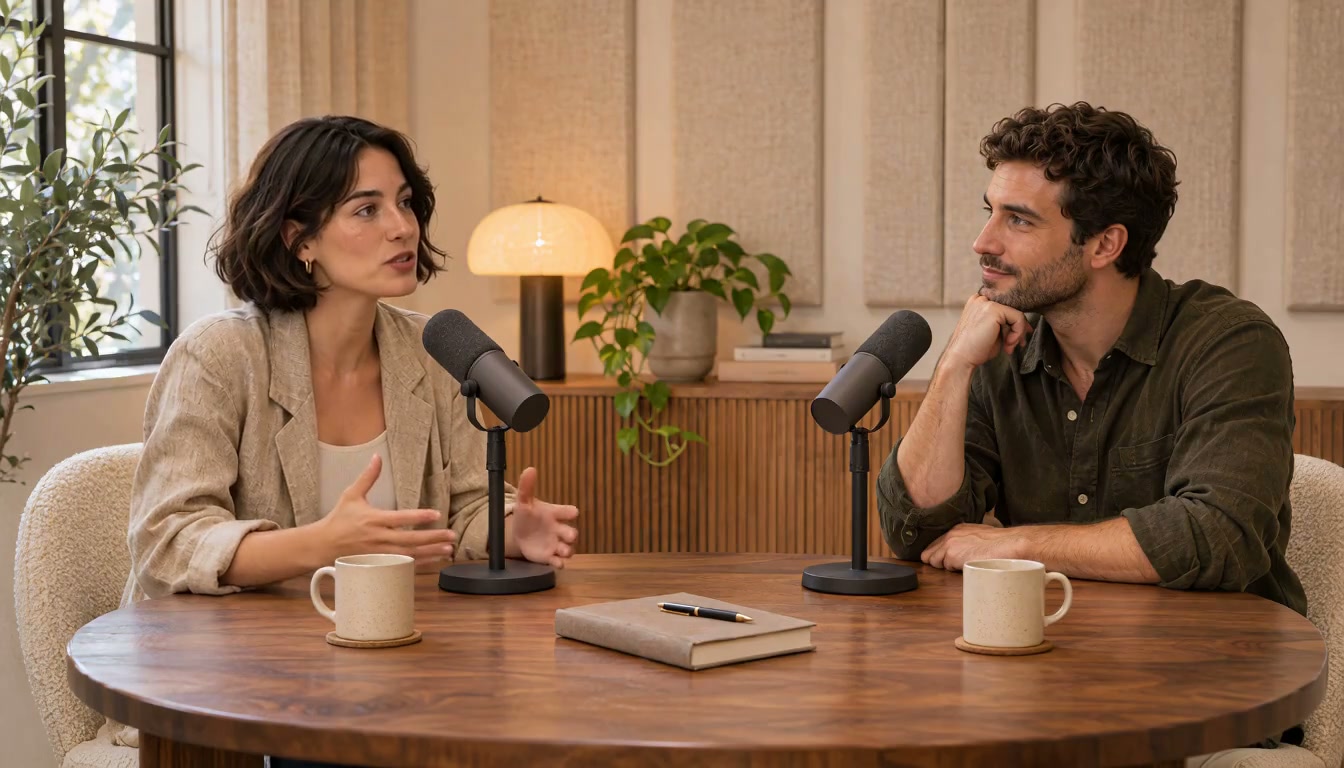
 The best stories are the ones you go out and find.
Short-form talking heads
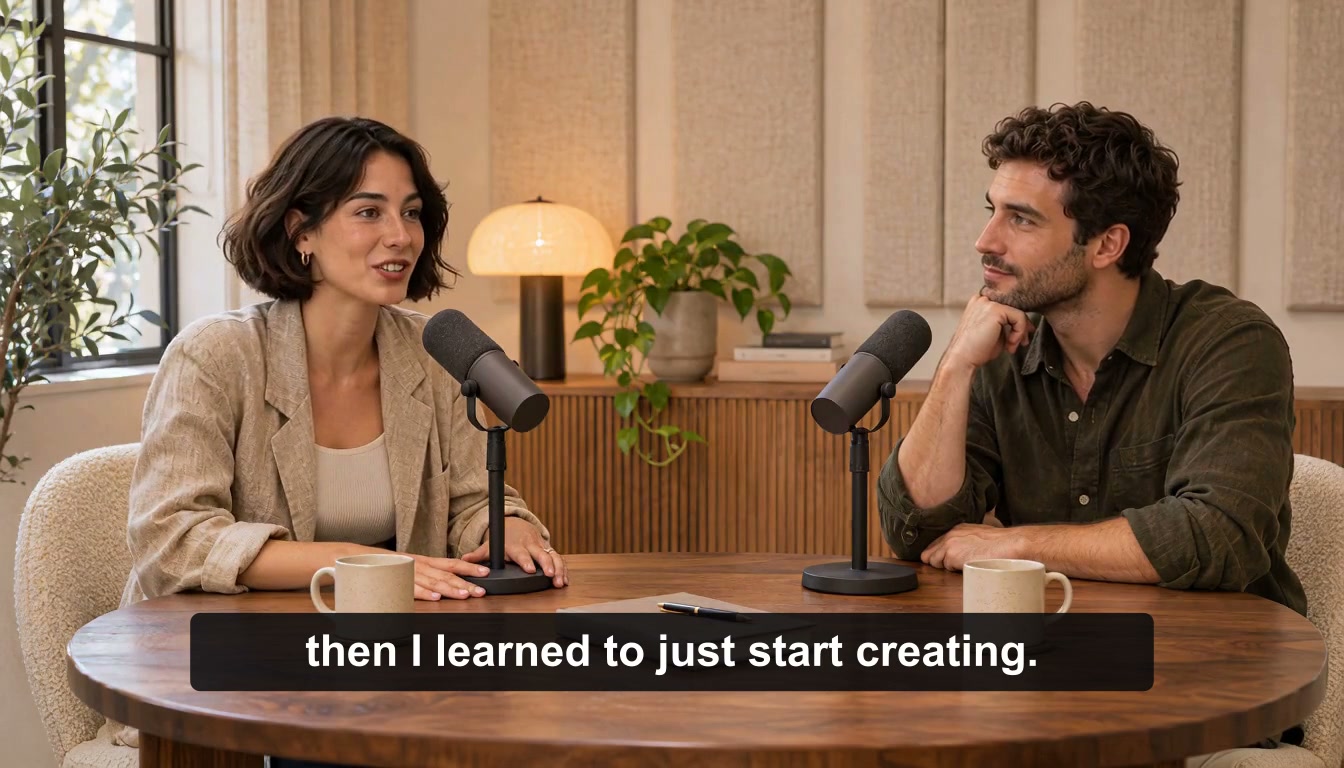
Many people scroll with the sound off. Bold captions keep the message coming through, so a viewer can follow the story before they ever turn the volume up.
Turn speech in your video into clear, timed subtitles. Generate captions automatically and choose a style that makes your message easy to follow.
Use SuperVids as an auto caption generator for spoken video, then decide how the words should look. The same take, three ways to put it on screen.
Steady, sentence-style lines that stay out of the way. A good default for interviews, lessons, and longer videos.
Interviews · LessonsBold lines with one word lifted in color, so the point of each sentence lands even at a glance.
Explainers · PromosWord-by-word captions that light up as each word is spoken, for fast, punchy clips viewed on a phone.
Short-form · SocialGenerated subtitles are a strong first draft. A short read through before you share makes sure every line says exactly what was said, at the moment it was said.
Generate subtitles from video you already have, check them, and pick a look. Your finished video carries captions that match its speech.
Choose a video where people speak: an interview, a lesson, a demo, or a clip recorded straight to camera.
The auto subtitle generator turns speech into timed lines. Review names, terms, and timing before choosing your style.
Keep clean subtitles or switch to animated captions, then finish with a captioned video that is ready to share.
Subtitles earn their place wherever someone is talking to camera and the words carry the value of the video.
The best stories are the ones you go out and find.Many people scroll with the sound off. Bold captions keep the message coming through, so a viewer can follow the story before they ever turn the volume up.
 Step two: set up your workspace
Written-out steps and technical terms are easier to follow than speech alone. Clear subtitles help learners keep up and catch the exact word you used.
 Make every word count.
Feature names, sizes, and small details stick when viewers can read them as you show them. Captions keep the demo clear from the first second.
How generated subtitles work, why a quick review matters, and where captions fit next to translation.
SuperVids is an AI caption generator for videos that turns speech into text timed to the spoken words. Review the subtitles and choose how they look, from clean lines to animated captions.
Yes. Add subtitles to your video online, starting from a recording such as a talking head, an interview, a lesson, or a product demo. The subtitles are generated from the speech in that video.
A quick review is always worth it. Any automatic subtitle generator can mishear a name, a brand term, or a word spoken over background noise, and a line can start a moment early or late. Read through the text, fix any words, and adjust the timing before you share the video.
Plain subtitles show each line in a steady, simple style that suits interviews and longer videos. Animated captions, sometimes called dynamic captions, add emphasis or movement, such as highlighting a key word or revealing word-by-word captions in time with the speech. Pick the style that suits where your video will be watched.
Not quite. Captions are short lines timed to the video that appear on screen while people speak. A transcript is the full text of what was said, read separately from the video. This tool is built around captions that sit inside your video.
The AI Subtitle Generator writes subtitles in the language spoken in your video. To bring your video into another language, use the AI Video Translator.
Access and usage depend on the current plans. Check the pricing page for what is available before you start.
Add captions to your video with AI: upload a recording, review the timed lines, and choose the style that suits it.