Create video
Upload Image
0/2,048

Start with a photo and a motion prompt

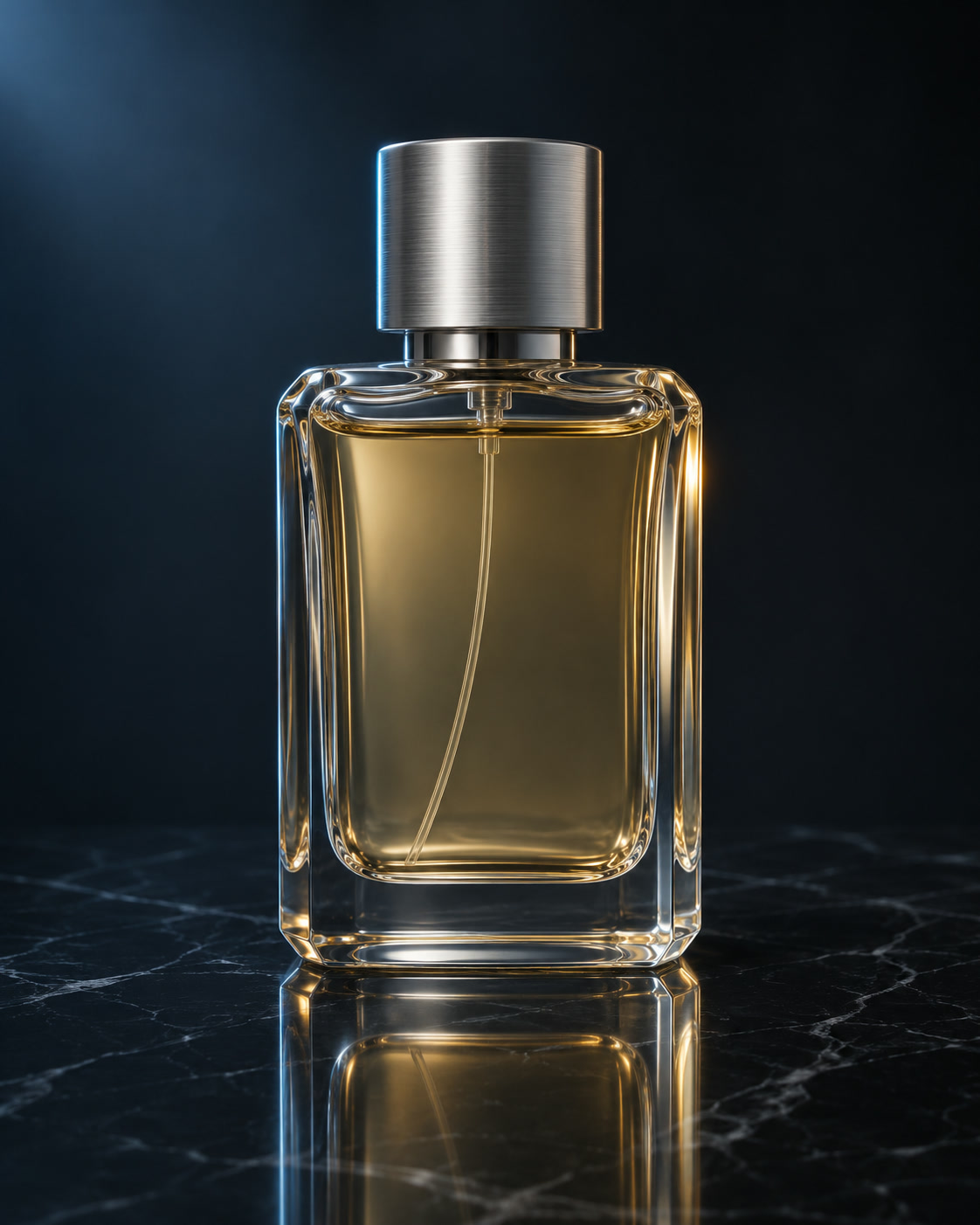
Still frame of a glass perfume bottle on dark marble
PHOTO REFERENCE · PROMPT IDEAThe camera slowly pushes toward the perfume bottle. A soft reflection travels across the glass. Keep the bottle shape and label placement steady, with the background still.
Kling 3.0 AI Video Generator

Turn your photo into a moving scene with Kling 3.0. Describe the subject’s action and camera movement, then choose how long the shot should run.

Give Your First Frame a Direction

Kling 3.0 uses your image as the starting frame. A focused prompt helps direct what happens next, from a subtle product reveal to a character’s first few steps. Try these motion briefs with your own photos.

Still frame of a glass perfume bottle on dark marble

Give a product shot a subtle reveal

Start with a clean product photo. A slow camera move and a change in light can give a short clip its focus. Check labels and edges in the result.

View motion prompt

The camera slowly pushes toward the perfume bottle. A soft reflection travels across the glass. Keep the bottle shape and label placement steady, with the background still.

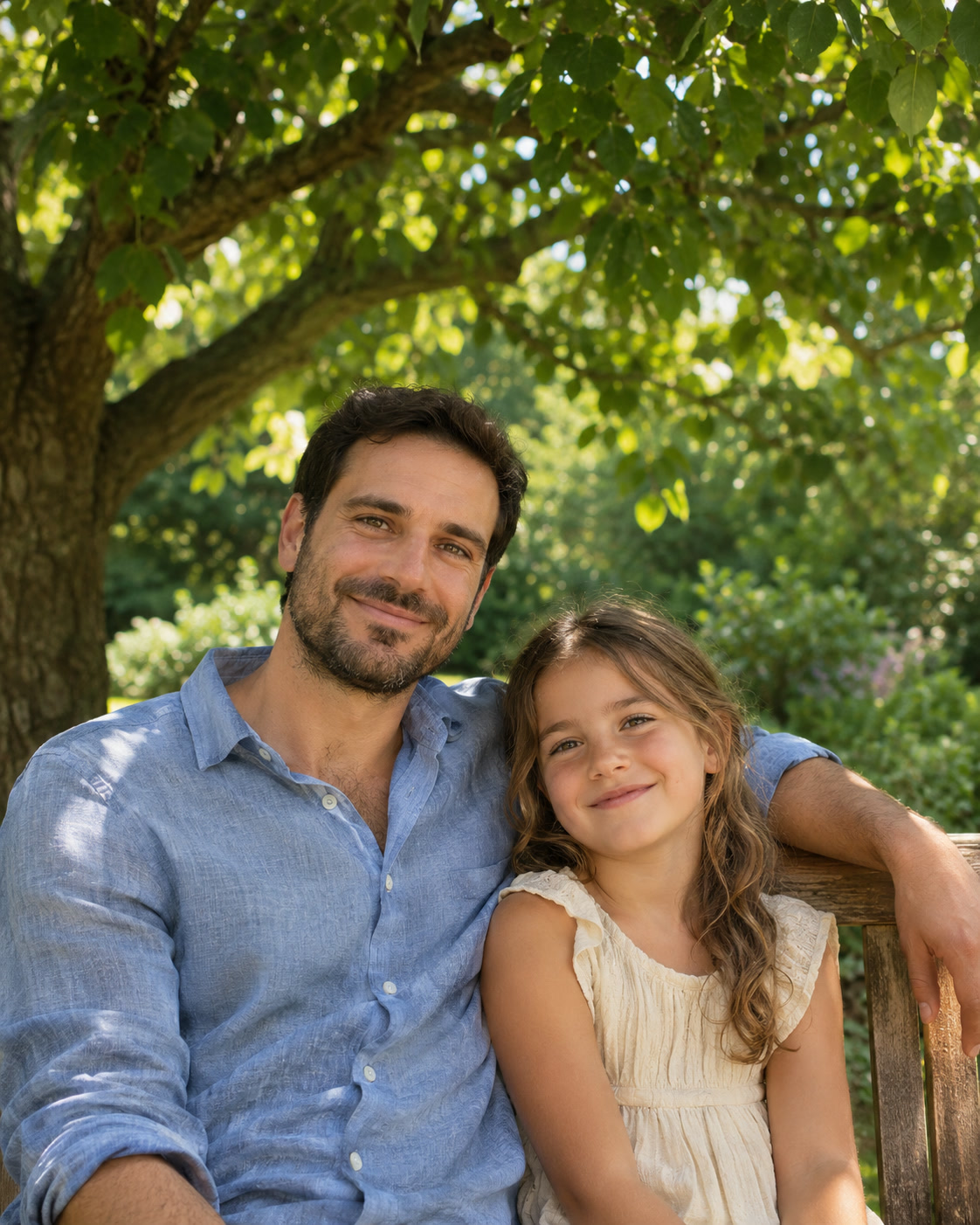
A father and child posing beneath a tree

Bring a portrait into the moment

Use a clear portrait with room around the subject. Begin with a small expression or a gentle breeze, then review facial details and movement.

View motion prompt

The people in the photo share a small smile. A light breeze moves their hair and the leaves behind them. Hold the camera steady and preserve their faces and clothing.

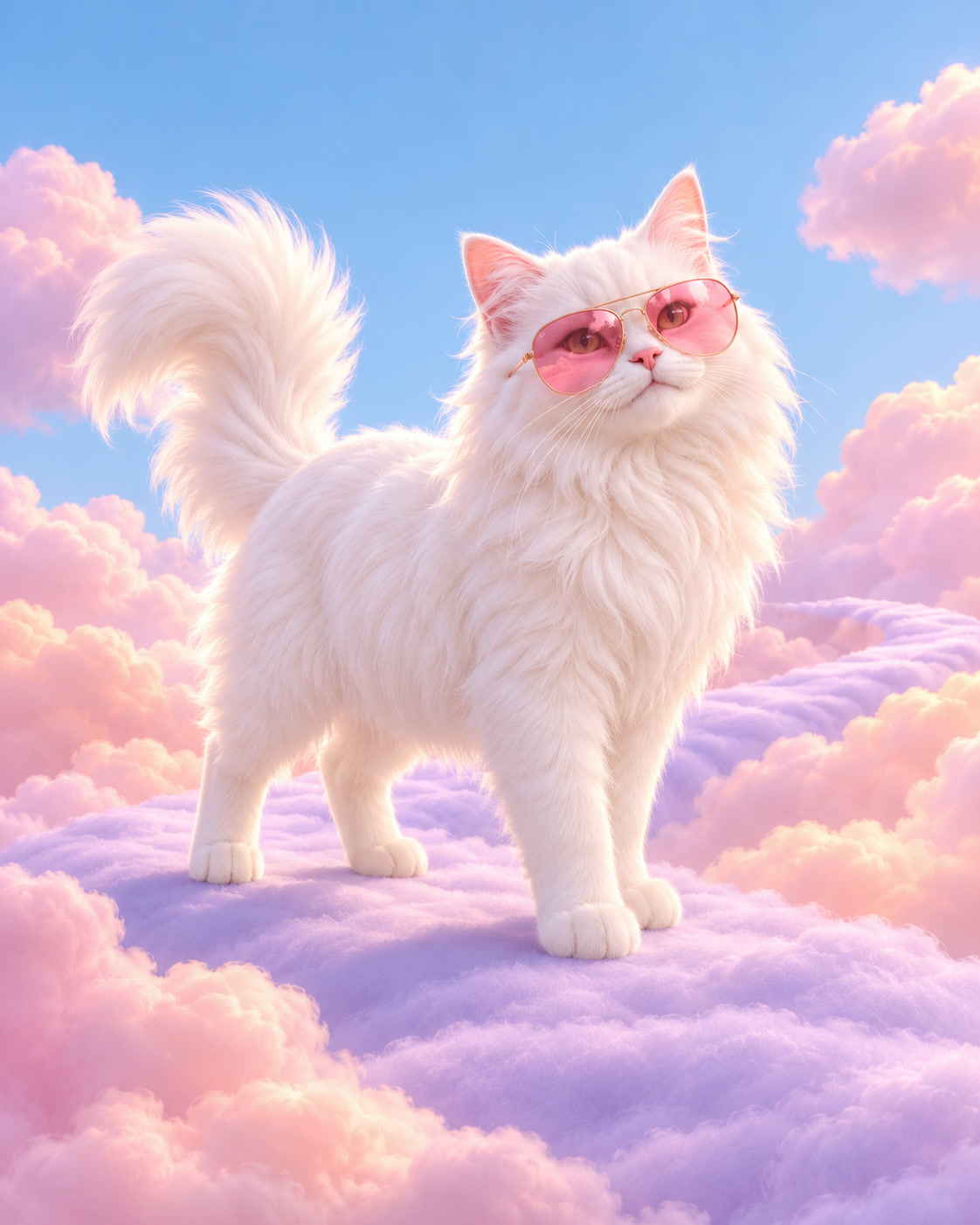
A still frame of a cat in pink sunglasses in a pastel landscape

Animate an illustrated character

Give the character one readable action. Describe the movement and the camera separately so the clip has a clear direction.

View motion prompt

The cat takes two small steps forward, then looks toward the camera. The camera tracks gently at eye level. Keep the sunglasses, colors and illustrated style consistent.

How to Create an Image-to-Video Clip with Kling 3.0

Kling 3.0 is already selected in the generator above. Bring a photo and decide which moment you want to animate.

  1. Upload your starting frame

    Upload a JPG or PNG up to 5 MB. Add a second image if you want to guide the last frame. Leave room for movement around the subject.

  2. Describe the movement

    Specify one main action, a camera move and the details to preserve. A brief, clear scene works well for a 5-second clip.

  3. Generate, review and refine

    Select Generate. Review the completed video in My Creations, then download it or adjust your prompt for another take.

Kling 3.0 Settings in This Workflow

The default is a 5-second, 720p clip in Standard mode with audio off. Choose 3–15 seconds, select 720p, 1080p, or 4K, and turn audio on if needed. The aspect ratio follows your starting image.

01

Guide motion and camera separately

Write what the subject does, then how the camera follows. For example, “The bottle stays on the table. The camera slowly moves closer.” Change one instruction at a time when comparing takes.

02

Review the details that matter

Check faces, hands, lettering and product shapes throughout the clip. Fine details and complex movements can vary between generations. Use a simpler motion prompt when a shot becomes difficult to follow.

03

Check credits before each generation

Your available credits appear after you sign in. Credits are reserved while your request is processed. You can follow the result in My Creations and find completed work in Assets.

View plans and credits ↗

Kling 3.0 Questions

How do I use Kling 3.0 on SuperVids?

Kling 3.0 is selected when you open this page. Add a first frame and an optional last frame, describe the movement, and choose your video settings. Your video appears in My Creations after generation.

Which settings are available on this page?

The default is a 5-second, 720p clip in Standard mode with audio off. Choose 3–15 seconds, select 720p, 1080p, or 4K, and turn audio on if needed. The aspect ratio follows your starting image.

Which images can I upload?

Upload a JPG or PNG up to 5 MB as the first frame. You can add a second JPG or PNG, also up to 5 MB, to guide the last frame. Use a clear subject and leave space for movement.

How should I write a Kling image-to-video prompt?

Describe the subject’s action, the camera movement and the details to preserve. Start with one main action for a 5-second clip. This form accepts prompts of at least 3 characters and up to 2,048 UTF-8 bytes.

When are credits charged for a Kling video?

Credits are reserved while the request is processed and charged when generation succeeds. Failed requests release their reserved credits.

Can I switch to another model?

Yes. Open the model selector and choose PixVerse V6 to continue in the general Image to Video tool. Your current photo and motion prompt carry over. Choose Kling 3.0 again to return to this model page.

Can I start from text instead of a photo?

Use the Text to Video tool to start from a written scene. Its model selector shows the model available for that workflow. This Kling 3.0 page is dedicated to image-to-video generation.