Create video
Upload Image

This model doesn’t support an end frame.

0/2,048

Start with a photo and a motion prompt

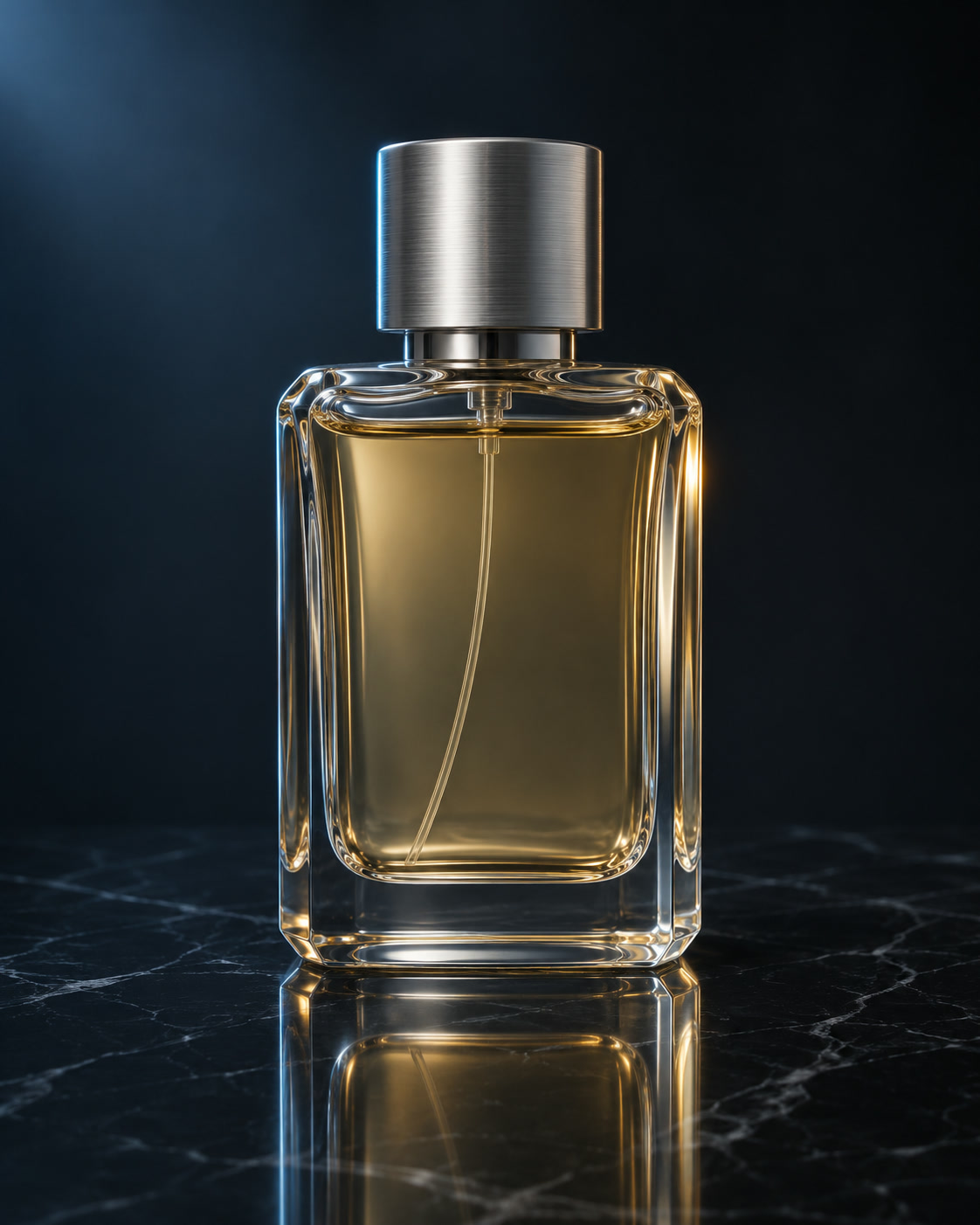
Still frame of a glass perfume bottle on dark marble
VISUAL REFERENCE · PROMPT IDEAThe perfume bottle remains still on the table. The camera slowly moves closer, with a soft highlight traveling across the glass. Preserve the bottle shape and label.
Kling 2.6 AI Video Generator

Give a still photograph a short, deliberate movement. Kling 2.6 starts from your uploaded image; use the prompt to direct the subject, camera and details you want to preserve.

Prompt Ideas for Kling 2.6

Use these visual references to plan your own shot. Select a prompt to edit it in the workbench. The reference images illustrate creative directions and are not verified outputs from this model.

Still frame of a glass perfume bottle on dark marble

A quiet product reveal

Keep the product still and let the camera introduce it.

View prompt

The perfume bottle remains still on the table. The camera slowly moves closer, with a soft highlight traveling across the glass. Preserve the bottle shape and label.

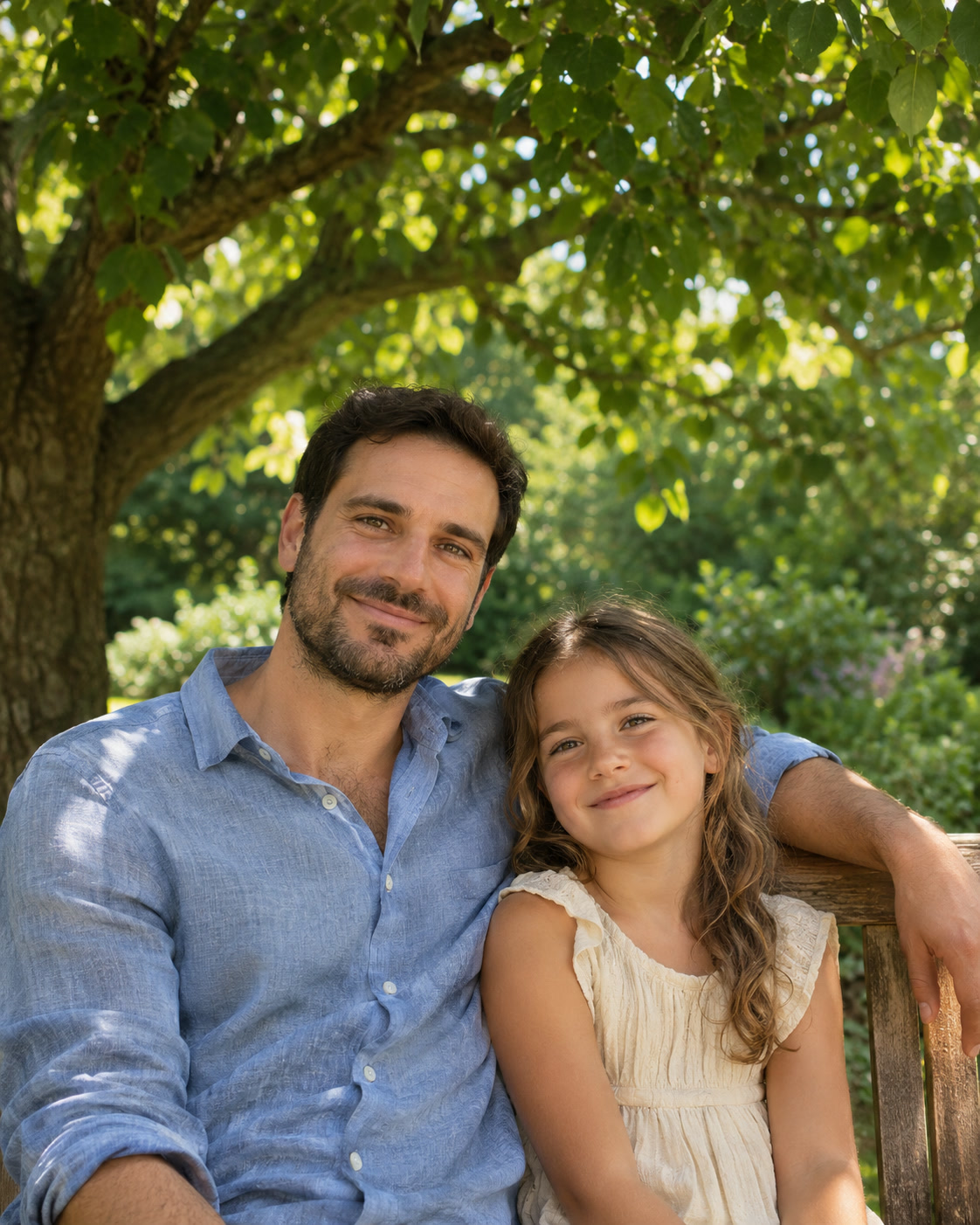
A father and child posing beneath a tree

A portrait comes to life

Use a small expression and a stable frame.

View prompt

The people in the photo smile naturally. A gentle breeze moves their hair. Keep the camera steady and preserve their faces, clothing and positions.

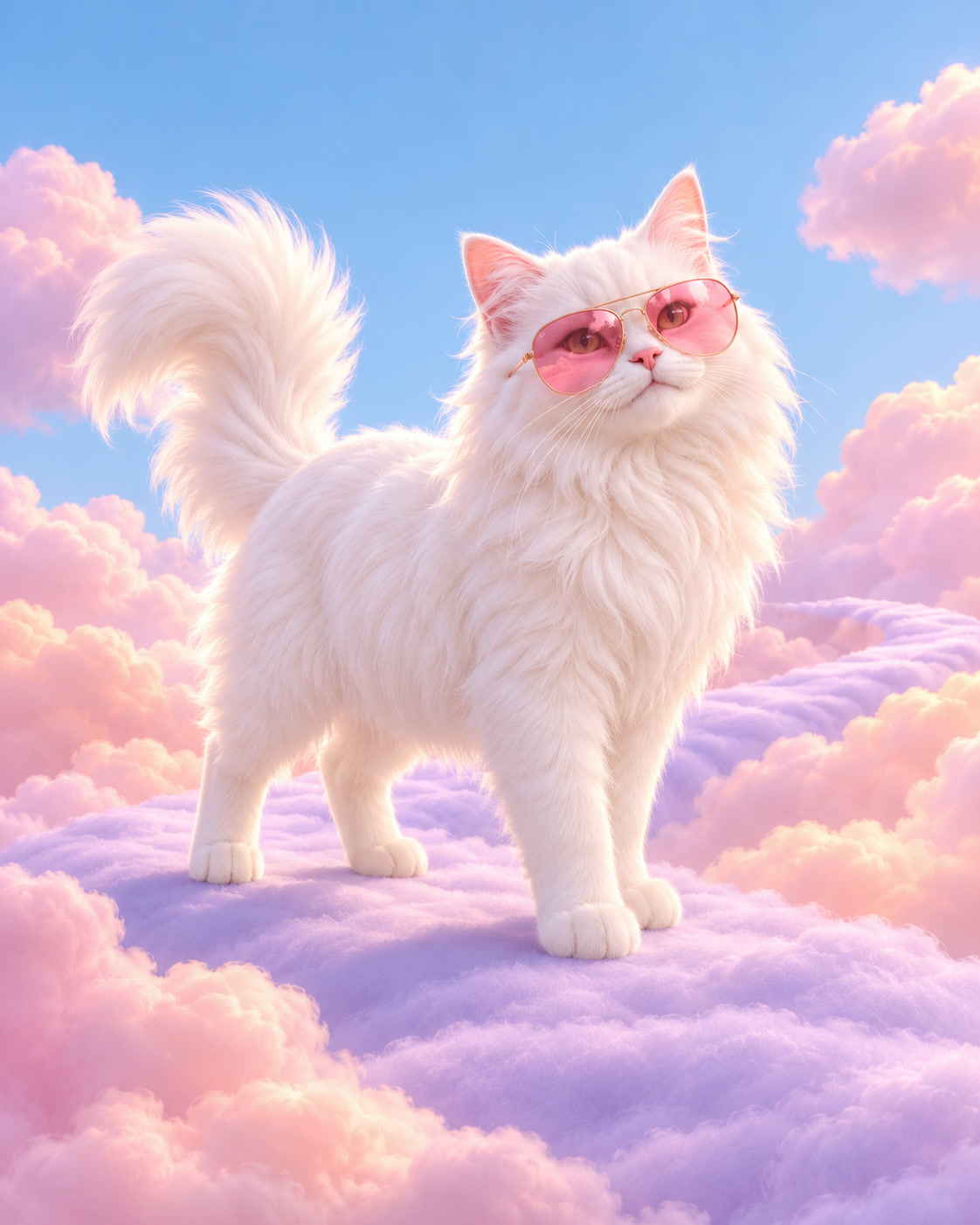
A still frame of a cat in pink sunglasses in a pastel landscape

A character notices the viewer

Give an illustrated character one clear gesture.

View prompt

The cat slowly turns its head toward the viewer and pauses. Preserve the sunglasses and illustrated style. The background stays still.

How to Create with Kling 2.6

Kling 2.6 is already selected. Start with your idea, then review the settings before generating.

  1. Upload a starting image

    Choose a clear photo with space around the subject. Upload a supported image up to 5 MB.

  2. Direct the movement

    Describe the subject’s action and camera movement. Keep the shot focused and identify details to preserve.

  3. Generate and review

    Select Generate. Find the result in My Creations, inspect the details and download the completed file.

Kling 2.6 Settings and Creative Direction

Upload one JPG or PNG up to 5 MB. The default is 5 seconds with audio off. You can select 10 seconds or turn audio on. Resolution is automatic and the aspect ratio follows your image. Prompts need at least 3 characters and can use up to 2,048 UTF-8 bytes.

01

Keep the first movement simple

A slow push toward a product or a small turn of the head is easier to judge than several simultaneous actions. Check the subject throughout the clip, not just the opening frame.

02

Separate subject motion from camera motion

State whether the subject moves, the camera moves, or both. Describe what remains still so the scene has a clear visual anchor.

03

Compare with Kling 3.0

Try the same image and motion brief in both model pages. Compare facial details, object shape and movement before choosing a take.

View plans and credits ↗

Kling 2.6 Questions

How do I use Kling 2.6 on SuperVids?

This page opens Image to Video with Kling 2.6 selected. Upload your starting image and describe the movement. Select Generate to create. Completed results appear in My Creations.

What settings are available for Kling 2.6?

Upload one JPG or PNG up to 5 MB. The default is 5 seconds with audio off. You can select 10 seconds or turn audio on. Resolution is automatic and the aspect ratio follows your image. Prompts need at least 3 characters and can use up to 2,048 UTF-8 bytes.

Is this the Kling 2.6 motion-control tool?

No. This page animates one image from a written motion prompt. It does not accept a driving video or copy choreography from another clip.

Does this Kling 2.6 workflow create audio?

Audio is off by default. Turn it on in Video settings if you want sound, then describe any desired dialogue or ambience in your prompt.

When are credits charged for Kling 2.6 generations?

Credits are reserved while the request is processed and charged on success. Failed requests release their reserved credits.

Can I switch models without retyping my prompt?

Yes. Choose another model in the selector to keep working with your image and motion prompt. Check the available settings for the selected model before you generate.