Translated speech
AI video dubbing gives your video a spoken track in the target language, using an AI voice rather than a copy of the original speaker. It suits lessons, demos, and videos people watch while listening closely.
Bring your videos to new audiences with the AI video translator. Upload a video, choose a target language, and review the translated version before you download or refine it in Editing Studio.
A video translator keeps what already works — the speaker, the pacing, the footage — and changes the language people follow it in. Here, one English video is shown next to a Spanish version.
Some audiences would rather listen, others would rather read. Choose translated speech, translated subtitles, or both for the same video.
AI video dubbing gives your video a spoken track in the target language, using an AI voice rather than a copy of the original speaker. It suits lessons, demos, and videos people watch while listening closely.
Keep the original audio and put the words on screen in a new language. Translate your video subtitles when viewers should still hear the speaker, or when the clip will often be watched with the sound off.
A translation is ready when it reads naturally to the new audience. Compare each line with the original before you download, and open the result in Editing Studio only if you want to refine it further.
| Time | English source | Spanish translation |
|---|---|---|
| 00:00 | Here's what you need to know before you get started. | Esto es lo que debes saber antes de empezar. |
| 00:04 | Step 2 | Paso 2 |
| 00:05 | Set up your workspace. | Prepara tu espacio de trabajo. |
Bring a talk, lesson, or demo recorded in another language to English-speaking viewers. A video language translator also works in the other direction: choose the language your audience speaks, then review the result.
Gracias por acompañarnos hoy.
Thanks for joining us today.
Here’s what you need to know.
Esto es lo que necesitas saber.
AI video translation fits into three short steps, from the video you already have to a version your new audience can follow.
Add an existing video with clear speech, such as a product demo, a lesson, an interview, or a short social clip.
Pick the language your audience speaks, then choose translated speech, translated subtitles, or both.
Compare the translated lines with the original and download the result. Opening it in Editing Studio afterwards is optional.
The videos you have already made can travel further. Translation lets one recording serve audiences in more than one language.

Walk customers in another market through the same demo, with feature and product names kept consistent.
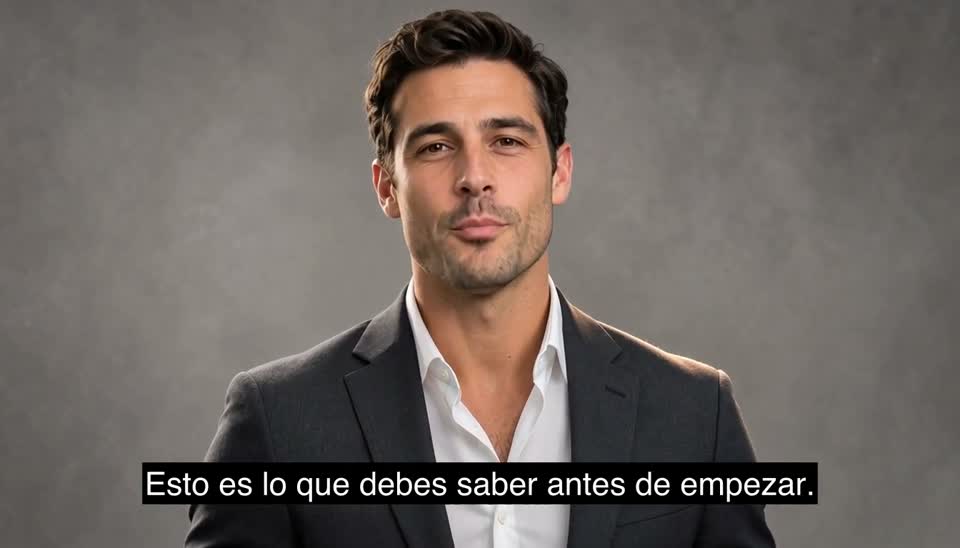
Give teams and learners the lesson in the language they work in, with subtitles they can read along to.
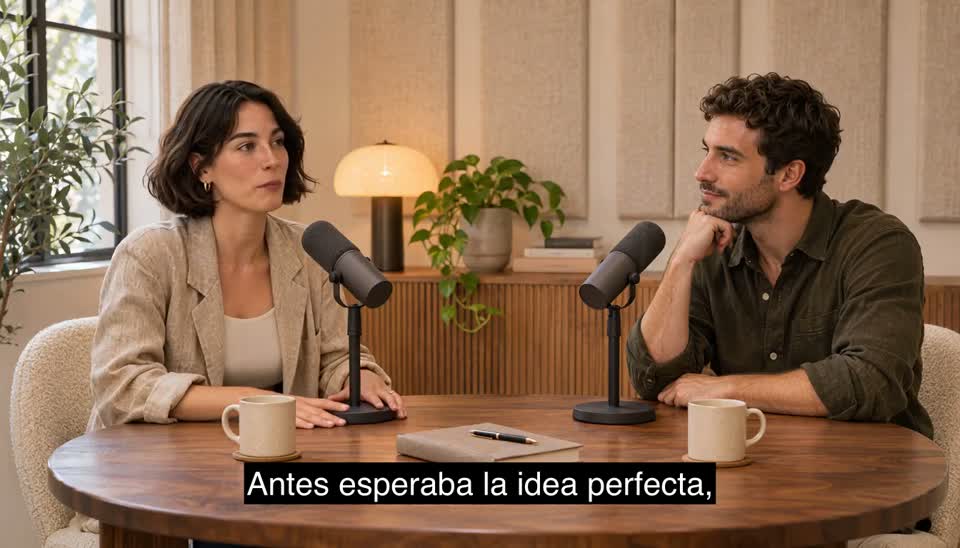
Bring a recorded conversation or session to viewers who don’t speak the language it was recorded in.

Post a short clip again for a new language audience, with translated subtitles that work with the sound off.
Many translated videos are ready to download as they are. When you want more control, open the result in Editing Studio, the full SuperVids editor. These are further edits, not required steps.
What translation changes, how speech and subtitles differ, and how the translator fits with the other SuperVids tools.
It changes the language your viewers hear or read. Translated speech gives the video a spoken track in the new language, and translated subtitles put the new language on screen. The footage itself, including scenes and on-screen objects, stays as it is.
Yes. Upload a video recorded in another language, choose English as the target, and review the translated lines before you download the result.
Translated speech suits viewers who would rather listen, such as in lessons and product demos. It uses an AI voice in the new language and is not a copy of the original speaker’s voice. Translated subtitles keep the original audio and add text in the new language, which suits interviews and clips watched with the sound off. You can also choose both.
The AI Subtitle Generator writes subtitles in the language already spoken in your video. The AI Video Translator moves the video into a different language, as translated speech, translated subtitles, or both. If you are starting with a script rather than a video, use Text to Speech to create audio from your text.
Yes, and it is worth doing. Read the translated lines next to the original and check the meaning, the spelling of names and product terms, and whether each subtitle is easy to read in the time it is on screen.
Translation changes the words, not the picture, so mouth movement is not adjusted to the new language. To match a speaker’s lips to an audio track, use the separate Lip Sync tool.
The languages on offer depend on the options currently available in the tool. Check the source and target language lists when you upload a video.
Access and usage depend on the current plans. Check the pricing page before you start.
Yes. Download the translated video as it is, or open it in Editing Studio, the full editor in SuperVids, to adjust subtitle text and timing, restyle captions, or add music.