GTA 6 AI Video Generator
This GTA 6 AI video generator turns a short scene description into a GTA style video: sunset colors, neon streets, police chases and a third-person game camera, with voice, music and sound. Pick a scene, change the line in quotes and generate a vertical clip for TikTok, Reels or Shorts, or start from your own photo.
Neon night drive
GTA 6 AI Video Examples
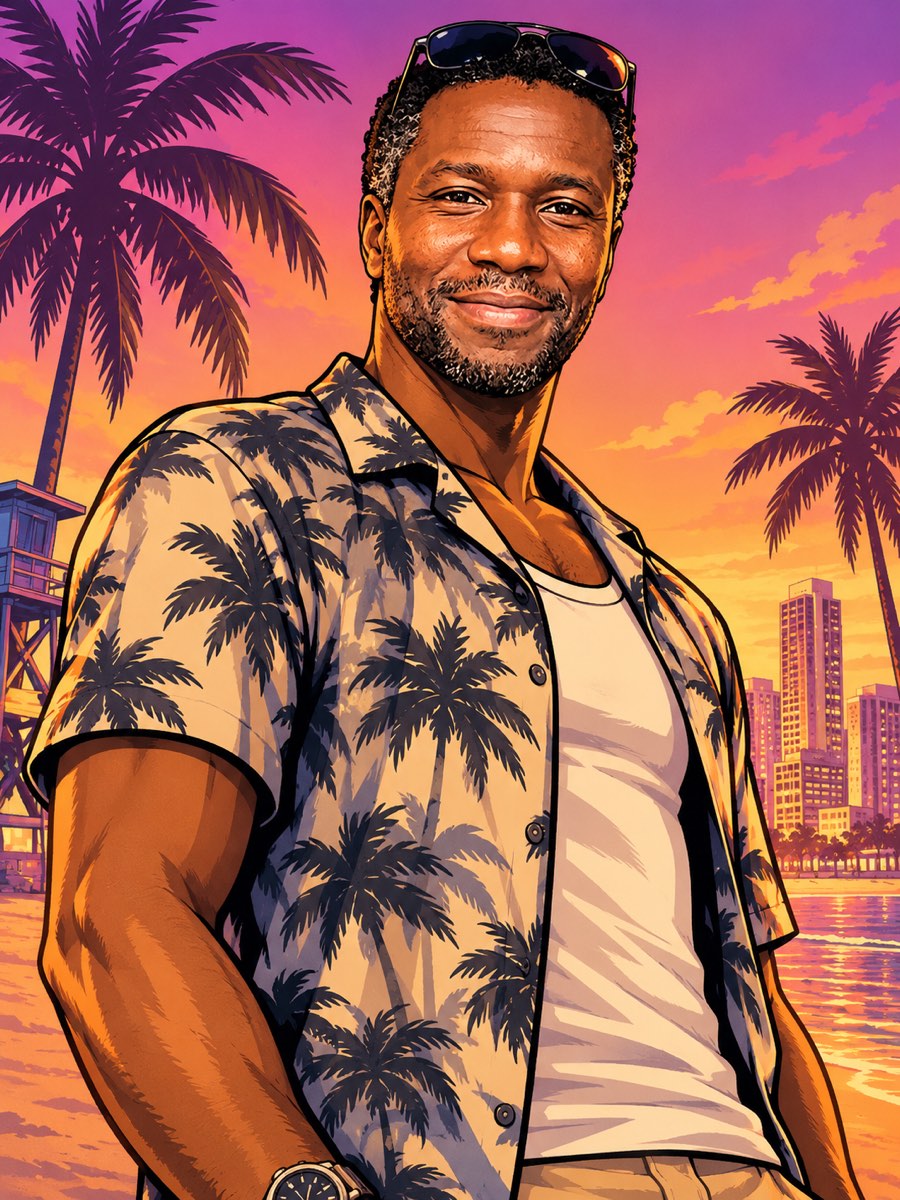
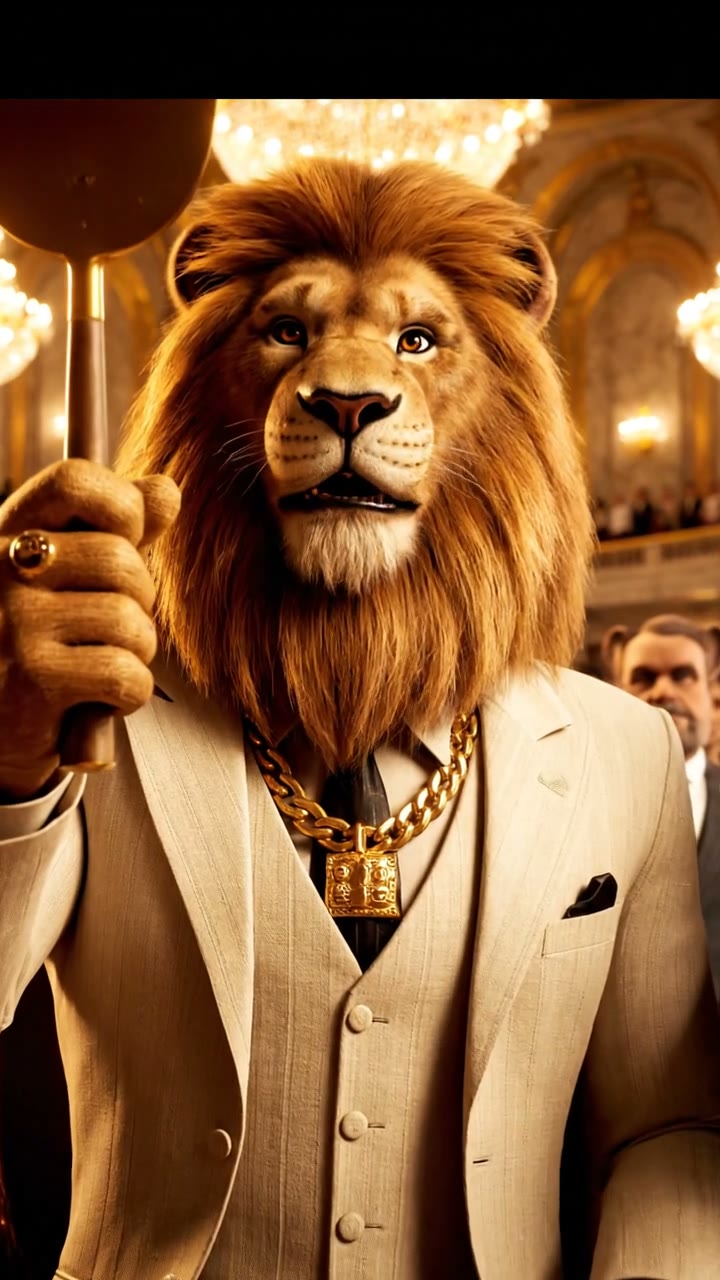
Each clip was made with Veo 3.1 Fast from the scene prompts below: 9:16, 8 seconds, 720p, with sound. The characters and places are original; turn the sound on to hear the lines.
GTA 6 Video Prompts
Pick a scene to load its full prompt into the generator, then change the character, the place or the line. The first three made the examples above.
GTA 6 Loading Screen AI: Use Your Photo
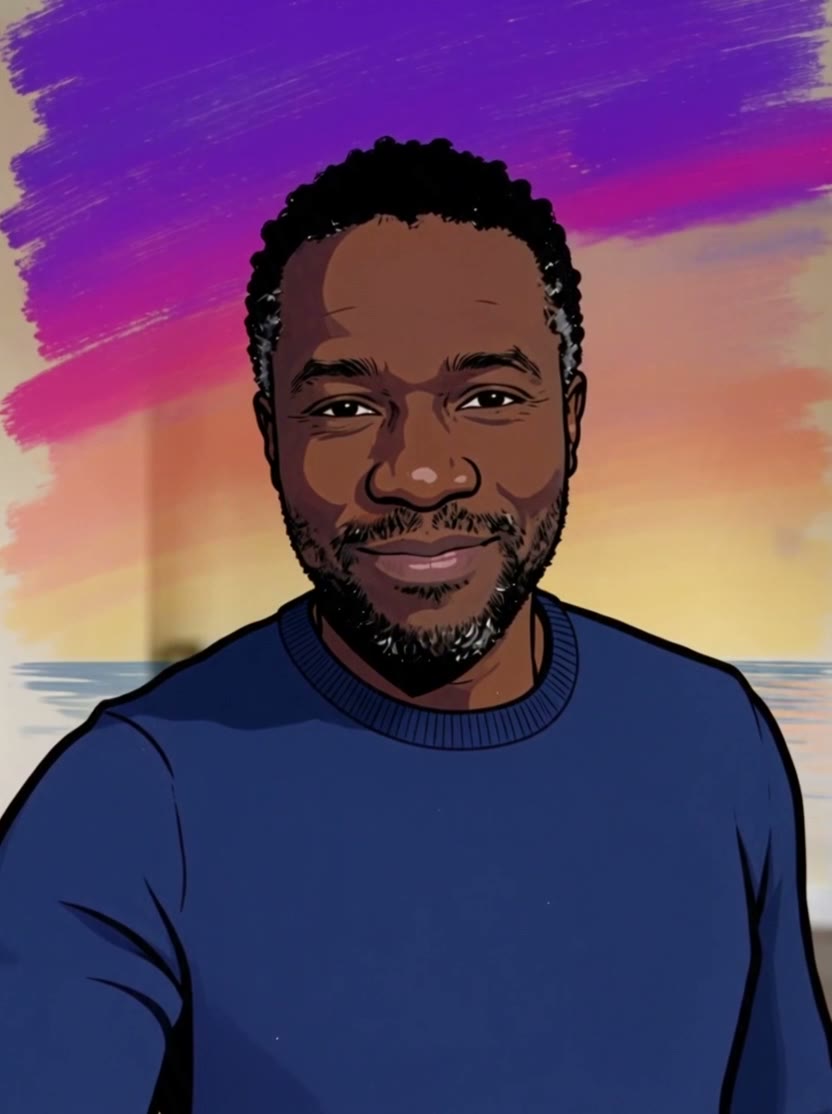
To put yourself in the video, start from a photo. In the loading screen effect you move for a moment, then the frame freezes and repaints into hand-painted loading screen art. This example started from the AI portrait shown here and was made with Seedance 2.5 Flash in Image to Video: 8 seconds, with music.
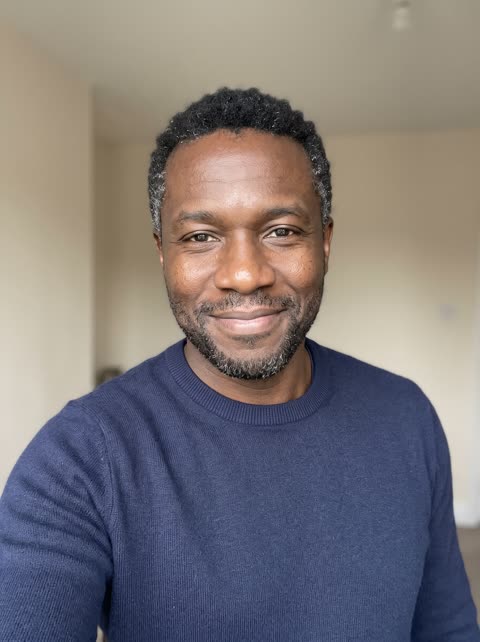
The man in the photo looks at the camera and smiles, then holds still as the frame freezes. The frozen photo repaints itself, stroke by stroke, into a hand-painted crime game loading-screen illustration: thick black ink outlines, flat saturated color, a purple-to-orange sunset sky, palm trees and a coastal city skyline behind him. He keeps the same face, hair and outfit as in the photo. Slow camera push-in, then the painted palm trees sway slightly. Laid-back synthwave music. No text, no logos, no watermark.
Use this prompt with my photoThe Goodbye GTA 5 AI Video
Another version of the trend is a farewell: someone says goodbye on a sunset pier and drives off toward a new city, a nod to leaving the old game for the new one. The farewell scene above is an original take with its own characters. Load it, change the names or the goodbye line, and generate your own.
How to Make a GTA 6 AI Video
Three steps from a scene idea or a photo to a vertical GTA style clip with sound.
- 01
Pick a scene or a photo
Start from a scene card, such as the neon drive or the five-star chase, or open the photo version to animate a picture of yourself.
- 02
Make it yours
Change the character, the place or the line in quotes. Keep the style words at the start so the clip keeps the sunset colors and the game camera.
- 03
Generate and share
Generate a vertical clip with sound, watch it with the sound on, then download it for TikTok, Reels or Shorts, or try another take.
Tips for a Better GTA Style Video
Short clips work when the look is clear and one thing happens. These details keep the GTA style and the moment easy to follow.
One action per clip
An 8-second clip carries one moment: a glance in the mirror, a laugh at the police, a handshake. Build the scene toward it instead of adding more events.
Keep the style words
Phrases like "open-world crime game cinematic", "sunset palette of pink, orange and teal" and "third-person camera" give the GTA look. Describe a style; leave out game logos and real characters.
Write the line in quotes
Put what a character says in quotes and keep it short. Veo 3.1 Fast generates the voice with the video; delivery and lip sync can vary between takes.
Use a clear photo
For the photo version, use a sharp, well-lit picture with your face visible. A front-facing portrait keeps the likeness best; an exact likeness is not guaranteed.
Which Model to Use
The scene generator starts on Veo 3.1 Fast, which makes the voice, music and sound effects together with the picture. For the photo version, the example used Seedance 2.5 Flash; Image to Video lets you pick it or another model. The generator shows the credit cost before you create.
Want a Still Picture Instead?
For a GTA style portrait, profile picture or poster, use the GTA 6 Filter AI. It redraws your photo as loading screen art, and you can bring the result back to Image to Video to animate it.
GTA 6 AI Video Generator FAQ
The trend, the photo version, sound, credits and what you can post.
What is a GTA 6 AI video generator?
A GTA 6 AI video generator makes short videos in the style of the new open-world crime game: sunset colors, neon streets, police chases and a third-person game camera. On SuperVids you describe a scene or start from a photo, and the AI creates a vertical clip with sound.
How do I make a GTA 6 AI video of myself?
Use the photo version on this page: open Image to Video with the loading-screen prompt, upload a clear photo of yourself and generate. The example on this page was made with Seedance 2.5 Flash; you can choose another model in the generator, and results vary between models.
What is the GTA 6 loading screen AI trend?
People turn a photo of themselves into the hand-painted art of a game loading screen. In the video version the person moves for a moment, the frame freezes and repaints into inked, flat-colored art with a sunset and palm trees behind them.
What is the Goodbye GTA 5 AI video?
It is a farewell clip: a person says goodbye on a sunset pier and drives off toward a new city, a nod to moving from the old game to the new one. The farewell scene on this page is an original version with its own characters.
Is the GTA 6 AI video generator free?
Sign in to get free welcome credits. Each video uses credits; the generator shows the cost before you create, and the pricing page lists current plans.
How long is the video, and does it have sound?
The scene generator uses Veo 3.1 Fast: an 8-second, 9:16 vertical video at 720p with voice, music and sound effects. You can switch models in the generator for other lengths; the credit cost changes with the model and settings.
Do I need to write a prompt?
No. Pick a scene card and generate as it is, or change only the character or the line in quotes. The full prompt is loaded into the generator, so you can see and edit every word.
Is this real GTA 6 gameplay or an official Rockstar tool?
No. The videos are AI-generated scenes in a similar style, not footage from the game. SuperVids is not affiliated with Rockstar Games, and the prompts on this page avoid game logos, characters and audio.
Can I post the videos on TikTok or YouTube?
Yes, you can download your videos and post them. Check each platform’s rules for AI-generated content, and do not present the clips as official game footage.
Whose photos can I upload?
Upload photos of yourself, or of people who have given you permission. Do not use photos of others to impersonate or embarrass them.
All examples were made with SuperVids from original prompts and an AI-generated portrait. SuperVids is not affiliated with Rockstar Games.